Monday, June 29, 2009
Five free system restore tools
If your computer suffers a major catastrophe, your best insurance against a heart attack is having previously backed up all your essential data. Even better, if you have backed up your entire disk. That's a lot easier to say than to do, of course. But Lifehacker offers five free tools to help you avoid disaster. I recently bought a 160Gb external hard drive for $100, specifically for back-ups. I figured it was a lot cheaper than paying a computer company 2-3 times that amount or more to recover my data in the face of a meltdown. So far I have been doing the back-ups manually, so now it's time to get down and learn how to actually use an appropriate back-up software package.


9 great uses for a binder clip
Binder clips are the underdog of the office supply world. The even humbler paper clip gets more attention - and inventiveness. So Lifehacker redresses the balance with nine great uses for a binder clip (apart from holding together a bundle of papers - that's too obvious). How about: emergency cuff links, keeping the toothpaste tube squeezed, or an i-phone dock?
Friday, June 26, 2009
Unclogging the hard drive
I got a surprise today while inspecting the Add & Remove programs feature of my computer to discover five Java updates listed, one of them occupying 137mb of space. My next-door tech friends tell me I only need the most recent update, so in effect Java has been leaving a whole lot of outdated material on my computer while they keep adding in the new. This prompted me to look more closely at what else is there. I admit that I am a software junkie, and like trying out programs. Often I delete them, but not always - being a hoarder, I think that one day I'll have a use for that. I did a quick total, to discover 120 items listed, totalling around 3.3 gigabytes. (Admittedly, a lot of these are system files, or essential add-ons such as a Flash player and video codecs.) The largest single item is Microsoft Office, which weighs in at 408mb, but OpenOffice is only marginally better at 349mb, and quite a number of others (particularly Adobe products) occupy around 100mb of real estate. Adobe Reader, for instance, is 88mb, whereas many alternative programs come in at a third of that.
I am now setting out on a major clean-out. If you have a mind to do the same, before you do, set up a System Restore point, so that if things go wrong, you can revert your system. (Access System Restore via Start/Help & Support.) To delete unwanted programs in XP, go Start/Settings/Control Panels/Add or Remove Programs.
I am now setting out on a major clean-out. If you have a mind to do the same, before you do, set up a System Restore point, so that if things go wrong, you can revert your system. (Access System Restore via Start/Help & Support.) To delete unwanted programs in XP, go Start/Settings/Control Panels/Add or Remove Programs.
Thursday, June 25, 2009
More on capturing streaming audio/video
Further to yesterday's post about capturing streaming audio and video, I have just discovered an add-on for Internet Explorer similar in function to Firefox's DownloadHelper. It's called the Ask & Record toolbar, a free utility put out by Applian. It makes saving a video no harder than selecting record, then from the dialog that pops up, choosing the video and saving it. Unlike DownloadHelper, however, if you leave the page the video is being played on, A&R stops recording. This means you must watch every video you want to download in its entirety. A word of caution when installing: A&R asks you if you'd like to make Ask your default search engine and home page (it defaults to this), so watch as you click through the install (good advice with any program). Applian also includes its free FLV player (the majority of online files are Flash video these days) for its own playback use.
Closing Word documents
I can never understand why programmers continually fix things that aren't broken. Microsoft continually changes bits of the Office interface, so that things go missing or don't work the way they did before. A case in point: In previous versions of Word, if you had only one document open and clicked on the X at upper right to close the document, the program remained loaded. In Word 2007, if you do the same, the entire program closes. I have watched frustrated users do this time and again. The simplest answer is to close a document using the keyboard command Ctrl-W (a shortcut which works with many applications, by the way, including web browser tabs). But why should you have to?
Wednesday, June 24, 2009
Recording streaming audio
I posted last week about the difficulties I had in recording streaming audio from an internet feed, such as from Radio Live. But some gremlin has hit my blog, and the post has been lost. Suffice to say that the usual method I used to record such audio (using the record facility in Audacity), did not work in this case, and I resorted to a very clumsy work-around. We won't go there this time. Since then, I have discovered two simple solutions. Firstly, the DownloadHelper add-on to Firefox - which I have used for several years, but did not realise worked equally well with audio as video - can save the stream to your hard drive. And a new utility I have just come across does the same. Called Multimedia Web Recorder, it can record any audio or video stream, and gives you many options for saving. It's a very neat utility.
Using the Windows key
I have never been a great one for using the Windows key on the keyboard (that's the one with the little picture, between the Control and Alt keys). All it seems to do is pop up an intrusive menu when I accidentally hit it instead of one of the other two. However, it does have a useful feature which I am beginning to like. Instead of mousing over to the Start button, and then waving the mouse around more to choose various items on the menu, or in the Programs pop-out, you can use the arrow keys on your keyboard instead. Simply press the Windows key, and then the arrow-up, arrow-right, etc, to move to the item you want.
Tuesday, June 23, 2009
Another way to move text in Word
We're all familiar with the copy and paste commands in Word and other word processors. But there is an even simply way to move lines of text or paragraphs around, using a keyboard shortcut. The shortcut is Shift-Alt + the up or down arrows.
Here is how it works: Highlight a paragraph, press Shift-Alt+up arrow or down arrow, and the paragraph will move up or down the page. If you are working in a table, the cell of the table will move. In a table, you don’t even have to select the row or item that you want to move… just make sure your cursor is somewhere in the row.
This tip also works in Excel. (Hat-tip to How-To Geek.)
Here is how it works: Highlight a paragraph, press Shift-Alt+up arrow or down arrow, and the paragraph will move up or down the page. If you are working in a table, the cell of the table will move. In a table, you don’t even have to select the row or item that you want to move… just make sure your cursor is somewhere in the row.
This tip also works in Excel. (Hat-tip to How-To Geek.)
Friday, June 19, 2009
Placing pics in Word
Word is not the easiest tool when it comes to designing pages. Some things that are simple operations in any page layout program are a nightmare to try and do in Word. Fortunately, one operation that has been improved in Word 2007 is the handling of images. If you want to place a photograph, for instance, in a Word document, from the Insert menu click on "Picture", and then choose from the dialogue box that opens. When you okay the choice, Word automatically inserts it wherever you had your text cursor in the document, and if the cursor is in the middle of a line, it will break the text at that point to accommodate the image. The result is something akin to a skyscraper in a treeless landscape. But there is much you can do to improve things. When the image is imported, you will see a dotted blue line around it, which means it is selected. And the menu bar will have changed to Format. One of the most important options there is Text Wrapping, and you have many possibilities to choose from. For simple work, I suggest "Square", which allows you to drag the image around anywhere on the page, and the text will wrap around it. If you click and drag on a corner of the image, you can resize it. I also suggest playing around with the Edit Wrap Points and More Layout Options, which give a lot more control over how the image the text interact with each other.
Embedded images: One word of caution - when Word imports an image, by default it embeds it in the document. This means that all the image information is stored within the document. It has the advantage that when you send the document to another person, you don't need to send the image as well. The disadantage is that if you try to extract and save the image as a separate item, there is a massive loss of quality. And the file size of the Word document increases by the size of the image - so it takes only a few images to quickly bloat the size of the Word document to massive amounts, certainly more than most email systems will comfortably handle. There are some alternatives, which Microsoft cleverly hides until you click on a tiny triangle next to the "Insert" button at the bottom right of the dialogue box when you choose a picture to insert. Here is some help on what the alternatives mean.
Embedded images: One word of caution - when Word imports an image, by default it embeds it in the document. This means that all the image information is stored within the document. It has the advantage that when you send the document to another person, you don't need to send the image as well. The disadantage is that if you try to extract and save the image as a separate item, there is a massive loss of quality. And the file size of the Word document increases by the size of the image - so it takes only a few images to quickly bloat the size of the Word document to massive amounts, certainly more than most email systems will comfortably handle. There are some alternatives, which Microsoft cleverly hides until you click on a tiny triangle next to the "Insert" button at the bottom right of the dialogue box when you choose a picture to insert. Here is some help on what the alternatives mean.
Amazing online photo editing tool
I have just come across a website called Aviary. Aviary makes web-based image editing tools, which allow you to do Photoshop-type work on an image just using your internet browser. Some of the options they offer are jaw-droppingly good, and way ahead of even Photoshop. The effects editor in particular is outstanding. If you are daunted by the idea of coming to grips with such complexity, they have done their best to make the process very intuitive, and a series of well-designed video tutorials walk you through everything you need to know. The company also recently launched a Firefox add-on that lets you right-click on any image in your web browser to edit it with Aviary. And all this for free!!! I don't know how they do it, but this site is going straight into my Favourites. In addition, it's believed that Aviary will soon be launching a suite of online audio production tools. I can't wait.
Thursday, June 18, 2009
Recover deleted files
It's the stuff to rival your worst nightmares. You send a file to the Recycle/Trash bin, empty the bin, and suddenly realise you have just deleted a vital document. Fortunately, help is at hand. There are numerous programs that can recover these files, and most often they work very well. The reason they can recover files is because a deleted file is not actually wiped from your computer's hard drive immediately. All you have done is give the computer permission to use that space when it runs out of room elsewhere. So if you have not done any work in the meantime, the chances are probably better than 99% you can get the file back. The caveat is that you should attempt recovery as soon as you realise your mistake. Recuva, a free utility, offers to restore files emptied from the Recycle bin as well as images and other files that have been deleted by user error from digital camera memory cards or MP3 players. "It will even bring back files that have been deleted by bugs, crashes and viruses!"
Incidentally, if you have merely sent a file to Recycle/Trash and not emptied the bin, you don't need a recovery utility at all. Open the bin, locate and select the file, then right-click and choose "restore". That will return the file to the place from whence it came.
Incidentally, if you have merely sent a file to Recycle/Trash and not emptied the bin, you don't need a recovery utility at all. Open the bin, locate and select the file, then right-click and choose "restore". That will return the file to the place from whence it came.
Wednesday, June 17, 2009
Archiving web pages
One of the advantages of Internet Explorer is its ability to save/archive a web page as a single archive file (to which it gives the extension .mht), a feature it has had from the early days. To do this, you simply choose File/Save As, and then the option "Web archive, single file". You can view the archived pages at any time, not necessarily when connected to the internet. If you do much research work on the internet, this archive format is a real boon.
Firefox does not have this feature built in - you get only the options to save a page as a text file (with images missing), or as a "Web page, complete". If you choose the latter, images and other bits and pieces from the page are stored in a new folder the browser automatically creates. However, an archive add-on is available which does the same job as Internet Explorer, and which appears to be able to store multiple pages in the same archive (I haven't tried this latter feature yet).
Firefox does not have this feature built in - you get only the options to save a page as a text file (with images missing), or as a "Web page, complete". If you choose the latter, images and other bits and pieces from the page are stored in a new folder the browser automatically creates. However, an archive add-on is available which does the same job as Internet Explorer, and which appears to be able to store multiple pages in the same archive (I haven't tried this latter feature yet).
Tuesday, June 16, 2009
If Bill Gates ran the auto industry
The following has been going the rounds for years, but it's worth recycling. (PS: It's a joke that has taken on the quality of urban myth, as the folk at Snopes explain.)
At a recent computer expo (COMDEX) Bill Gates reportedly compared the computer industry with the auto industry and stated, "If GM had kept up with technology like the computer industry as, we would all be driving 25.00 dollars cars that got 1,000 miles to the gallon." In response to Bill's comments, General Motors issued a press release stating: If GM had developed technology like Microsoft, we would all be driving cars with the following characteristics:
1. For no reason whatsoever, your cash would crash twice a day.
2. Every time they repainted the lines on the road, you would have to buy a new car.
3. Occasionally your car would die on the freeway for no reason. You would have to pull over to the side of the road, close all of the windows, shut off the car, restart it, and reopen the windows before you could continue.4. Occasionally, executing a maneuver such as a left turn would cause your car to shut down and refuse to restart, in which case you would have to restart the engine.
5. Macintosh would make a car that was powered by the syun, was reliable, five times as fast and twice as easy to drive, but would run on only five percent of the roads.
6. The oil, water temperature, and alternator warning lights would all be replaced by a single "This car has performed An Illegal Operation."
7. The airbag system would ask "Are you sure" before deploying.
8. Occasionally, for no reason whatsoever, your car would lock you out and refuse to let you in until you simultaneously lifted the door handle, turned the key and grabbed ahold of the radio attenna.
9. Every time a new car was introduced, car buyers would have to learn how to drive all over again because none of the controls would operate in the same manner as the old car.
10. You'd have to press the "Start" button to turn on the engine.
On the theme of Microsoft jokes, this is my second favourite:
Q: How many Microsoft technicians does it take to change a light bulb?
A: None. They redefine darkness as the industry standard.
At a recent computer expo (COMDEX) Bill Gates reportedly compared the computer industry with the auto industry and stated, "If GM had kept up with technology like the computer industry as, we would all be driving 25.00 dollars cars that got 1,000 miles to the gallon." In response to Bill's comments, General Motors issued a press release stating: If GM had developed technology like Microsoft, we would all be driving cars with the following characteristics:
1. For no reason whatsoever, your cash would crash twice a day.
2. Every time they repainted the lines on the road, you would have to buy a new car.
3. Occasionally your car would die on the freeway for no reason. You would have to pull over to the side of the road, close all of the windows, shut off the car, restart it, and reopen the windows before you could continue.4. Occasionally, executing a maneuver such as a left turn would cause your car to shut down and refuse to restart, in which case you would have to restart the engine.
5. Macintosh would make a car that was powered by the syun, was reliable, five times as fast and twice as easy to drive, but would run on only five percent of the roads.
6. The oil, water temperature, and alternator warning lights would all be replaced by a single "This car has performed An Illegal Operation."
7. The airbag system would ask "Are you sure" before deploying.
8. Occasionally, for no reason whatsoever, your car would lock you out and refuse to let you in until you simultaneously lifted the door handle, turned the key and grabbed ahold of the radio attenna.
9. Every time a new car was introduced, car buyers would have to learn how to drive all over again because none of the controls would operate in the same manner as the old car.
10. You'd have to press the "Start" button to turn on the engine.
On the theme of Microsoft jokes, this is my second favourite:
Q: How many Microsoft technicians does it take to change a light bulb?
A: None. They redefine darkness as the industry standard.
Converting web documents to pdf
A couple of weeks ago I was searching for a way to turn web documents I had authored in Dreamweaver into pdf files. The answer is actually fairly simple.
Microsoft Word can open any web (html) document. The results may not display exactly as in the original, but a little tweaking will probably fix that. Then it is a simple matter to turn the Word document into a pdf, using the "Save As..." command. You will need to install the pdf add-in from Microsoft if you do not already have it, but it is a free download.
Microsoft Word can open any web (html) document. The results may not display exactly as in the original, but a little tweaking will probably fix that. Then it is a simple matter to turn the Word document into a pdf, using the "Save As..." command. You will need to install the pdf add-in from Microsoft if you do not already have it, but it is a free download.
Monday, June 15, 2009
Solve Word 2003-2007 incompatibilities
Microsoft changed Word's format with version 2007. Word documents created with Office 2007 are given the file extension .docx, which is a different standard from the .doc format of all previous versions. (At least the suffix does you a clue that you are dealing with two different animals.) The downside is that if you have only Word 2003 or earlier - and I have Word 2000 still chugging along happily on one machine - you cannot open the new format. Fortunately, there are several solutions.
1. If you're using Word 2007, you can still save your files as .doc files so that anyone can read them. To save an individual file this way, in the Save As dialog box's 'Save as type' pull-down menu, select Word 97-2003 Document. You can also set that format as your default. Click the Office logo in the top-left corner of the Word screen, then select Word Options (bottom right of the dialogue box that pops up). In left pane, click Save. In right pane, for 'Save files in this format,' select Word 97-2003 Document (*.doc). Click OK.
2. If you're using Word 2000, 2002, or 2003, you can download and install the Microsoft Office Compatibility Pack for Word, Excel, and PowerPoint 2007 File Formats. The downloads are free.
3. Another option is to use OpenOffice.org as your word processor. Version 3 recently released can open .docx files quite happily. If you have only an earlier version (hey, it's a free download), you can use the updated Word Viewer from the Microsoft website and use it to open the .docx document. This document can then be copied and pasted into OpenOffice. Another possibility is to use the free online service called docx-converter which converts documents into the format readable by OpenOffice.
I should note in passing that OpenOffice's default format is called "open doc", which saves files with the extension .odt. This format can be read by virtually every word processor, even including Word!
1. If you're using Word 2007, you can still save your files as .doc files so that anyone can read them. To save an individual file this way, in the Save As dialog box's 'Save as type' pull-down menu, select Word 97-2003 Document. You can also set that format as your default. Click the Office logo in the top-left corner of the Word screen, then select Word Options (bottom right of the dialogue box that pops up). In left pane, click Save. In right pane, for 'Save files in this format,' select Word 97-2003 Document (*.doc). Click OK.
2. If you're using Word 2000, 2002, or 2003, you can download and install the Microsoft Office Compatibility Pack for Word, Excel, and PowerPoint 2007 File Formats. The downloads are free.
3. Another option is to use OpenOffice.org as your word processor. Version 3 recently released can open .docx files quite happily. If you have only an earlier version (hey, it's a free download), you can use the updated Word Viewer from the Microsoft website and use it to open the .docx document. This document can then be copied and pasted into OpenOffice. Another possibility is to use the free online service called docx-converter which converts documents into the format readable by OpenOffice.
I should note in passing that OpenOffice's default format is called "open doc", which saves files with the extension .odt. This format can be read by virtually every word processor, even including Word!
Friday, June 12, 2009
Recovering a lost Windows password
Nothing can freeze the blood like losing the logon password to your computer. It's all-too-easy to forget these things, particularly if you have set up multiple user accounts and you use some only infrequently. Or you have set up a user account for your kids who are as good at remembering things as they are at putting their clothes away. Fortunately, help is at hand. This video at PC World explains a range of options you can follow to regain your sanity.
Free word processors
A colleague has an ageing computer, which can run only an old version of Word. She can't afford to purchase a new version, so what to do? Fortunately, there is a large range of open source (ie, free) word processors available, some of which give Microsoft Office a hefty run for its money. The most popular is probably OpenOffice.org, which almost matches Word feature-for-feature, and in addition adds a few which Office does not have, such as a drawing program. In addition, it has an installed user base of millions of people, so there is plenty of help if you strike difficulties. A list of the best-known word processors is here, and most of these run on Mac and Linux as well as Windows.
A new Office package I have only just heard of, and which is not included in the above list, is The Fifth Element, from Ssuite Software. It apparently packs in even more features than OpenOffice.org. Certainly you can't lose by trying any of these (except maybe if you exceed your broadband download cap).
A new Office package I have only just heard of, and which is not included in the above list, is The Fifth Element, from Ssuite Software. It apparently packs in even more features than OpenOffice.org. Certainly you can't lose by trying any of these (except maybe if you exceed your broadband download cap).
Thursday, June 11, 2009
How secure is your "secret question"?
Many websites that require passwords recognise that most of us have a fit of forgetfulness from time to time. So they offer a "secret question" option when you sign up, for use when you have lost or forgotten the original logon. The theory is that only you know the answer to the secret question - except that many hackers are very adept at working out the answers to these questions, especially if the question is something like "where were you born", or "what is your pet's name"? Technology Review looks further into the issue in this article.
There are other ways to solve the problem, as there are numerous programs which can store you passwords securely. Some free examples are Password Safe, Key Folder and Secret Server.
There are other ways to solve the problem, as there are numerous programs which can store you passwords securely. Some free examples are Password Safe, Key Folder and Secret Server.
Wednesday, June 10, 2009
Free typefaces
I posted yesterday on clip art. Today, it's time to look at typefaces. The right typeface can really enhance the look of a document (indeed, some graphic designers consider that typography is the most important part of good design). Conversely, inappropriate typefaces - or too many different ones in the same document - can work against good design. While Mac, PC and Linux systems all come with a range of typefaces pre-installed, they are fairly limited, and I draw on a big stable of others I have gathered over the years. These days, there are plenty of websites offering huge ranges.
One of the best collection of "classic" (ie, well-designed or well-known) typefaces is at http://www.fontcenter.de
SearchFreeFonts has more than 13,000 typefaces, including many classics.
Fontyukle claims to be the world's biggest repository of type faces, and has many that are otherwise hard to get. However, its procedure for locating and downloading is clumsy. (Hints: use the search engine to locate by name, and you will have to endure a Capchacode when you start to download.)
Betterfonts claims to have over 10,000 typefaces.
There are 6500+ fonts at WebPageFonts
And a big selection at this site.
Once you have installed all these fonts, how can you view them easily, to decide which to use? Word gives you a representation when you click on the menu bar, but it may not be convenient to go into Word to see the list. A better alternative is a little program called FontView. It finds all the typefaces in your system, and displays them in an alphabet or short sentence (you can type whatever you want, and it will display those letters).
Finally, a note about the difference between a typeface and a font. Technically, the typeface is the family (eg, Arial, Helvetica, Times). The font is the individual member within that typeface family (eg, Arial Bold, Times Italic). These days, the distinction has been all but lost, and people generally use "font" to mean "typeface".
One of the best collection of "classic" (ie, well-designed or well-known) typefaces is at http://www.fontcenter.de
SearchFreeFonts has more than 13,000 typefaces, including many classics.
Fontyukle claims to be the world's biggest repository of type faces, and has many that are otherwise hard to get. However, its procedure for locating and downloading is clumsy. (Hints: use the search engine to locate by name, and you will have to endure a Capchacode when you start to download.)
Betterfonts claims to have over 10,000 typefaces.
There are 6500+ fonts at WebPageFonts
And a big selection at this site.
Once you have installed all these fonts, how can you view them easily, to decide which to use? Word gives you a representation when you click on the menu bar, but it may not be convenient to go into Word to see the list. A better alternative is a little program called FontView. It finds all the typefaces in your system, and displays them in an alphabet or short sentence (you can type whatever you want, and it will display those letters).
Finally, a note about the difference between a typeface and a font. Technically, the typeface is the family (eg, Arial, Helvetica, Times). The font is the individual member within that typeface family (eg, Arial Bold, Times Italic). These days, the distinction has been all but lost, and people generally use "font" to mean "typeface".
NZ's top 10 risky online behaviours
We're used to not clicking on sex drug emails, we know that sending vast sums of money to people in Nigeria isn't very clever, and most now understand that loading a Facebook photo of yourself sitting on a beach while you're meant to be off sick could get you in trouble with the boss, says The NZ Herald.
"But while Kiwis are getting better at not being screwed by cybercrooks, the internet security boffins at Trend Micro say we're still making big mistakes in our often-risky online behaviour.Here's the list...
Trend Micro's security experts have identified the top ten mistakes that New Zealanders are still making in their online lives - putting our finances, our PCs and our private lives at risk."
Tuesday, June 9, 2009
Clip art
Clip art can be a real help in dressing up otherwise bland reports, newsletters and the like. In the old days (like, 10 years ago), I bought Corel Draw simply to get access to a good collection of clip art and typefaces. This has been rendered completely redundant by the internet, where you can find almost unlimited resources for free. There are scads of sites containing clip art these days, although the quality is pretty awful in many cases. Here are few in my browser's address book:
i-clipart says it has 30,000+ images in its collection.
A major resource is at Public Domain Clip Art, with 25,000+.
A newly revamped site is the Open Clipart project, which now has 11,000+ images.
And of course we can't ignore the 50,000 or so images and sounds on offer at Microsoft, for use in Word, Publisher, etc.
i-clipart says it has 30,000+ images in its collection.
A major resource is at Public Domain Clip Art, with 25,000+.
A newly revamped site is the Open Clipart project, which now has 11,000+ images.
And of course we can't ignore the 50,000 or so images and sounds on offer at Microsoft, for use in Word, Publisher, etc.
I surf unprotected...
...writes Michael Scalisi. "That's right. I don't use any anti-malware applications," he says.
"In over two years, I haven’t gotten a single virus or piece of malware. The only protection I have is that I’m behind a Linksys firewall and I have my Windows firewall enabled. On this computer I’ve used Windows XP, Vista, and currently Windows 7 Beta.
"How have I managed this dangerous and reckless feat without any consequences? Simple. I trust no one. If for some reason a pop up Window comes up asking me to click OK or Cancel, I click on ‘X’ instead, I never open e-mail from people I don’t know regarding products I didn’t buy. I keep my system updated with the newest security updates from Microsoft. I use Chrome as my main browser, but I also use Firefox and IE only when I have to."
Monday, June 8, 2009
AVG accidentally harms PCs
According to Ian Paul, PC World, users of AVG's virus scanner received a bit of a shock in the past week from the antivirus program, which instructed them to delete a core Windows file that their PCs actually needed. AVG mistakenly believed the file, called "user32.dll," contained several viruses. Users were instructed to delete it, which caused their computers to jump into an endless loop of reboot cycles. The only way out of this is to boot the computer from the original Windows CD and run the repair option.
AVG is wildly popular because of the free version it offers to home users. However, this is not the first time that AVG has had a problem with user32.dll. Last year, AVG alerted users that user32.dll had been "changed" and could be infected. At the time, the program did not recommend any action, but did cause users to post a frenzy of worried messages on some Internet forums. Earlier this month, AVG was also registering a false positive on ZoneAlarm, another security product. AVG says it has fixed the current user32.dll problem and apologized for the mishap on its forum.
AVG is wildly popular because of the free version it offers to home users. However, this is not the first time that AVG has had a problem with user32.dll. Last year, AVG alerted users that user32.dll had been "changed" and could be infected. At the time, the program did not recommend any action, but did cause users to post a frenzy of worried messages on some Internet forums. Earlier this month, AVG was also registering a false positive on ZoneAlarm, another security product. AVG says it has fixed the current user32.dll problem and apologized for the mishap on its forum.
Friday, June 5, 2009
Deleting email attachments
A friend who is a Mac owner would like to slim down her email inbox by deleting all the attachments from the emails, but keeping the main body of the message. (She has already saved important attachments to folders elsewhere on her hard drive.) As far as my investigations can tell, the Mac Mail program does not have this facility. However, the Thunderbird email program (which I use at home) does have that ability, and a Mac version of Thunderbird is available. When you install Thunderbird, it gives you the option to import your emails and address books from your other program, so you don't have to lose any important contacts. On a PC, Microsoft Outlook 2007 has the ability to delete attachments (not sure about earlier versions), but Outlook Express does not. Again, the PC version of Thunderbird does. For Mac owners who do not want to move away from Mail, I can think of two other work-arounds (both a bit clumsy). One is to forward the email to your own address, deleting the attachment at that point. The other is to save the email as a text-only file in an appropriate folder on the hard drive.
Salvaging the accidents
The "oh crumbs!" moment is a fact of life when you work with computers. (Ok, I'll admit it, the strength of the expletive is in direct proportion to the severity of the stuff-up.) How many times have I accidentally deleted text I have slaved over, or destroyed a work of art in Photoshop with a slip of the mouse?
When this happens, I try hard not to panic, stop everything, take a deep breath, and then hit "undo" keys, Ctrl-Z. (I wish life had a Ctrl-Z key to erase those dumb things I do or say.) Some programs, such as Word, have almost unlimited levels of undo. Just keep hitting Ctrl-Z, and you can go back a long way down the path you have come. If you undo too much, you can redo by going to the Edit menu and choosing that option. Some programs, like PhotoShop, by default have only one level of undo. Then, Ctrl-Z becomes a toggle between undoing and redoing. However, PhotoShop also has a History function, found under the Window menu, which allows you to go back to any particular action and alter it.
Some programs have a Revert function (usually found under the File menu). Choosing this takes the document back to the last-saved version. Depending on how frequently you save, this may take you back further than you wanted to go, but it can salvage many worst-case scenarios. As I have got myself into the habit of saving text documents at least every five minutes, Revert has been my saviour on many occasions.
Word does not have a Revert feature, but one more option is open to you, which also works for every other program without exception. Simply close the document, and when you are prompted, do not save the changes. That will take the document back to its last-saved version.
When this happens, I try hard not to panic, stop everything, take a deep breath, and then hit "undo" keys, Ctrl-Z. (I wish life had a Ctrl-Z key to erase those dumb things I do or say.) Some programs, such as Word, have almost unlimited levels of undo. Just keep hitting Ctrl-Z, and you can go back a long way down the path you have come. If you undo too much, you can redo by going to the Edit menu and choosing that option. Some programs, like PhotoShop, by default have only one level of undo. Then, Ctrl-Z becomes a toggle between undoing and redoing. However, PhotoShop also has a History function, found under the Window menu, which allows you to go back to any particular action and alter it.
Some programs have a Revert function (usually found under the File menu). Choosing this takes the document back to the last-saved version. Depending on how frequently you save, this may take you back further than you wanted to go, but it can salvage many worst-case scenarios. As I have got myself into the habit of saving text documents at least every five minutes, Revert has been my saviour on many occasions.
Word does not have a Revert feature, but one more option is open to you, which also works for every other program without exception. Simply close the document, and when you are prompted, do not save the changes. That will take the document back to its last-saved version.
Thursday, June 4, 2009
Restoring browser defaults
According to reports, a glitch in Internet Explorer 6 forced the new Microsoft search engine Bing onto users as the default search engine. Even when users manually altered their preferences, Bing came back. Micosoft says it has now fixed the problem, but similar problems have occurred before.
When one of the early versions of Windows 7 was released a month or so back, IE8 was automatically pushed as the default browser. This caused competitors Opera and Firefox to complain. If that has happened to you, and you want to reset Firefox or Opera as your default, there is a solution.
1. Close Internet Explorer if it's running, then start Firefox.
2. Click Tools, Options, then click the Advanced icon in the Options toolbar.
3. Click the General tab if it's not already selected, then make sure "Always check to see if Firefox is the default browser on startup" is enabled.
4. Click Check Now, then confirm that you want to make Firefox your default browser.
5. Click OK and you're done.
When one of the early versions of Windows 7 was released a month or so back, IE8 was automatically pushed as the default browser. This caused competitors Opera and Firefox to complain. If that has happened to you, and you want to reset Firefox or Opera as your default, there is a solution.
1. Close Internet Explorer if it's running, then start Firefox.
2. Click Tools, Options, then click the Advanced icon in the Options toolbar.
3. Click the General tab if it's not already selected, then make sure "Always check to see if Firefox is the default browser on startup" is enabled.
4. Click Check Now, then confirm that you want to make Firefox your default browser.
5. Click OK and you're done.
Wednesday, June 3, 2009
When an unwanted program lacks an uninstaller
A fairly regular annoyance in the Windows world crops up when you want to uninstall an unwanted program. Most programs either have an uninstall option, or you can delete them using the control panel "Add or remove programs". But from time to time, the uninstall routine becomes corrupted, or is even missing completely. (It's certainly happened to me on a number of occasions.) Lincoln Spector has some helpful tips on what to do in such cases.
In addition, a marvellous free utility called Revo Uninstaller, can assist in tidying up the nasty left-overs from messy uninstalls.
In addition, a marvellous free utility called Revo Uninstaller, can assist in tidying up the nasty left-overs from messy uninstalls.
Dreamweaver to PDF - help wanted
This might be a bit specialised for many, but I could use some help. I am creating some web documents in Dreamweaver and would like to convert them to pdf files. Alternatively, convert to some format that I can email to others so they can view the finished product. Any ideas greatly received.
Tuesday, June 2, 2009
Bing debuts
Microsoft's new search engine, Bing (formerly known as Kumo), has come online, though primarily still in Beta mode (ie, not fully developed). It has one or two nice features. For instance, when doing an image search you can specify a lot more exactly what you are looking for; eg, a cartoon or live image. But I don't like the fact you can't tell the web address or size of the image until you hover your mouse pointer over it. The web pages search has got quite a way to go to compete with Google's new features, and the whole engine still has a not-quite-finished feel about it. As for the name: maybe that says it all. (To be fair, perhaps we laughed at the name Google when it first launched.) Will it break Google's dominance? I suspect not, but in the topsy-turvy internet world, who can be certain about anything?
Saturday, May 30, 2009
How to Insert StumbleUpon into your Blogger Footer
If someone stumbles your blog it can bring a lot of traffic to your site so it is a good idea to make it easier for visitors to your site to stumble it.
But have you ever tried to add a StumbleUpon button to your blogger template only to find that the instructions are impossible to follow, you cannot work out where to put the code or your icon sits higher than your text? I have played around with the code provided by StumbleUpon and got it sitting how and where I want it, see here, and have now created this simple tutorial so you can too.
Log in to Blogger
Click on 'Layout'
Click on 'edit HTML'
Click on 'download full template' and save a backup of your blog to your hard-drive in case anything goes wrong
Check the 'expand widget templates box' (you are still in 'Layout', 'edit HTML')
Click anywhere in the actual code then press 'ctrl' and 'f' at the same time (which will bring up the find box)
Enter post-footer-line-1; into the find box and click next to find the line of code that should either be identical with or look a lot like:
<p class='post-footer-line post-footer-line-1'>
Make some space under this line by clicking at the end of it and hitting 'enter' a few times then past the following code into your template:
<span style='float: left; background: url(http://cdn.stumble-upon.com/images/16x16_su_round.gif) left no-repeat; padding-left: 20px;'><a expr:href='"http://www.stumbleupon.com/submit?url="+ data:post.url + "&title=" + data:post.title' target='_blank'>Stumble it! </a></span><br/>
Save your template. Easy peasy. You can change the background url to any button you want to use.
But have you ever tried to add a StumbleUpon button to your blogger template only to find that the instructions are impossible to follow, you cannot work out where to put the code or your icon sits higher than your text? I have played around with the code provided by StumbleUpon and got it sitting how and where I want it, see here, and have now created this simple tutorial so you can too.
Log in to Blogger
Click on 'Layout'
Click on 'edit HTML'
Click on 'download full template' and save a backup of your blog to your hard-drive in case anything goes wrong
Check the 'expand widget templates box' (you are still in 'Layout', 'edit HTML')
Click anywhere in the actual code then press 'ctrl' and 'f' at the same time (which will bring up the find box)
Enter post-footer-line-1; into the find box and click next to find the line of code that should either be identical with or look a lot like:
<p class='post-footer-line post-footer-line-1'>
Make some space under this line by clicking at the end of it and hitting 'enter' a few times then past the following code into your template:
<span style='float: left; background: url(http://cdn.stumble-upon.com/images/16x16_su_round.gif) left no-repeat; padding-left: 20px;'><a expr:href='"http://www.stumbleupon.com/submit?url="+ data:post.url + "&title=" + data:post.title' target='_blank'>Stumble it! </a></span><br/>
Save your template. Easy peasy. You can change the background url to any button you want to use.
Friday, May 29, 2009
Previewing Word files
There's always something you can learn! Here's a tip I have just discovered that allows you to see what's inside a Word document without actually opening it. Use the Open command in Word (File menu/Open or Ctrl-O). In the dialogue box that pops up, single click on a document title, and then from the Views menu, top right, choose Preview. The content is displayed in a new pane on the RH side of the dialogue box.
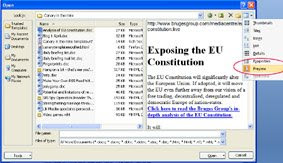
If you want to preview files created by other programs, Vista lets you adda preview pane to its Explorer. XP users will need a special utility such as Universal Viewer. This lets you peek inside a variety of common file types (graphics, PDF, HTML, and many more) just by right-clicking and choosing the Universal Viewer command. Install the plugin for Microsoft Office (a separate free download), and you can view Word and Excel files as well. Navigation buttons make it easy to skim through all files in a folder.

If you want to preview files created by other programs, Vista lets you adda preview pane to its Explorer. XP users will need a special utility such as Universal Viewer. This lets you peek inside a variety of common file types (graphics, PDF, HTML, and many more) just by right-clicking and choosing the Universal Viewer command. Install the plugin for Microsoft Office (a separate free download), and you can view Word and Excel files as well. Navigation buttons make it easy to skim through all files in a folder.
Upgrading to Etch-a-Sketch
Somedays computers just seem too hard. For those of you who are finding your PC too much trouble, try this solution: Upgrade to an Etch-A-Sketch. There are many sound reasons for this:
Frequently Asked Questions for Etch-A-Sketch Technical Support
Q. My Etch-A-Sketch has all of these funny little lines all over the screen.
A. Pick it up and shake it.
Q. How do I turn my Etch-A-Sketch off?
A. Pick it up and shake it.
Q. What's the shortcut for Undo?
A. Pick it up and shake it
Q. How do I create a New Document window?
A. Pick it up and shake it.
Q. How do I set the background and foreground to the same color?
A. Pick it up and shake it.
Q. What is the proper procedure for rebooting my Etch-A-Sketch?
A. Pick it up and shake it.
Q. How do I delete a document on my Etch-A-Sketch?
A. Pick it up and shake it.
Q. How do I save my Etch-A-Sketch document?
A. Don't shake it.
1. No OS (operating system) problems.
2. No technical glitches keeping work from being done.
3. No more wasted time reading and writing emails.
Frequently Asked Questions for Etch-A-Sketch Technical Support
Q. My Etch-A-Sketch has all of these funny little lines all over the screen.
A. Pick it up and shake it.
Q. How do I turn my Etch-A-Sketch off?
A. Pick it up and shake it.
Q. What's the shortcut for Undo?
A. Pick it up and shake it
Q. How do I create a New Document window?
A. Pick it up and shake it.
Q. How do I set the background and foreground to the same color?
A. Pick it up and shake it.
Q. What is the proper procedure for rebooting my Etch-A-Sketch?
A. Pick it up and shake it.
Q. How do I delete a document on my Etch-A-Sketch?
A. Pick it up and shake it.
Q. How do I save my Etch-A-Sketch document?
A. Don't shake it.
Wednesday, May 27, 2009
Heal your own computer
The Press computer correspondent Dave Thompson writes that there are many things you can do to heal your computer before you go speed dialling for a repairman. "You are capable of resolving many of the minor issues that crop in everyday use," he says. This is a great article that the non-technical can generally follow. There's only one instruction that might baffle the uninitiated: he suggests using MSCONFIG, but doesn't tell you how to access it. Go to the Start menu, choose "Run" and then type MSCONFIG into the dialogue box and you're away. Oh, and how do you check whether your hard drive is full? Double-click the "My Computer" icon on your desktop, and that will bring up a window listing the various drives on your machine, their size, and how much is used.
Tuesday, May 26, 2009
Have a Picnik with your pics
It must be photography week! While we're on the topic of photos, I have just discovered the photo editing website, Picnik. At this site, you can upload photos and give them the sort of treatment you would otherwise have to use a program like Photoshop Elements to achieve. You can do just about all the basics there, from colour correction to fancy effects, and it is very fast. The main omission from the arsenal of tools that I use a great deal is layers and masking, but for home use this is a great service - and it's free.
More clever uses for a camera
Here's a follow-up to last week's post about clever uses for a digital camera. Among more suggestions from PC World readers were photographing pre-existing damage to rental cars, photographing public maps in foreign cities, making a record of your luggage on flights, keeping a record of your passport, and recording stages of work when dismantling things for repair, so no pieces get left out when you try to put it back together (I really like that one).
Monday, May 25, 2009
Emailing photographs
One of the benefits of digital photography is being able to instantly email pics to family and friends. But you will quickly clog up their inbox if you send the file just as you download it from your camera. Fortunately, there are several easy ways to solve this, by reducing the size of the photo.
Using Irfanview, you can open the pic, then go to Image/Resize-Resample. In the dialogue box, halfway down you will find the option, "Set new size as percentage of the original". Half is probably acceptable, and when you save the pic, give it a new name to indicate it is a smaller version of the original. Incidentally, when you save a jpeg image, you can specify the amount of compression. It is a trade-off - the higher the compression the smaller the file size, but the lower the quality of the saved image.
There is also a useful tool buried in the Windows XP and Vista systems.
Select a photo by right-clicking on it, and from the pop-up menu choose "Send to, Mail Recipient." (In Vista you can also click the email icon on the toolbar.) A dialog box will ask if you want to make the pictures smaller before you send them. If you choose to do so, Windows will create smaller versions of the photos and send them to your default email program. Also, notice the "Show more options" link at the RH foot of the box, which allows you to choose the emailed size of the pic.
Windows shrinks the photos by reducing their resolution. The resulting image will look fine onscreen, but won't print very well. When you send photos this way, it might pay to mention this in the body of my message, and offer to send the full-size version of any photo the recipient wants to print.
Using Irfanview, you can open the pic, then go to Image/Resize-Resample. In the dialogue box, halfway down you will find the option, "Set new size as percentage of the original". Half is probably acceptable, and when you save the pic, give it a new name to indicate it is a smaller version of the original. Incidentally, when you save a jpeg image, you can specify the amount of compression. It is a trade-off - the higher the compression the smaller the file size, but the lower the quality of the saved image.
There is also a useful tool buried in the Windows XP and Vista systems.
Select a photo by right-clicking on it, and from the pop-up menu choose "Send to, Mail Recipient." (In Vista you can also click the email icon on the toolbar.) A dialog box will ask if you want to make the pictures smaller before you send them. If you choose to do so, Windows will create smaller versions of the photos and send them to your default email program. Also, notice the "Show more options" link at the RH foot of the box, which allows you to choose the emailed size of the pic.
Windows shrinks the photos by reducing their resolution. The resulting image will look fine onscreen, but won't print very well. When you send photos this way, it might pay to mention this in the body of my message, and offer to send the full-size version of any photo the recipient wants to print.
Friday, May 22, 2009
Taming the tabs
How did we ever manage before the web browsers invented tabs? But they sometimes need a bit of bringing into line. For instance, to open a link in a new tab, you can scroll-wheel click or right click on it. By default, the tab opens in the background, and the page you were on stays in front. That probably suits a lot of people, but I prefer to have the new link to come to the front immediately (it's just the way I work). To change the default, do one of the following:
Internet Explorer - go to Tools menu/Internet Options. At the foot of the popup window you will see a Tabs section. Click on Settings. Select "Always switch to new tabs when they are created."
Firefox - go to Tools menu/Options. Select the Tabs button at the top of the popup window, and select "When I open a link in a new tab, switch to it immediately".
In both browsers, typing Ctrl-T opens a new tab. Firefox opens a blank tab, but IE8 opens its "about:tabs" page, which you may not want. To change the default, go back to Internet Options, as above. In the Tab/Settings window, about halfway down you will see the option, "When a new tab is opened, open..." The pull down menu underneath gives you the option of opening the tab blank, or opening to your default home page.
To change your default home page: Go back to the Tools/Options menu. Choose the General tab at the top of the popup window, and you will see a box to enter your preferred home page. (You can have several, and each will open in its own tab when you launch the browser.)
Internet Explorer - go to Tools menu/Internet Options. At the foot of the popup window you will see a Tabs section. Click on Settings. Select "Always switch to new tabs when they are created."
Firefox - go to Tools menu/Options. Select the Tabs button at the top of the popup window, and select "When I open a link in a new tab, switch to it immediately".
In both browsers, typing Ctrl-T opens a new tab. Firefox opens a blank tab, but IE8 opens its "about:tabs" page, which you may not want. To change the default, go back to Internet Options, as above. In the Tab/Settings window, about halfway down you will see the option, "When a new tab is opened, open..." The pull down menu underneath gives you the option of opening the tab blank, or opening to your default home page.
To change your default home page: Go back to the Tools/Options menu. Choose the General tab at the top of the popup window, and you will see a box to enter your preferred home page. (You can have several, and each will open in its own tab when you launch the browser.)
Thursday, May 21, 2009
The dark side of Skype
Skype's free internet phone calls are a boon to millions. But it has a dark side which has largely gone undocumented: it hijacks websites.
Recently, I installed Skype on my computer at the request of my boss, in the belief it would improve communications between us. One of my duties is to administer our website, hence I frequently author pages for the site. But we have discovered that Skype sniffs around for phone numbers on a page, and when it finds them inserts a packet of code into the page to promote Skype. The end result on the page looks something like this:

It doesn't look like much, but the code is quite large, which can push up downloading times, for instance in email newsletters. At this stage, the only way I know to stop it hijacking the page is to exit Skype before authoring. There's an old (now very un-PC) expression which could apply in this case: Beware Greeks bearing gifts. (Refers to the Trojan wars, before you get upset.)
Recently, I installed Skype on my computer at the request of my boss, in the belief it would improve communications between us. One of my duties is to administer our website, hence I frequently author pages for the site. But we have discovered that Skype sniffs around for phone numbers on a page, and when it finds them inserts a packet of code into the page to promote Skype. The end result on the page looks something like this:

It doesn't look like much, but the code is quite large, which can push up downloading times, for instance in email newsletters. At this stage, the only way I know to stop it hijacking the page is to exit Skype before authoring. There's an old (now very un-PC) expression which could apply in this case: Beware Greeks bearing gifts. (Refers to the Trojan wars, before you get upset.)
How to Twitter (if you really must)
I am still resisting becoming a convert to Twitter. I am in Simon Henderey's camp when he says we risk becoming 'bird brained' with it. However, if you really must, Pat Pilcher has written the most helpful article I have so far come across on how to get started. But don't blame me for the consequences....
Search engine war hotting up
The new WolframAlpha search engine has now been launched. WolframAlpha's stock in trade will be answering questions in plain English, and making the most amazing computations I have seen from data of all kinds.
From the introductory video, this is shaping up to be a serious contender to knock Google off its perch - the potential capabilities are a quantum leap ahead of anything we have seen in a search engine up to now. But it's not there yet. For instance, it could not come up with an answer to my query, "what happened on 15 August 1945?" (Of course, you and I know that was when Japan surrendered.) And its NZ-related data is almost non-existent. But I suspect these shortfalls will be quickly remedied.
Meanwhile, according to PC World, Microsoft is within days of releasing a major overhaul of its search engine, codenamed Kumo.
From the introductory video, this is shaping up to be a serious contender to knock Google off its perch - the potential capabilities are a quantum leap ahead of anything we have seen in a search engine up to now. But it's not there yet. For instance, it could not come up with an answer to my query, "what happened on 15 August 1945?" (Of course, you and I know that was when Japan surrendered.) And its NZ-related data is almost non-existent. But I suspect these shortfalls will be quickly remedied.
Meanwhile, according to PC World, Microsoft is within days of releasing a major overhaul of its search engine, codenamed Kumo.
Tuesday, May 19, 2009
Clever uses for a camera
And you thought a camera was just for taking photos?! Well it is, but those pics can have a lot more uses than just storing in the family album (or more likely these days, on a disk). Dave Johnson shares half a dozen alternative uses, like: insurance inventory, a memory aid, shopping assistance, portable scanner, and so on.
While we're on the topic, here are a couple of other fancy things to do with your camera you may not have thought of. (How about testing whether your TV remote is working?)
While we're on the topic, here are a couple of other fancy things to do with your camera you may not have thought of. (How about testing whether your TV remote is working?)
Monday, May 18, 2009
Removing vocals from a song
So you have this favourite song you want to sing along to (at a karaoke night, at church, whatever), but you don't want the vocals, just the instrumental backing. Thankfully, it's fairly easy to do, using the free software Audacity. Here's a simple rundown on the technique.
Converting (and editing) PDF documents
A short while ago I blogged about converting PDF files to Word documents. I settled on Koolwire (a free internet service) as the best option. I have just become aware of another free internet-based tool, called (wait for it!) PDFtoWord. They promise to keep the formating of the PDF file intact, a rarity among converters. The site also offers a PDF to Excel converter, and the ability to edit PDF documents online. This appears to be a major advance, as most pdf editing software is pretty expensive.
Friday, May 15, 2009
Search Google by time
Google has finally filled one of its search engine’s most glaring omissions with a new option that lets you filter results by time. It's one of a number of enhancements to Google's capabilities which allow you to drill more effectively into search results.
The search innovations include viewing only reviews and forums; video-only searches which show video thumbnails as part of the results; date restricts which can limit searchers to the past day, week or year; and Timeline, a histogram-style representation of results by year and month.
A quirky addition is 'Wonder Wheel', an interactive graphic representation - think tag cloud - of related searches. Not sure of it's value yet, though.
To access the new capabilities, after you have performed a search, click on the link "Show options" underneath the Google logo at top left of your screen. (Beware, the Timeline is an addictive plaything.)
Here's a quick video overview of the changes:
The search innovations include viewing only reviews and forums; video-only searches which show video thumbnails as part of the results; date restricts which can limit searchers to the past day, week or year; and Timeline, a histogram-style representation of results by year and month.
A quirky addition is 'Wonder Wheel', an interactive graphic representation - think tag cloud - of related searches. Not sure of it's value yet, though.
To access the new capabilities, after you have performed a search, click on the link "Show options" underneath the Google logo at top left of your screen. (Beware, the Timeline is an addictive plaything.)
Here's a quick video overview of the changes:
Computer rage
If you have ever been driven to verbally or physically assault your computer for its ill-timed crashes and its unaccountable go-slows, don’t worry; you are not alone. Researchers have discovered that over half a sample of British users had shouted or sworn at their computer equipment and 40 per cent had resorted to physical violence, whacking keyboards and smashing mice to vent their anger. The majority experienced “computer rage” three of four times a month, and more than 10 per cent exploded at least 10 times, owing to unsatisfactory work progress and time pressure. Other research has shown that an increasing number of people suffer from “read rage” -- where they lose their temper with unclear instruction books for gadgets. About half have yelled in frustration, while a quarter have thrown the offending booklet across the room.
Wednesday, May 13, 2009
Lifespan of CDs and DVDs
How long do CDs and DVDs last? The short answer is that no-one knows, largely because the technology has not been around long enough to test longevity. Some say that cheap CDs burnt on your home computer will last only 2 years - others say that better quality disks commercially pressed will last 50-100 years. There likely is a difference between home-burnt and commercially pressed, because the process is different, but all I can report is that so far I have not had a disk die of natural causes (and my oldest are getting on for 10 years).
One thing that can cause a disk to crash quickly (and I have been guilty of this) is to write on it with a felt pen. The ink can degrade the media underneath, and bingo! your disk is unreadable. While you can buy pens which are supposed to be non-degrading, a simpler solution is to write only in the central area around the disk hole (where there is no recording media underneath). One big no-no: don't stick small labels on the disk. Apart from the fact they can catch in the mechanism, they unbalance the disk, and this can wreck a drive spinning at several thousand revolutions a minute.
It is more likely that the problem with electronic media will not be wear-out, but the changing technology of data storage. Long before the disc itself becomes unreadable, it is likely that the CD-ROM will be replaced by a new medium and that it will not be possible to find a CD-ROM reader, except perhaps in a museum. To illustrate, how many of you still have a 5 1/4in floppy disk drive, which was still quite common only 25 years ago? Librarians and archivists are quite worried about how we will preserve today's data for the future. Books can last for thousands of years, but technology has a very fleeting lifespan - who is going to keep re-archiving on new media forms as the old ones become obsolete?
One thing that can cause a disk to crash quickly (and I have been guilty of this) is to write on it with a felt pen. The ink can degrade the media underneath, and bingo! your disk is unreadable. While you can buy pens which are supposed to be non-degrading, a simpler solution is to write only in the central area around the disk hole (where there is no recording media underneath). One big no-no: don't stick small labels on the disk. Apart from the fact they can catch in the mechanism, they unbalance the disk, and this can wreck a drive spinning at several thousand revolutions a minute.
It is more likely that the problem with electronic media will not be wear-out, but the changing technology of data storage. Long before the disc itself becomes unreadable, it is likely that the CD-ROM will be replaced by a new medium and that it will not be possible to find a CD-ROM reader, except perhaps in a museum. To illustrate, how many of you still have a 5 1/4in floppy disk drive, which was still quite common only 25 years ago? Librarians and archivists are quite worried about how we will preserve today's data for the future. Books can last for thousands of years, but technology has a very fleeting lifespan - who is going to keep re-archiving on new media forms as the old ones become obsolete?
Tuesday, May 12, 2009
Dealing with pop-ups
Pop-ups are one of the curses of the internet. You visit a rogue site (often accidentally) and are suddenly besieged by a never-ending stream of pop-up windows that you cannot get rid of. You are often forced to reboot your computer to exit the loop they lock you into. They are the particular stock-in-trade of crooks who run sites that trade on you accidentally mistyping a website address. (For instance, you input YouTub.com instead of YouTube.com – this one’s fairly harmless, but many turn out to be malicious.) The crooks who run these sites will occasionally get domain names very similar to common Web destinations just to catch people making such common mistakes.
Actually, there is often a simpler solution than rebooting. Hit the Ctrl-Alt-Delete combination of keys and you get the option to close down just your browser, and that often solves the problem.
Firefox and Internet Explorer both come with built-in pop-up blocker, which really do work. In Firefox, 1) click on the Tools option in the menu bar; 2) click “options”; 3) click on the “Content” icon; 4) make sure the box next to 'Block Pop-up Windows' is checked. Pop-up Blocker is turned on in Internet Explorer by default. To turn it off or to turn it on again if you've already turned it off click the ‘Tools’ button, and then click ‘Pop-up Blocker’. The rest is fairly self-explanatory.
If you are the victims of pop-ups, the big question is: Did the site do something worse than bombard you with advertising? If the problem persists, even after you've closed down your browser and rebooted your computer, then it most certainly left something malicious on your computer.
On the other hand, if rebooting appears to have fixed the problem, you still can't be sure that it didn't leave something malicious on your computer. See Remove a Virus or Other Malicious Infection for suggestions of where to go from there.
Actually, there is often a simpler solution than rebooting. Hit the Ctrl-Alt-Delete combination of keys and you get the option to close down just your browser, and that often solves the problem.
Firefox and Internet Explorer both come with built-in pop-up blocker, which really do work. In Firefox, 1) click on the Tools option in the menu bar; 2) click “options”; 3) click on the “Content” icon; 4) make sure the box next to 'Block Pop-up Windows' is checked. Pop-up Blocker is turned on in Internet Explorer by default. To turn it off or to turn it on again if you've already turned it off click the ‘Tools’ button, and then click ‘Pop-up Blocker’. The rest is fairly self-explanatory.
If you are the victims of pop-ups, the big question is: Did the site do something worse than bombard you with advertising? If the problem persists, even after you've closed down your browser and rebooted your computer, then it most certainly left something malicious on your computer.
On the other hand, if rebooting appears to have fixed the problem, you still can't be sure that it didn't leave something malicious on your computer. See Remove a Virus or Other Malicious Infection for suggestions of where to go from there.
Monday, May 11, 2009
Let the internet solve all your problems
According to an article in the NZ Herald, a new website is designed to help its users make difficult decisions - from 'Should I believe in God?' to 'Should I sleep with my boss?'.
It strikes me that the appearance of a website like this shows just how far modern (ie, Western) man has drifted from his roots.
In the Seventies, according to Luke Rhinehart's novel The Dice Man, the favoured method to absolve responsibility was the dice - all you had to do was roll a double six and you'd be heading to Rio on the back of a moped. Times have changed and today, if we want to let to fate determine our actions, we can let technology decide. "Thanks to an array of evolving websites and internet-based communities, we are able to let the internet take the sting out of decision making. In a few months, a new decision-making site, Hunch.com, will launch (although you can sign up for a preview now).
"In a nutshell, Hunch aims to provide answers to problems, concerns or dilemmas, on hundreds of topics. Hunch's responses are based on the collective knowledge of the Hunch community. Users input information and the site software uses that content to make decisions. Content is narrowed down by a specially created algorithm to cater specifically for the likes and preferences of the user, based on a profile of that the user provides. The site is designed so that every time it's used, it learns something new. It aims to save its users 'strenuous cognitive labour'."
It strikes me that the appearance of a website like this shows just how far modern (ie, Western) man has drifted from his roots.
"One of the peculiar sins of the twentieth century which we’ve developed to a very high level is the sin of credulity. It has been said that when human beings stop believing in God they believe in nothing. The truth is much worse: they believe in anything." - Malcolm Muggeridge
Friday, May 8, 2009
"Privacy is dead"
"Privacy is dead - get over it", according to Steve Rambam, a private investigator specialising in Internet privacy cases. It may well be that he is right. Far more of what you do online can be tracked than you probably realise. How much does it matter? Discussing this with a friend yesterday, he commented that he has no concerns because everything he does is above board. Robert X. Cringeley (yes, that's his real name) explains several reasons why even the innocent should be concerned. While some of his illustrations are American, exactly the same principles apply here in NZ. What he didn't dwell on is how officialdom can badly mishandle data - for instance, we constantly read stories of innocent people suffering injustices because some department or other has mistaken them for someone else, or because the department's computer is incapable of correcting wrong data that gets entered against a person. All email and cellphone traffic around the world is now scanned by government security agencies for keywords that might alert them to terrorist or other undesirable activity. You and I can quite unwittingly - and innocently - use those keywords in our conversation and have our details flagged. Huge amounts have been written on this. Erik Larkin's PC World article is a good starting point, and I would also suggest this Wikipedia article to learn more.
Tuesday, May 5, 2009
Google suggestions and beyond
If you use Google (and who doesn't?), lately you have probably noticed that when you type in the search box, Google tries to guess what you're looking for and offers suggestions in real time. This feature is called, surprise!, Google Suggest. Personally, I find it very helpful, and sometimes I'm astonished by how accurately it predicts what I am looking for. However, I can imagine that some might find it irritating, and in a shared computer environment even downright embarrassing. Fortunately, it's easy to turn off. Click on the "preferences" option at the RH side of the search box, and at the foot of the preferences page you will find the field "Query Suggestions". Select "Do not provide query suggestions in the search box" and save your preferences. More info on Google Suggest can be found here.
But one thing that Google - along with most other search engines - struggles with is a query in plain English: eg, "How many Kiwis play soccer?" This may be about to change, thanks to a new system being developed at Harvard University. A NZ Herald article calls it the biggest internet revolution for a generation.
But one thing that Google - along with most other search engines - struggles with is a query in plain English: eg, "How many Kiwis play soccer?" This may be about to change, thanks to a new system being developed at Harvard University. A NZ Herald article calls it the biggest internet revolution for a generation.
The new system, Wolfram Alpha takes the first step towards what many consider to be the internet's Holy Grail – a global store of information that understands and responds to ordinary language in the same way a person does. Although the system is still new, it has already produced massive interest and excitement among technology pundits and internet watchers. Computer experts believe the new search engine will be an evolutionary leap in the development of the internet.
Monday, May 4, 2009
Converting pdf files to Word or text format
I frequently have to try and convert pdf files to editable text, and it usually is a hassle. Acrobat has a tool to grab and copy text, which you can then paste into a Word document, but among the resulting problems is that every line of text has a forced return, and paragraphs are made by two forced returns. Here is a tip to fix this, using Word's Find and Replace function. (1) Type Ctrl-H to bring up the Find and Replace dialogue box. In Find, type ^l^l. (^l finds forced, or soft, returns, so you are asking Word to find instances where there are two forced returns.) In Replace, type some nonsense character, such as ##. Choose "Replace all". (2) In Find, type ^l. In Replace, replace the ## with a spacebar space. Choose "Replace all", and this will strip out all soft returns, replacing them with a space. (3) In Find, type ##, and in Replace type ^p (the character to find Paragraph returns). Choose "Replace all". (4) Finally, in Find, replace the previous characters with a double spacebar space. In Replace, type a single space. Choose "Replace all" and all double spaces will be converted to singles. Voila! It's clumsy, I know, but at least it works. In the same way, if you have a document that uses a paragraph return at the end of every line, you can use the same technique.
Knowing there must be a better way to convert pdf documents, I have searched high and low for a freeware program, completely without success. (Yes, there are plenty of commercial products, but I am dedicated to open-source where possible.) The best I have come up with - discovered today - is an internet service, KoolWIRE, which is rather nifty. Using the site, you email them a copy of the pdf file, and they quickly email you back a Word conversion (mine came back within two minutes, which is remarkable). The result was not perfect, but the closest to the originating document that I have seen in tests.
Knowing there must be a better way to convert pdf documents, I have searched high and low for a freeware program, completely without success. (Yes, there are plenty of commercial products, but I am dedicated to open-source where possible.) The best I have come up with - discovered today - is an internet service, KoolWIRE, which is rather nifty. Using the site, you email them a copy of the pdf file, and they quickly email you back a Word conversion (mine came back within two minutes, which is remarkable). The result was not perfect, but the closest to the originating document that I have seen in tests.
Friday, May 1, 2009
Firefox v. IE8 - which is better?
Just to show that it's not biased, PC World has an article today comparing Firefox with Internet Explorer 8. It's a well-reasoned article, in which the author tends to come down on the side of IE8, although acknowledging Firefox has advantages in some areas, and admitting he runs both every day. One thing the article does not mention - and one of the biggest selling points for me - is the huge range of add-ons that have been written for Firefox by open-source developers all around the world. This is something that Microsoft cannot hope to emulate. It's a strange reversal of the Microsoft v. Macintosh battle. One of the strengths of Windows is the immense range of third party software that has been written for it for which there is no equivalent in the Apple world. If these third-party programs are helping to keep Microsoft well in front, surely the same is true for Firefox?
Thursday, April 30, 2009
Microsoft Office service pack download
Microsoft has begun letting users of Office 2007 download Service Pack 2, marking a milestone in the company's document format battles with governments and other vendors. Office 2007 SP2 includes support for the OpenDocument Format, an open standard backed by many companies including IBM and Sun Microsystems but initially resisted by Microsoft. Customers who download the service pack will be able to save documents in ODF and Adobe Systems' PDF, just like they would any current supported file format in Office. They can also set ODF as the default file format. Previously, people could use ODF through a separate plug-in that translates Office documents to ODF and vice versa. Click here to download. Warning: The full Microsoft download is a hefty 290MB.
Firefox tips and tweaks
Despite the improvements to Internet Explorer 8, I am still a Firefox fan. And I'm not alone. One survey of the most used applications on Windows puts Firefox at the top, followed by Google's Chrome browser. Internet Explorer trailed at #3. And among the youngest users, IE did even worse. Anyway, PC World blogger Rick Broida has this helpful article showing you how to get the most from Firefox's tabs, tweak mousewheel behaviour, and use the spell check in forms.
Wednesday, April 29, 2009
Zipping folders
I was going to extol the virtues of compressing folders in XP and Vista by using the operating system to zip them, particularly when backing up your data or sending files by email. But after some reading and personal experimentation I am changing my tune.
Firstly, whereas in the past you needed a utility like WinZip to create compressed or zipped folders, since XP you have been able to do it without a utility. It's a bit clumsy. You have to create a new zipped folder (right click / New folder / New compressed (zipped) folder), and then copy documents into it. Or in Vista, you can select documents, and then right click / Send to compressed folder. So far, so good. The trouble is, from user forums on the internet, it is apparent that when you subsequently try to access the documents in the new zipped folder, all sorts of problems can arise. Many have complained that the folder contents are no longer visible, or cannot be opened, etc. It appears to be a worse bug in Vista than in XP, but I can't in all honesty recommend that you use this feature. Another issue: the amount of compression you achieve is very small, particularly with photographs and pdf documents. Typically, you get miniscule difference with a jpg image (which is already compresssed by the format), and a test run I did on a pdf file resulted in only 7% gain. The best gains are with Word documents and the like, which compress by big margins.
Fortunately, there are good alternatives to XP and Vista's efforts. Probably the most popular third party program over the years has been WinZip, but it is not free, although the trial version seems to run for a long time. A free open-source program is 7-Zip, which I have used without any problems.
Given the slightly arduous process involved in zipping, I tend to use it mostly to send documents by email, when it is a handy way to provide a container for multiple documents which I want to keep together.
Firstly, whereas in the past you needed a utility like WinZip to create compressed or zipped folders, since XP you have been able to do it without a utility. It's a bit clumsy. You have to create a new zipped folder (right click / New folder / New compressed (zipped) folder), and then copy documents into it. Or in Vista, you can select documents, and then right click / Send to compressed folder. So far, so good. The trouble is, from user forums on the internet, it is apparent that when you subsequently try to access the documents in the new zipped folder, all sorts of problems can arise. Many have complained that the folder contents are no longer visible, or cannot be opened, etc. It appears to be a worse bug in Vista than in XP, but I can't in all honesty recommend that you use this feature. Another issue: the amount of compression you achieve is very small, particularly with photographs and pdf documents. Typically, you get miniscule difference with a jpg image (which is already compresssed by the format), and a test run I did on a pdf file resulted in only 7% gain. The best gains are with Word documents and the like, which compress by big margins.
Fortunately, there are good alternatives to XP and Vista's efforts. Probably the most popular third party program over the years has been WinZip, but it is not free, although the trial version seems to run for a long time. A free open-source program is 7-Zip, which I have used without any problems.
Given the slightly arduous process involved in zipping, I tend to use it mostly to send documents by email, when it is a handy way to provide a container for multiple documents which I want to keep together.
Tuesday, April 28, 2009
Should you go wireless?
Dave Thompson, one of the few writers to make The Press bearable reading, explains in today's issue why going wireless with everything is not necessarily a good idea. "...long-time users of such (wireless) devices have uncovered an inconvenient truth: wireless doesn't necessarily mean practical and some things just work better hard-wired," he writes in Think Twice Before You Go Wireless. My wife and I host many international students, so we find a wireless modem ideal to give them an internet connection. But we made sure it was well secured against outside tapping. For the rest, we are happy to let the world go by, although I must admit all that cabling can be very messy.
Monday, April 27, 2009
Print screen
A little feature of your computer (both Mac and PC) often overlooked is the ability to take a photo of what's on your screen, known variously as a screen shot, screen dump or screen capture. I use this quite regularly, usually to extract a pic from a Word document or a pdf file. Now I know that you can copy a photo from Word and paste it into an imaging program like Photoshop or Irfanview, but the result is often awful quality. A better alternative in that case is to zoom right in on the image - say around 500% - and take a screen shot, then paste that into Photoshop. If the photo extends beyond the borders of the screen, take shots of it in sections, and montage the sections. The same technique can be used to extract pics from a pdf document; although in theory Acrobat has a tool to grab pics, I find that sometimes the results are not good.
To print your screen, look for the "Print Screen" (or maybe Prnt Scrn") key, which is probably at the top right of your keyboard. You can paste the image straight into a Word document, but not an email; for that you have to save the pic to your hard drive. To save the pic, open your image editing program, make a new document (from the File menu), and then use the paste command. Crop as appropriate and save. If you paste into Photoshop, it automatically creates a new layer for the image, so you will have to merge the layers (Ctrl-E or Cmd-E)) in order to save as a jpg or tif image.
The PC Print Screen facility is very basic, and there are many screen capture programs which can do a better job. A free one I use is Gadwin Print Screen.
To print your screen, look for the "Print Screen" (or maybe Prnt Scrn") key, which is probably at the top right of your keyboard. You can paste the image straight into a Word document, but not an email; for that you have to save the pic to your hard drive. To save the pic, open your image editing program, make a new document (from the File menu), and then use the paste command. Crop as appropriate and save. If you paste into Photoshop, it automatically creates a new layer for the image, so you will have to merge the layers (Ctrl-E or Cmd-E)) in order to save as a jpg or tif image.
The PC Print Screen facility is very basic, and there are many screen capture programs which can do a better job. A free one I use is Gadwin Print Screen.
Friday, April 24, 2009
Microsoft makes it easier to "fix it"
One of the ironies of the internet is that one of the worst-designed websites is Microsoft's. Trying to find anything there is not easy. And it often assumes a fairly high technical knowledge, for instance when you visit the Knowledge Base section, which is a repository of sometimes helpful information regarding common hardware and software problems, if you can work out what it says. Recognising this, Microsoft has created the Fix It Solution Center, which is home to over 100 automated problem-solvers. Instead of manually attempting to follow the Knowledge Base instructions for a given issue ("download patch A, reformat drive B, stand on head C," etc.), you can sit back and let a Fix-It fix it for you. The tools are divided into eight categories, including Windows, Internet Explorer, Office, and Outlook/Outlook Express. Just mouse over any of them to see the available choices, then click the one you want for a full description. If it sounds like your problem, scroll down a bit until you find the Fix It button. A wizard will take you the rest of the way. How well does it work? Let's put it this way: There's already a Fix It for broken Fix-Its.
Thursday, April 23, 2009
Free websites
A small sports club of which I am a committee member wants a club website, but has no spare cash to pay for one. Fortunately, there are many options available.
For instance, a very good service is provided by Tripod, and I actually operate two sites using them. (If you like romantic stories, you can visit one of them here.) A similar service is offered by Yahoo via its Geocities project. In each case, the site will automatically place adverts on your pages, but you can specify within certain limits what kind of adverts you would prefer (or not, as the case may be). Apart from the advertising, two downsides are that to build satisfactory pages, you really need some knowledge of web authoring, and there is not much scope for others to contribute to the site.
A club website really needs to have the ability for people to interact, which led me to look at what are called Wikis, Wikipedia being the best-known example. I have settled on Wetpaint as the system for our club site. It was very easy to set up (you can choose from a range of templates for the design), the web address has our club name first, and there is lots of flexibility to add material. Of several systems I checked out, Wetpaint came out on top for ease of set-up and general user-friendliness. You can set up a site literally in minutes, with absolutely no knowledge of html or web authoring.
Google also offers a website option, called Google Sites, but although I looked at this, I decided it was not flexible enough, and too limited.
For instance, a very good service is provided by Tripod, and I actually operate two sites using them. (If you like romantic stories, you can visit one of them here.) A similar service is offered by Yahoo via its Geocities project. In each case, the site will automatically place adverts on your pages, but you can specify within certain limits what kind of adverts you would prefer (or not, as the case may be). Apart from the advertising, two downsides are that to build satisfactory pages, you really need some knowledge of web authoring, and there is not much scope for others to contribute to the site.
A club website really needs to have the ability for people to interact, which led me to look at what are called Wikis, Wikipedia being the best-known example. I have settled on Wetpaint as the system for our club site. It was very easy to set up (you can choose from a range of templates for the design), the web address has our club name first, and there is lots of flexibility to add material. Of several systems I checked out, Wetpaint came out on top for ease of set-up and general user-friendliness. You can set up a site literally in minutes, with absolutely no knowledge of html or web authoring.
Google also offers a website option, called Google Sites, but although I looked at this, I decided it was not flexible enough, and too limited.
Wednesday, April 22, 2009
Hackers 4, YouTube 0
The hackers are managing to keep ahead of YouTube, despite its attempts to block visitors from downloading videos to their hard drives. (Why YouTube should want to block the downloads, I can't fathom. It presumably can't be to protect advertising, because the pages containing the videos don't carry advertising. And it can't be to protect copyright, because YouTube doesn't own the copyright anyway.) Anyway, I noticed yesterday that my previous incarnation of the Firefox extension DownloadHelper was no longer working. Mild panic, until I downloaded the latest version, 4.3, and all is back in action again. When will YouTube wake up that this is a futile battle it can't win.
Optical Character Reading (OCR)
I have a rather large document that I wanted to send to a North Island colleague. As it is many years old, and I had no electronic version of it, I had to photocopy and post. Unfortunately, the envelope has vanished into the bowels of NZ Post, and is yet to emerge nearly two weeks later. With a deadline rapidly approaching, my solution was to turn to Optical Character Reading, which turns a scan of a page into editable text. I found a freeware OCR progam at simpleocr.com, and while it doesn't have all the bells and whistles of some of the more sophisticated paid programs, it has done the job fine, with a high accuracy rate on the text conversion. It's biggest deficiency was being unable to handle tables or multiple columns, but as there were few of those in my document, it was no big deal to just retype them.
160gb Flash drive
My son-in-law has ordered a 160gb (that's gigabytes, not megabytes) flash drive, which he claims he can get for around $90. That's bigger than the hard drive in my two-year-old computer. I have yet to see the item, but if it's what he claims, it could solve my back-up problems. I did a back-up of just the data on my computer this week, and it took six DVDs to hold it all. It makes one reluctant to backup too frequently, which is a Bad Thing. From what I can read, no-one is too sure of the life-span of a flash drive, but it's probably no worse than your average hard drive. The two biggest dangers are damaging the pins, and losing the small device. But the latter is also a plus, as a small device is much easier to hide from thieving eyes.
Monday, April 20, 2009
Disk defragging causes slowdown
Rick Broida of PC World started having problems with unexplained slowdowns of his computer. Eventually he nailed it to the disk defragging feature of Vista. This really helpful article explains what's going on and what to do.
AVG blues
A computer tech friend tells me that recent updates of the anti-virus program AVG are causing some computers to crash, or restart unexpectedly. I can vouch that it is true because it's happened to me (I use AVG on my work computer, but not at home.) There are two solutions: Use the Windows System Restore feature to roll your operating system back to a date before the last automatic update of AVG, or uninstall the program completely. I am going to opt for the latter, as there are plenty of alternatives to protect against viruses, and every update of AVG chews up even more system resources than the previous, it is becoming so bloated.
The missing week
I was unexpectedly called out of town for all of last week, which means that with the Easter break there have been no posts for 10 days or so. Now that I am back at the desk, normal service should resume forthwith. Apologies if you came looking and nothing was happening.
Thursday, April 9, 2009
The Halswell Cross
I am involved in a project called The Halswell Cross in Christchurch. This is an art installation in Halswell Quarry Park, a park created by the city council in a former quarry. The stark cliff backdrop is quite dramatic and a perfect setting for this sort of thing. The cross will be erected over Easter, from Good Friday morning to Monday afternoon. There is a recorded commentary on headphone, and visitors can nail prayers to the cross. Entrance is free, and you are most welcome to pop over.


Tame your folders
The default settings for folders in Windows are very frustrating. They often don't display the way you want, and Windows forgets all about the ones you have left open on your desktop (and want to stay there) when it reboots. It's time to crack the whip and make them behave. PC World blogger Rick Broida shows you how.
Beef up Quick Launch
A lot of people use the desktop to create shortcuts to programs they use a lot, to drop files on, and even create folders on. The major problem with this approach is that with normal use you soon get a very cluttered desktop.
A solution is to power up the Quick Launch feature of the Task Bar at the bottom of your screen. If the Quick Launch toolbar is not there, turn it on by right clicking in a clear space on the Taskbar and choosing Quick Launch from the menu. This should make the Quick Launch toolbar visible to the right of the Start button.
When you instal software, it frequently adds a shortcut icon to Quick Launch. If not, simply drag the program's icon down to the Task Bar, between one of the icons already showing. (This puts a copy of the shortcut onto the bar, so you can delete the other from the desktop.)
To the right of the program icons, you will see a double chevron >> and then a vertical row of dots. You can drag this row to shorten or lengthen the queue of items visible on the Task Bar.
Clicking on the chevron will expand the Quick Launch bar, and single clicking on an icon will launch that program. If you click and drag an icon, you can rearrange its position, which is useful to group like progams.
But if, like me, you have far too many items for comfort, you can create folders for different categories, and then when you select a folder, it will pop out a sub-menu. To do this, right click just after the furthest right item in Quick Launch, and select the "Open Folder" entry in the menu. (Try to click just before the >> symbol.)
Now, just create folders in the usual way, and drop icons into them. Note that the folders appear in the Quick Launch menu in order you created them. But don't worry, you can reorder the folders (sub menu entries) in the Quick Launch menu.
Wtih this approach, you can shorten the number of items showing on your Task Bar (I usually just have my most-used programs showing, such as Firefox, Thunderbird and Word).
A solution is to power up the Quick Launch feature of the Task Bar at the bottom of your screen. If the Quick Launch toolbar is not there, turn it on by right clicking in a clear space on the Taskbar and choosing Quick Launch from the menu. This should make the Quick Launch toolbar visible to the right of the Start button.
When you instal software, it frequently adds a shortcut icon to Quick Launch. If not, simply drag the program's icon down to the Task Bar, between one of the icons already showing. (This puts a copy of the shortcut onto the bar, so you can delete the other from the desktop.)
To the right of the program icons, you will see a double chevron >> and then a vertical row of dots. You can drag this row to shorten or lengthen the queue of items visible on the Task Bar.
Clicking on the chevron will expand the Quick Launch bar, and single clicking on an icon will launch that program. If you click and drag an icon, you can rearrange its position, which is useful to group like progams.
But if, like me, you have far too many items for comfort, you can create folders for different categories, and then when you select a folder, it will pop out a sub-menu. To do this, right click just after the furthest right item in Quick Launch, and select the "Open Folder" entry in the menu. (Try to click just before the >> symbol.)
Now, just create folders in the usual way, and drop icons into them. Note that the folders appear in the Quick Launch menu in order you created them. But don't worry, you can reorder the folders (sub menu entries) in the Quick Launch menu.
Wtih this approach, you can shorten the number of items showing on your Task Bar (I usually just have my most-used programs showing, such as Firefox, Thunderbird and Word).
Converting MIDI
Because one of my hobbies is composing music, I use MIDI files a lot. What's MIDI, you ask?
MIDI is one of those things that is fairly easy to use, but very hard to describe. Putting it as simply as I can, it is a system that lets computers and other electronic devices pass musical information to each other. The MIDI file is not actually music itself, although if you double-click on it you will hear music in your music player. What it does is control "event messages" such as the pitch of musical notes to play, and parameters such as volume and tempo. It draws on your computer's sound card for the different instument sounds, so the quality you get will depend on the quality of the sound card. Among the benefits are that a MIDI file can be created or opened by a wide variety of programs, and can then be manipulated in a myriad number of ways; the files are incredible small (often, less than 5kb). The downside is that they can only be listened to on a device that has a soundcard or similar, so not on your CD player, for instance. However, they can be converted to a music format such as mp3 or wav so they can play on a CD player (with the downside of course that the files are very much larger, and nowhere as malleable).
Just about every song you can think of is available for free somewhere on the internet in MIDI format. Suppose I need to provide some backing tracks for a singer. I download a MIDI file, open it in my music program Noteworthy Composer, strip out the melody line and voila, an accompaniment.
But I then need to put it on a CD for others to listen to. My problem has been finding a cheap conversion program - you don't want to know how I was doing it before! However, I was delighted yesterday to stumble across a music player, Media Jukebox, which not only plays just about every music format you can throw at it, but also will convert MIDI to mp3 or wave. Now we're cooking!
Actually, I will tell you how I did it before, because you can use the same method to record just about anything audio on your computer. First, download and open Audacity. Click the record button, and start playing whatever you want to record (it might be an old-fashioned LP that you want to transfer to a CD). At the finish, click the Stop button, then trim any unwanted bits at the top and tail, and export in your preferred format.
MIDI is one of those things that is fairly easy to use, but very hard to describe. Putting it as simply as I can, it is a system that lets computers and other electronic devices pass musical information to each other. The MIDI file is not actually music itself, although if you double-click on it you will hear music in your music player. What it does is control "event messages" such as the pitch of musical notes to play, and parameters such as volume and tempo. It draws on your computer's sound card for the different instument sounds, so the quality you get will depend on the quality of the sound card. Among the benefits are that a MIDI file can be created or opened by a wide variety of programs, and can then be manipulated in a myriad number of ways; the files are incredible small (often, less than 5kb). The downside is that they can only be listened to on a device that has a soundcard or similar, so not on your CD player, for instance. However, they can be converted to a music format such as mp3 or wav so they can play on a CD player (with the downside of course that the files are very much larger, and nowhere as malleable).
Just about every song you can think of is available for free somewhere on the internet in MIDI format. Suppose I need to provide some backing tracks for a singer. I download a MIDI file, open it in my music program Noteworthy Composer, strip out the melody line and voila, an accompaniment.
But I then need to put it on a CD for others to listen to. My problem has been finding a cheap conversion program - you don't want to know how I was doing it before! However, I was delighted yesterday to stumble across a music player, Media Jukebox, which not only plays just about every music format you can throw at it, but also will convert MIDI to mp3 or wave. Now we're cooking!
Actually, I will tell you how I did it before, because you can use the same method to record just about anything audio on your computer. First, download and open Audacity. Click the record button, and start playing whatever you want to record (it might be an old-fashioned LP that you want to transfer to a CD). At the finish, click the Stop button, then trim any unwanted bits at the top and tail, and export in your preferred format.
Changing emails
I am in the process of changing jobs, which brings with it the laborious task of changing email subscriptions to the myriad newsletters and other communications which pass across my desk. I am astounded at how difficult this is. The great majority of newsletters (often from very large organisations) have no option for me to make a simple change of address. Usually, they have only an unsubscribe option, which means I then have to go through the process of finding out where to subscribe again. Please folks, if your organisation is guilty of this, start considering how the average person actually works, rather than the way you would like them to work.
Wednesday, April 8, 2009
Twitter twouble
Just about everyone's getting into Twitter, it appears. But it still seems to me like far too much useless information, and this explanatory video simply confirms it. How many "friends" can you keep up with?
Which is why the following video really appeals to me. Time to go and get a real life.
Which is why the following video really appeals to me. Time to go and get a real life.
Tuesday, April 7, 2009
Single-click or double-click?
Without naming my wonderful wife, I know people who are often confused about when to double-click. Particularly, they double-click stuff that only has to be single-clicked (like web links). But in today's web-powered world, is double-clicking an anachronism, a vestige of old-school computing? Why don't we ditch it altogether? After all, desktop folders and program icons are really the only items that need two clicks. As it happens, Windows offers a single-click solution. This tip turns both XP and Vista into a single-click OS:
1. using any open folder, go to the "Folder Options" menu item at the top.
2. In the General tab, find the 'Click items as follows' section, then enable 'Single-click to open an item (point to select)'.
3. Decide which of the two "underline" options you want. The first keeps all clickable items underlined at all times, much like links in your Web browser. The second keeps the underline hidden until you mouse over an item. (I prefer the latter.)
4. Click OK and you're done.
This method also makes file selection a little trickier, especially if you're accustomed to the practice of Ctrl-clicking multiple files. Now, instead of clicking each file in turn, you just hold down the Ctrl key and mouse over each file you want to select, pausing for about a second on each one until it becomes highlighted.
1. using any open folder, go to the "Folder Options" menu item at the top.
2. In the General tab, find the 'Click items as follows' section, then enable 'Single-click to open an item (point to select)'.
3. Decide which of the two "underline" options you want. The first keeps all clickable items underlined at all times, much like links in your Web browser. The second keeps the underline hidden until you mouse over an item. (I prefer the latter.)
4. Click OK and you're done.
This method also makes file selection a little trickier, especially if you're accustomed to the practice of Ctrl-clicking multiple files. Now, instead of clicking each file in turn, you just hold down the Ctrl key and mouse over each file you want to select, pausing for about a second on each one until it becomes highlighted.
Sunday, April 5, 2009
Linux installation Pt II
The installation of Linux (see post below) has been a resounding success, and incredibly easy - I have never installed any operating system (Windows or Mac) with such ease. All the dire predictions by others - for instance, that only geeks could install Linux - simply were not true.
Before I started, I backed up all the files on the computer that I wanted to keep (they fitted on a floppy, as I had pretty much given up using the machine).
I restarted the computer, to check that it could boot from the CD player. (If you need to do this, press the F2 key as the computer is starting, and it should show that option as the default. If not, you just use the arrow keys to move that option to the top.)
I inserted the Freespire disk in the CD drive, and restarted the computer.
From then on, Freespire did the lot. It detected all my hardware, installed the operating system and new drivers for the sound card, video card and USB ports, and chugged away happily while I did a Sudoku puzzle. It asked me a couple of questions, like which language did I want, and which world time zone? There was absolutely nothing in the basic installation I did not understand - it was all plain English and totally user-friendly.
The process took about 25 minutes, and at the end not only did I have an attractive desktop, sufficiently similar to Windows that I could easily find my way around, but the extension speakers and the USB ports all worked (which they had ceased to do under Windows 98), and the desktop resolution was far superior.
A good range of essential software was automatically installed, such as OpenOffice.org (the Linux equivalent of Microsoft Office), Firefox browser and Thunderbird email program. And there are thousands of other free programs available for anything else required.
The only thing I have left to do is network to my main computer. And that only awaits me working out where to plug the network cable on said main computer.
Linux, I love you!
Before I started, I backed up all the files on the computer that I wanted to keep (they fitted on a floppy, as I had pretty much given up using the machine).
I restarted the computer, to check that it could boot from the CD player. (If you need to do this, press the F2 key as the computer is starting, and it should show that option as the default. If not, you just use the arrow keys to move that option to the top.)
I inserted the Freespire disk in the CD drive, and restarted the computer.
From then on, Freespire did the lot. It detected all my hardware, installed the operating system and new drivers for the sound card, video card and USB ports, and chugged away happily while I did a Sudoku puzzle. It asked me a couple of questions, like which language did I want, and which world time zone? There was absolutely nothing in the basic installation I did not understand - it was all plain English and totally user-friendly.
The process took about 25 minutes, and at the end not only did I have an attractive desktop, sufficiently similar to Windows that I could easily find my way around, but the extension speakers and the USB ports all worked (which they had ceased to do under Windows 98), and the desktop resolution was far superior.
A good range of essential software was automatically installed, such as OpenOffice.org (the Linux equivalent of Microsoft Office), Firefox browser and Thunderbird email program. And there are thousands of other free programs available for anything else required.
The only thing I have left to do is network to my main computer. And that only awaits me working out where to plug the network cable on said main computer.
Linux, I love you!
Friday, April 3, 2009
Installing Linux
It’s to put my money where my mouth is. After several years of toying with the idea of installing Linux, I am about to launch out and do it. I have an oldish Windows 98 Compaq computer at home, given to me by a friend migrating to Macintosh. It has an 18gb hard drive and 256mb of memory. It’s not worth upgrading the hardware, and probably won’t take Windows XP. So it’s a perfect candidate for the experiment.
I have bought a disk containing a version of Linux called Freespire, which it cost me NZ$7 to purchase over the internet, including airmail delivery from the USA (it took only three days from order to arrival). So in the next couple of days I will grit my teeth, and do the install. I will blog on the process and the end result.
I have bought a disk containing a version of Linux called Freespire, which it cost me NZ$7 to purchase over the internet, including airmail delivery from the USA (it took only three days from order to arrival). So in the next couple of days I will grit my teeth, and do the install. I will blog on the process and the end result.
Turning PowerPoint into movies
I have been searching for many months for a way to convert PowerPoint presentations to some movie format. Why, you might ask? Firstly, PowerPoint files don’t play the same way on different computers, particularly if you are timing slide transitions to an audio track. And secondly, PowerPoint can do some nice visual effects, for instance with text, which are quite difficult in the average low-end to mid-range video programme.
There are some commercial programs which turn PPTs into a movie. For instance, Leawo boasts that it can convert PPT to almost any popular movie format – and there sure are plenty of them: AVI, WMV, MPG, FLV, VOB, MOV and on it goes.
That seems to be the cleanest and simplest method, but being stubborn I looked round for free software to do the job. It would appear there is no one-step program. But it can be done in several steps.
iSpring is a free extension which installs itself into PowerPoint. From within the PowerPoint, you can convert the presentation to a Shockwave Flash (SWF) file. As most web browsers can play flash movies, to play the file, drag its icon onto the icon of your favourite browser. You can also play the file without a browser using SWF Opener.
The next stage is to convert SWF to FLV format, and here there is a gap in the chain. None of the free programs I tried worked successfully on my computer. I finally went to Moyea and downloaded a trial version, which worked perfectly (but the full version costs US$30).
For the last step, I found that Leawo has a free FLV to AVI converter, which also works very well. An alternative is Pazera free FLV to AVI converter.
Considering all the hoops I had to jump through to get from PPT to AVI, the heavier weight Leawo looks like a good buy!
Talking of converting videos, what if you want to download and convert a YouTube video to watch on your iPod, cell phone, or maybe convert to another video type. You might want to try the freebie YouTube Downloader. It runs as a small applet and is exceedingly simple to use. You can convert to many different formats, including for the iPod, iPhone, cell phones, PlayStation Portable, as well as common PC formats including MPEG and Windows Media (.wmv).
There are some commercial programs which turn PPTs into a movie. For instance, Leawo boasts that it can convert PPT to almost any popular movie format – and there sure are plenty of them: AVI, WMV, MPG, FLV, VOB, MOV and on it goes.
That seems to be the cleanest and simplest method, but being stubborn I looked round for free software to do the job. It would appear there is no one-step program. But it can be done in several steps.
iSpring is a free extension which installs itself into PowerPoint. From within the PowerPoint, you can convert the presentation to a Shockwave Flash (SWF) file. As most web browsers can play flash movies, to play the file, drag its icon onto the icon of your favourite browser. You can also play the file without a browser using SWF Opener.
The next stage is to convert SWF to FLV format, and here there is a gap in the chain. None of the free programs I tried worked successfully on my computer. I finally went to Moyea and downloaded a trial version, which worked perfectly (but the full version costs US$30).
For the last step, I found that Leawo has a free FLV to AVI converter, which also works very well. An alternative is Pazera free FLV to AVI converter.
Considering all the hoops I had to jump through to get from PPT to AVI, the heavier weight Leawo looks like a good buy!
Talking of converting videos, what if you want to download and convert a YouTube video to watch on your iPod, cell phone, or maybe convert to another video type. You might want to try the freebie YouTube Downloader. It runs as a small applet and is exceedingly simple to use. You can convert to many different formats, including for the iPod, iPhone, cell phones, PlayStation Portable, as well as common PC formats including MPEG and Windows Media (.wmv).
Wednesday, April 1, 2009
Microsoft to buy Apple - really??!!
In a move shocking the tech world, the NZ Herald proclaims, Microsoft has just announced the acquisition of Apple Inc. Um, yeah, right. The date of the article should give the clue.
Tuesday, March 31, 2009
Lost internet connections
I had a continual run of problems with my internet connection for about a month at the beginning of this year. The Local Area Connection icon said the computer was connected, but not a thing was happening. I ran numerous virus checkers to make sure I hadn't been unwittingly invaded, and tried unplugging and replugging the router and the wireless modem (which resets them), but none of this helped. After consulting with Those Who Know More Than Me in the IT firm next door, I concluded the problem was at the service provider's end. Possibilities include overloading of the circuits in our area, etc. Suddenly the problems vanished, and things have been fine for the past three weeks, which almost certainly indicates the problem was not on our computers.
From talking around, it seems the problem is fairly common. For another take on what can be going on, see this response at PC World to a query by one Margie Miller, who keeps losing her internet connection and asks, is it the router, the modem, her PC, or something else?
From talking around, it seems the problem is fairly common. For another take on what can be going on, see this response at PC World to a query by one Margie Miller, who keeps losing her internet connection and asks, is it the router, the modem, her PC, or something else?
These drums are so cool!
I don't who is the genius behind this, but this desktop drum kit, which you can play on your PC keyboard, is so cool! Turn up the volume on your speakers and freak out your office colleagues. The ideal way to relieve stress for a couple of minutes.
Monday, March 30, 2009
Tutorials
I've been itching for ages to have a play with Garageband, one of the stars in the Macintosh universe. (It is a program that helps you compose music tracks, by playing around with bits of music called "loops". Sadly, there is no real equivalent in the PC world.) I was able to get access to a Mac at the weekend, but oh dear, the program was not as intuitive as devotees make out, and the online manual was not written for people like me in mind. (Have you ever noticed that manuals never do help when you have a question? That's because they're written by computer geeks rather than real users.) What to do? Answer: Turn to YouTube. Search on "tutorial" and "garageband" and straight up pops a man who understands perfectly my dilemma and proceeds to lead me through the steps.
There are tutorials at YouTube on just about everything you care to think of (and a few you should not). In fact, if you are are struggling with any computer problem, or just about anything else in life, the internet is a mine of helpful tutorials. Here are a few websites to get you going:
Webmonkey has a high reputation and is one of the most popular on the internet. eHow claims to be the world's most popular place to find step-by-step instructions on how to do just about everything. Then there's the Intute virtual training suite and Tutorialfind.
There are tutorials at YouTube on just about everything you care to think of (and a few you should not). In fact, if you are are struggling with any computer problem, or just about anything else in life, the internet is a mine of helpful tutorials. Here are a few websites to get you going:
Webmonkey has a high reputation and is one of the most popular on the internet. eHow claims to be the world's most popular place to find step-by-step instructions on how to do just about everything. Then there's the Intute virtual training suite and Tutorialfind.
Friday, March 27, 2009
New AVG release
One of the best free anti-virus programmes is AVG, which has just released a new upgrade. If you don't have it, I would strongly recommend doing so. Use this link to get the free version, as AVG is rather sneaky, and make it quite hard to find the free one from their front page. They try their best to trap you into accidentally downloading a paid version, when the freebie is quite adequate. No security program, however, catches everything, so it should be only one of a number of guns in your holster. Others which I use are Threatfire, Ad-Aware, Spybot, CCleaner and WinPatrol - all free.
Thursday, March 26, 2009
System restore
Sometimes your computer crashes for no easily determined reason. You may have been invaded by a nasty virus, or it may be an incompatibly between two bits of software, it may be that there was bad conjunction between Jupiter and Mars. One resort is to employ the System Restore capabilities of XP or Vista. (To access it, on XP at least, go to the Start menu, and choose Help and Support. You'll find System Restore under the Pick a Task options.) It's pretty self-explanatory to use, and in theory it will restore your system to a date and time you choose (eg, before you installed that last bit of suspect software), without changing any of your data, as in your working documents. This article at PC World tells you more. Be aware, though, that System Restore is not perfect, and I have even heard of instances where it so corrupted the Registry that a complete reinstall of the operating system was necessary. In its defence, I have to say that it has saved my bacon on several occasions, and so far I have had no problems with it. To be safe, it is recommended you back up all important files before you do a restore.
Wednesday, March 25, 2009
Recovering lost photos
Whoops! I accidentally deleted some pics from my digital camera this morning. I realised as soon as I hit the delete button I had done the wrong thing. I have a utility to restore files I have deleted from my computer, but what about the camera? An online search yielded a big array of utilities, so I downloaded and tried one called Zero Assumption Digital Image Recovery. It took around half an hour to scan my camera, during which time I could do nothing else, and then said it could find no images to recover. What a dud! Next I tried Recuva. What a joy! Simple to use, fast (it took only a few minutes to scan the camera), and gave me a thumbnail of every image it could bring back, including many I would have thought were long gone. The one I wanted was there, and took only seconds to restore to my computer. Once again I'm a happy chappie.
Tuesday, March 24, 2009
Customise your PC
Some people make technology a bit more bearable by decorating the walls of their room or cubicle. Others by super-customising their computer. But a computer in a pumpkin? Meanwhile, this chappie is big on art deco. You can customised just about anything, so the keyboard is a likely candidate. Not satisfied with the standard QWERTY layout? Try one of these. What's good for the keyboard is good for the mouse, especially if you have a few thousand dollars to spare.
Monday, March 23, 2009
Pan and zoom photographs
A US moviemaker by the name of Ken Burns pioneered a TV documentary technique, whereby he panned and zoomed around still photographs to create the effect of live action footage. The technique is still called the Ken Burns Effect. While video editing programs can usually do something similar, the less expensive ones are often somewhat limited in their range of movement across the photo. Windows MovieMaker for the XP operating system lacks the ability completely (although you can purchase add-ons to achieve it). MovieMaker for Vista has added some ability, but can pan only in a straight line. Enter one of the least-known Microsoft products, called PhotoStory. This wonderful free program can wander anywhere you want around a photograph, and output the result either as a stand-alone movie, or a file which you can incorporate into another movie. It has a bundle of other tricks, too, such as adding soundtracks or narration. Microsoft barely ever mentions this little freebie, which I only stumbled across by accident. It deserves to be better known.
Friday, March 20, 2009
Internet Explorer 8
The long-awaited final release of Microsoft's browser, Internet Explorer 8, has finally hit the road. (You can download a copy here.) Microsoft obviously hopes this will seriously dent the growing popularity of Firefox, while users will hope this fixes some of the serious deficiencies of IE. I haven't downloaded a copy yet, but will do Very Soon Now. PC World has a very good article outlining the new features of IE8. If it's half as good as they suggest, I could start using it a bit more. On my work computer, when it comes to IE, I am locked into version 6. The irony is that the PC World article would not display properly in it, while it showed perfectly in Firefox.
Wednesday, March 18, 2009
Password protecting Blackberry
I am astounded how many Blackberry's I see on the streets and among colleagues. But here's a VERY cautionary tale from David Farrar, of Kiwiblog fame. First, David left his Blackberry on a bus, and it was never handed in. When he reported that to the Police, they asked if he had password protected it. No. So when David bought a new Blackberry, he made sure to password protect this one. That's when the trouble started. (Reader caution: some strong language.)
Drag and drop to start
Here's the situation: you have a video or audio file you want to play. If you double click on it, it will launch the default programme set for that file, but you want to use another player (I have four I commonly use). Here's the simple answer: drag the icon of the video or audio file onto the icon of the player you want to use, and it will start in that player.
You can easily set up shortcuts on your desktop of your favourite programs, and dragging an icon onto the shortcut works just the same as if it were onto the actual program. (To make a shortcut, click on the program icon with the right mouse button, and drag to where you want to put it. In fact, you can create shortcuts of absolutely anything using this technique. And you can make as many shortcuts as you want of any file.)
You can easily set up shortcuts on your desktop of your favourite programs, and dragging an icon onto the shortcut works just the same as if it were onto the actual program. (To make a shortcut, click on the program icon with the right mouse button, and drag to where you want to put it. In fact, you can create shortcuts of absolutely anything using this technique. And you can make as many shortcuts as you want of any file.)
Monday, March 16, 2009
Viruses and PC health
There's been a couple of helpful articles in the NZ Herald in the last few days:
How to tell if your PC is infected and
How to make your pc last longer
How to tell if your PC is infected and
How to make your pc last longer
Subscribe to:
Posts (Atom)

 Posts
Posts


