Monday, May 18, 2009
Removing vocals from a song
So you have this favourite song you want to sing along to (at a karaoke night, at church, whatever), but you don't want the vocals, just the instrumental backing. Thankfully, it's fairly easy to do, using the free software Audacity. Here's a simple rundown on the technique.


Converting (and editing) PDF documents
A short while ago I blogged about converting PDF files to Word documents. I settled on Koolwire (a free internet service) as the best option. I have just become aware of another free internet-based tool, called (wait for it!) PDFtoWord. They promise to keep the formating of the PDF file intact, a rarity among converters. The site also offers a PDF to Excel converter, and the ability to edit PDF documents online. This appears to be a major advance, as most pdf editing software is pretty expensive.
Friday, May 15, 2009
Search Google by time
Google has finally filled one of its search engine’s most glaring omissions with a new option that lets you filter results by time. It's one of a number of enhancements to Google's capabilities which allow you to drill more effectively into search results.
The search innovations include viewing only reviews and forums; video-only searches which show video thumbnails as part of the results; date restricts which can limit searchers to the past day, week or year; and Timeline, a histogram-style representation of results by year and month.
A quirky addition is 'Wonder Wheel', an interactive graphic representation - think tag cloud - of related searches. Not sure of it's value yet, though.
To access the new capabilities, after you have performed a search, click on the link "Show options" underneath the Google logo at top left of your screen. (Beware, the Timeline is an addictive plaything.)
Here's a quick video overview of the changes:
The search innovations include viewing only reviews and forums; video-only searches which show video thumbnails as part of the results; date restricts which can limit searchers to the past day, week or year; and Timeline, a histogram-style representation of results by year and month.
A quirky addition is 'Wonder Wheel', an interactive graphic representation - think tag cloud - of related searches. Not sure of it's value yet, though.
To access the new capabilities, after you have performed a search, click on the link "Show options" underneath the Google logo at top left of your screen. (Beware, the Timeline is an addictive plaything.)
Here's a quick video overview of the changes:
Computer rage
If you have ever been driven to verbally or physically assault your computer for its ill-timed crashes and its unaccountable go-slows, don’t worry; you are not alone. Researchers have discovered that over half a sample of British users had shouted or sworn at their computer equipment and 40 per cent had resorted to physical violence, whacking keyboards and smashing mice to vent their anger. The majority experienced “computer rage” three of four times a month, and more than 10 per cent exploded at least 10 times, owing to unsatisfactory work progress and time pressure. Other research has shown that an increasing number of people suffer from “read rage” -- where they lose their temper with unclear instruction books for gadgets. About half have yelled in frustration, while a quarter have thrown the offending booklet across the room.
Wednesday, May 13, 2009
Lifespan of CDs and DVDs
How long do CDs and DVDs last? The short answer is that no-one knows, largely because the technology has not been around long enough to test longevity. Some say that cheap CDs burnt on your home computer will last only 2 years - others say that better quality disks commercially pressed will last 50-100 years. There likely is a difference between home-burnt and commercially pressed, because the process is different, but all I can report is that so far I have not had a disk die of natural causes (and my oldest are getting on for 10 years).
One thing that can cause a disk to crash quickly (and I have been guilty of this) is to write on it with a felt pen. The ink can degrade the media underneath, and bingo! your disk is unreadable. While you can buy pens which are supposed to be non-degrading, a simpler solution is to write only in the central area around the disk hole (where there is no recording media underneath). One big no-no: don't stick small labels on the disk. Apart from the fact they can catch in the mechanism, they unbalance the disk, and this can wreck a drive spinning at several thousand revolutions a minute.
It is more likely that the problem with electronic media will not be wear-out, but the changing technology of data storage. Long before the disc itself becomes unreadable, it is likely that the CD-ROM will be replaced by a new medium and that it will not be possible to find a CD-ROM reader, except perhaps in a museum. To illustrate, how many of you still have a 5 1/4in floppy disk drive, which was still quite common only 25 years ago? Librarians and archivists are quite worried about how we will preserve today's data for the future. Books can last for thousands of years, but technology has a very fleeting lifespan - who is going to keep re-archiving on new media forms as the old ones become obsolete?
One thing that can cause a disk to crash quickly (and I have been guilty of this) is to write on it with a felt pen. The ink can degrade the media underneath, and bingo! your disk is unreadable. While you can buy pens which are supposed to be non-degrading, a simpler solution is to write only in the central area around the disk hole (where there is no recording media underneath). One big no-no: don't stick small labels on the disk. Apart from the fact they can catch in the mechanism, they unbalance the disk, and this can wreck a drive spinning at several thousand revolutions a minute.
It is more likely that the problem with electronic media will not be wear-out, but the changing technology of data storage. Long before the disc itself becomes unreadable, it is likely that the CD-ROM will be replaced by a new medium and that it will not be possible to find a CD-ROM reader, except perhaps in a museum. To illustrate, how many of you still have a 5 1/4in floppy disk drive, which was still quite common only 25 years ago? Librarians and archivists are quite worried about how we will preserve today's data for the future. Books can last for thousands of years, but technology has a very fleeting lifespan - who is going to keep re-archiving on new media forms as the old ones become obsolete?
Tuesday, May 12, 2009
Dealing with pop-ups
Pop-ups are one of the curses of the internet. You visit a rogue site (often accidentally) and are suddenly besieged by a never-ending stream of pop-up windows that you cannot get rid of. You are often forced to reboot your computer to exit the loop they lock you into. They are the particular stock-in-trade of crooks who run sites that trade on you accidentally mistyping a website address. (For instance, you input YouTub.com instead of YouTube.com – this one’s fairly harmless, but many turn out to be malicious.) The crooks who run these sites will occasionally get domain names very similar to common Web destinations just to catch people making such common mistakes.
Actually, there is often a simpler solution than rebooting. Hit the Ctrl-Alt-Delete combination of keys and you get the option to close down just your browser, and that often solves the problem.
Firefox and Internet Explorer both come with built-in pop-up blocker, which really do work. In Firefox, 1) click on the Tools option in the menu bar; 2) click “options”; 3) click on the “Content” icon; 4) make sure the box next to 'Block Pop-up Windows' is checked. Pop-up Blocker is turned on in Internet Explorer by default. To turn it off or to turn it on again if you've already turned it off click the ‘Tools’ button, and then click ‘Pop-up Blocker’. The rest is fairly self-explanatory.
If you are the victims of pop-ups, the big question is: Did the site do something worse than bombard you with advertising? If the problem persists, even after you've closed down your browser and rebooted your computer, then it most certainly left something malicious on your computer.
On the other hand, if rebooting appears to have fixed the problem, you still can't be sure that it didn't leave something malicious on your computer. See Remove a Virus or Other Malicious Infection for suggestions of where to go from there.
Actually, there is often a simpler solution than rebooting. Hit the Ctrl-Alt-Delete combination of keys and you get the option to close down just your browser, and that often solves the problem.
Firefox and Internet Explorer both come with built-in pop-up blocker, which really do work. In Firefox, 1) click on the Tools option in the menu bar; 2) click “options”; 3) click on the “Content” icon; 4) make sure the box next to 'Block Pop-up Windows' is checked. Pop-up Blocker is turned on in Internet Explorer by default. To turn it off or to turn it on again if you've already turned it off click the ‘Tools’ button, and then click ‘Pop-up Blocker’. The rest is fairly self-explanatory.
If you are the victims of pop-ups, the big question is: Did the site do something worse than bombard you with advertising? If the problem persists, even after you've closed down your browser and rebooted your computer, then it most certainly left something malicious on your computer.
On the other hand, if rebooting appears to have fixed the problem, you still can't be sure that it didn't leave something malicious on your computer. See Remove a Virus or Other Malicious Infection for suggestions of where to go from there.
Monday, May 11, 2009
Let the internet solve all your problems
According to an article in the NZ Herald, a new website is designed to help its users make difficult decisions - from 'Should I believe in God?' to 'Should I sleep with my boss?'.
It strikes me that the appearance of a website like this shows just how far modern (ie, Western) man has drifted from his roots.
In the Seventies, according to Luke Rhinehart's novel The Dice Man, the favoured method to absolve responsibility was the dice - all you had to do was roll a double six and you'd be heading to Rio on the back of a moped. Times have changed and today, if we want to let to fate determine our actions, we can let technology decide. "Thanks to an array of evolving websites and internet-based communities, we are able to let the internet take the sting out of decision making. In a few months, a new decision-making site, Hunch.com, will launch (although you can sign up for a preview now).
"In a nutshell, Hunch aims to provide answers to problems, concerns or dilemmas, on hundreds of topics. Hunch's responses are based on the collective knowledge of the Hunch community. Users input information and the site software uses that content to make decisions. Content is narrowed down by a specially created algorithm to cater specifically for the likes and preferences of the user, based on a profile of that the user provides. The site is designed so that every time it's used, it learns something new. It aims to save its users 'strenuous cognitive labour'."
It strikes me that the appearance of a website like this shows just how far modern (ie, Western) man has drifted from his roots.
"One of the peculiar sins of the twentieth century which we’ve developed to a very high level is the sin of credulity. It has been said that when human beings stop believing in God they believe in nothing. The truth is much worse: they believe in anything." - Malcolm Muggeridge
Friday, May 8, 2009
"Privacy is dead"
"Privacy is dead - get over it", according to Steve Rambam, a private investigator specialising in Internet privacy cases. It may well be that he is right. Far more of what you do online can be tracked than you probably realise. How much does it matter? Discussing this with a friend yesterday, he commented that he has no concerns because everything he does is above board. Robert X. Cringeley (yes, that's his real name) explains several reasons why even the innocent should be concerned. While some of his illustrations are American, exactly the same principles apply here in NZ. What he didn't dwell on is how officialdom can badly mishandle data - for instance, we constantly read stories of innocent people suffering injustices because some department or other has mistaken them for someone else, or because the department's computer is incapable of correcting wrong data that gets entered against a person. All email and cellphone traffic around the world is now scanned by government security agencies for keywords that might alert them to terrorist or other undesirable activity. You and I can quite unwittingly - and innocently - use those keywords in our conversation and have our details flagged. Huge amounts have been written on this. Erik Larkin's PC World article is a good starting point, and I would also suggest this Wikipedia article to learn more.
Tuesday, May 5, 2009
Google suggestions and beyond
If you use Google (and who doesn't?), lately you have probably noticed that when you type in the search box, Google tries to guess what you're looking for and offers suggestions in real time. This feature is called, surprise!, Google Suggest. Personally, I find it very helpful, and sometimes I'm astonished by how accurately it predicts what I am looking for. However, I can imagine that some might find it irritating, and in a shared computer environment even downright embarrassing. Fortunately, it's easy to turn off. Click on the "preferences" option at the RH side of the search box, and at the foot of the preferences page you will find the field "Query Suggestions". Select "Do not provide query suggestions in the search box" and save your preferences. More info on Google Suggest can be found here.
But one thing that Google - along with most other search engines - struggles with is a query in plain English: eg, "How many Kiwis play soccer?" This may be about to change, thanks to a new system being developed at Harvard University. A NZ Herald article calls it the biggest internet revolution for a generation.
But one thing that Google - along with most other search engines - struggles with is a query in plain English: eg, "How many Kiwis play soccer?" This may be about to change, thanks to a new system being developed at Harvard University. A NZ Herald article calls it the biggest internet revolution for a generation.
The new system, Wolfram Alpha takes the first step towards what many consider to be the internet's Holy Grail – a global store of information that understands and responds to ordinary language in the same way a person does. Although the system is still new, it has already produced massive interest and excitement among technology pundits and internet watchers. Computer experts believe the new search engine will be an evolutionary leap in the development of the internet.
Monday, May 4, 2009
Converting pdf files to Word or text format
I frequently have to try and convert pdf files to editable text, and it usually is a hassle. Acrobat has a tool to grab and copy text, which you can then paste into a Word document, but among the resulting problems is that every line of text has a forced return, and paragraphs are made by two forced returns. Here is a tip to fix this, using Word's Find and Replace function. (1) Type Ctrl-H to bring up the Find and Replace dialogue box. In Find, type ^l^l. (^l finds forced, or soft, returns, so you are asking Word to find instances where there are two forced returns.) In Replace, type some nonsense character, such as ##. Choose "Replace all". (2) In Find, type ^l. In Replace, replace the ## with a spacebar space. Choose "Replace all", and this will strip out all soft returns, replacing them with a space. (3) In Find, type ##, and in Replace type ^p (the character to find Paragraph returns). Choose "Replace all". (4) Finally, in Find, replace the previous characters with a double spacebar space. In Replace, type a single space. Choose "Replace all" and all double spaces will be converted to singles. Voila! It's clumsy, I know, but at least it works. In the same way, if you have a document that uses a paragraph return at the end of every line, you can use the same technique.
Knowing there must be a better way to convert pdf documents, I have searched high and low for a freeware program, completely without success. (Yes, there are plenty of commercial products, but I am dedicated to open-source where possible.) The best I have come up with - discovered today - is an internet service, KoolWIRE, which is rather nifty. Using the site, you email them a copy of the pdf file, and they quickly email you back a Word conversion (mine came back within two minutes, which is remarkable). The result was not perfect, but the closest to the originating document that I have seen in tests.
Knowing there must be a better way to convert pdf documents, I have searched high and low for a freeware program, completely without success. (Yes, there are plenty of commercial products, but I am dedicated to open-source where possible.) The best I have come up with - discovered today - is an internet service, KoolWIRE, which is rather nifty. Using the site, you email them a copy of the pdf file, and they quickly email you back a Word conversion (mine came back within two minutes, which is remarkable). The result was not perfect, but the closest to the originating document that I have seen in tests.
Friday, May 1, 2009
Firefox v. IE8 - which is better?
Just to show that it's not biased, PC World has an article today comparing Firefox with Internet Explorer 8. It's a well-reasoned article, in which the author tends to come down on the side of IE8, although acknowledging Firefox has advantages in some areas, and admitting he runs both every day. One thing the article does not mention - and one of the biggest selling points for me - is the huge range of add-ons that have been written for Firefox by open-source developers all around the world. This is something that Microsoft cannot hope to emulate. It's a strange reversal of the Microsoft v. Macintosh battle. One of the strengths of Windows is the immense range of third party software that has been written for it for which there is no equivalent in the Apple world. If these third-party programs are helping to keep Microsoft well in front, surely the same is true for Firefox?
Thursday, April 30, 2009
Microsoft Office service pack download
Microsoft has begun letting users of Office 2007 download Service Pack 2, marking a milestone in the company's document format battles with governments and other vendors. Office 2007 SP2 includes support for the OpenDocument Format, an open standard backed by many companies including IBM and Sun Microsystems but initially resisted by Microsoft. Customers who download the service pack will be able to save documents in ODF and Adobe Systems' PDF, just like they would any current supported file format in Office. They can also set ODF as the default file format. Previously, people could use ODF through a separate plug-in that translates Office documents to ODF and vice versa. Click here to download. Warning: The full Microsoft download is a hefty 290MB.
Firefox tips and tweaks
Despite the improvements to Internet Explorer 8, I am still a Firefox fan. And I'm not alone. One survey of the most used applications on Windows puts Firefox at the top, followed by Google's Chrome browser. Internet Explorer trailed at #3. And among the youngest users, IE did even worse. Anyway, PC World blogger Rick Broida has this helpful article showing you how to get the most from Firefox's tabs, tweak mousewheel behaviour, and use the spell check in forms.
Wednesday, April 29, 2009
Zipping folders
I was going to extol the virtues of compressing folders in XP and Vista by using the operating system to zip them, particularly when backing up your data or sending files by email. But after some reading and personal experimentation I am changing my tune.
Firstly, whereas in the past you needed a utility like WinZip to create compressed or zipped folders, since XP you have been able to do it without a utility. It's a bit clumsy. You have to create a new zipped folder (right click / New folder / New compressed (zipped) folder), and then copy documents into it. Or in Vista, you can select documents, and then right click / Send to compressed folder. So far, so good. The trouble is, from user forums on the internet, it is apparent that when you subsequently try to access the documents in the new zipped folder, all sorts of problems can arise. Many have complained that the folder contents are no longer visible, or cannot be opened, etc. It appears to be a worse bug in Vista than in XP, but I can't in all honesty recommend that you use this feature. Another issue: the amount of compression you achieve is very small, particularly with photographs and pdf documents. Typically, you get miniscule difference with a jpg image (which is already compresssed by the format), and a test run I did on a pdf file resulted in only 7% gain. The best gains are with Word documents and the like, which compress by big margins.
Fortunately, there are good alternatives to XP and Vista's efforts. Probably the most popular third party program over the years has been WinZip, but it is not free, although the trial version seems to run for a long time. A free open-source program is 7-Zip, which I have used without any problems.
Given the slightly arduous process involved in zipping, I tend to use it mostly to send documents by email, when it is a handy way to provide a container for multiple documents which I want to keep together.
Firstly, whereas in the past you needed a utility like WinZip to create compressed or zipped folders, since XP you have been able to do it without a utility. It's a bit clumsy. You have to create a new zipped folder (right click / New folder / New compressed (zipped) folder), and then copy documents into it. Or in Vista, you can select documents, and then right click / Send to compressed folder. So far, so good. The trouble is, from user forums on the internet, it is apparent that when you subsequently try to access the documents in the new zipped folder, all sorts of problems can arise. Many have complained that the folder contents are no longer visible, or cannot be opened, etc. It appears to be a worse bug in Vista than in XP, but I can't in all honesty recommend that you use this feature. Another issue: the amount of compression you achieve is very small, particularly with photographs and pdf documents. Typically, you get miniscule difference with a jpg image (which is already compresssed by the format), and a test run I did on a pdf file resulted in only 7% gain. The best gains are with Word documents and the like, which compress by big margins.
Fortunately, there are good alternatives to XP and Vista's efforts. Probably the most popular third party program over the years has been WinZip, but it is not free, although the trial version seems to run for a long time. A free open-source program is 7-Zip, which I have used without any problems.
Given the slightly arduous process involved in zipping, I tend to use it mostly to send documents by email, when it is a handy way to provide a container for multiple documents which I want to keep together.
Tuesday, April 28, 2009
Should you go wireless?
Dave Thompson, one of the few writers to make The Press bearable reading, explains in today's issue why going wireless with everything is not necessarily a good idea. "...long-time users of such (wireless) devices have uncovered an inconvenient truth: wireless doesn't necessarily mean practical and some things just work better hard-wired," he writes in Think Twice Before You Go Wireless. My wife and I host many international students, so we find a wireless modem ideal to give them an internet connection. But we made sure it was well secured against outside tapping. For the rest, we are happy to let the world go by, although I must admit all that cabling can be very messy.
Monday, April 27, 2009
Print screen
A little feature of your computer (both Mac and PC) often overlooked is the ability to take a photo of what's on your screen, known variously as a screen shot, screen dump or screen capture. I use this quite regularly, usually to extract a pic from a Word document or a pdf file. Now I know that you can copy a photo from Word and paste it into an imaging program like Photoshop or Irfanview, but the result is often awful quality. A better alternative in that case is to zoom right in on the image - say around 500% - and take a screen shot, then paste that into Photoshop. If the photo extends beyond the borders of the screen, take shots of it in sections, and montage the sections. The same technique can be used to extract pics from a pdf document; although in theory Acrobat has a tool to grab pics, I find that sometimes the results are not good.
To print your screen, look for the "Print Screen" (or maybe Prnt Scrn") key, which is probably at the top right of your keyboard. You can paste the image straight into a Word document, but not an email; for that you have to save the pic to your hard drive. To save the pic, open your image editing program, make a new document (from the File menu), and then use the paste command. Crop as appropriate and save. If you paste into Photoshop, it automatically creates a new layer for the image, so you will have to merge the layers (Ctrl-E or Cmd-E)) in order to save as a jpg or tif image.
The PC Print Screen facility is very basic, and there are many screen capture programs which can do a better job. A free one I use is Gadwin Print Screen.
To print your screen, look for the "Print Screen" (or maybe Prnt Scrn") key, which is probably at the top right of your keyboard. You can paste the image straight into a Word document, but not an email; for that you have to save the pic to your hard drive. To save the pic, open your image editing program, make a new document (from the File menu), and then use the paste command. Crop as appropriate and save. If you paste into Photoshop, it automatically creates a new layer for the image, so you will have to merge the layers (Ctrl-E or Cmd-E)) in order to save as a jpg or tif image.
The PC Print Screen facility is very basic, and there are many screen capture programs which can do a better job. A free one I use is Gadwin Print Screen.
Friday, April 24, 2009
Microsoft makes it easier to "fix it"
One of the ironies of the internet is that one of the worst-designed websites is Microsoft's. Trying to find anything there is not easy. And it often assumes a fairly high technical knowledge, for instance when you visit the Knowledge Base section, which is a repository of sometimes helpful information regarding common hardware and software problems, if you can work out what it says. Recognising this, Microsoft has created the Fix It Solution Center, which is home to over 100 automated problem-solvers. Instead of manually attempting to follow the Knowledge Base instructions for a given issue ("download patch A, reformat drive B, stand on head C," etc.), you can sit back and let a Fix-It fix it for you. The tools are divided into eight categories, including Windows, Internet Explorer, Office, and Outlook/Outlook Express. Just mouse over any of them to see the available choices, then click the one you want for a full description. If it sounds like your problem, scroll down a bit until you find the Fix It button. A wizard will take you the rest of the way. How well does it work? Let's put it this way: There's already a Fix It for broken Fix-Its.
Thursday, April 23, 2009
Free websites
A small sports club of which I am a committee member wants a club website, but has no spare cash to pay for one. Fortunately, there are many options available.
For instance, a very good service is provided by Tripod, and I actually operate two sites using them. (If you like romantic stories, you can visit one of them here.) A similar service is offered by Yahoo via its Geocities project. In each case, the site will automatically place adverts on your pages, but you can specify within certain limits what kind of adverts you would prefer (or not, as the case may be). Apart from the advertising, two downsides are that to build satisfactory pages, you really need some knowledge of web authoring, and there is not much scope for others to contribute to the site.
A club website really needs to have the ability for people to interact, which led me to look at what are called Wikis, Wikipedia being the best-known example. I have settled on Wetpaint as the system for our club site. It was very easy to set up (you can choose from a range of templates for the design), the web address has our club name first, and there is lots of flexibility to add material. Of several systems I checked out, Wetpaint came out on top for ease of set-up and general user-friendliness. You can set up a site literally in minutes, with absolutely no knowledge of html or web authoring.
Google also offers a website option, called Google Sites, but although I looked at this, I decided it was not flexible enough, and too limited.
For instance, a very good service is provided by Tripod, and I actually operate two sites using them. (If you like romantic stories, you can visit one of them here.) A similar service is offered by Yahoo via its Geocities project. In each case, the site will automatically place adverts on your pages, but you can specify within certain limits what kind of adverts you would prefer (or not, as the case may be). Apart from the advertising, two downsides are that to build satisfactory pages, you really need some knowledge of web authoring, and there is not much scope for others to contribute to the site.
A club website really needs to have the ability for people to interact, which led me to look at what are called Wikis, Wikipedia being the best-known example. I have settled on Wetpaint as the system for our club site. It was very easy to set up (you can choose from a range of templates for the design), the web address has our club name first, and there is lots of flexibility to add material. Of several systems I checked out, Wetpaint came out on top for ease of set-up and general user-friendliness. You can set up a site literally in minutes, with absolutely no knowledge of html or web authoring.
Google also offers a website option, called Google Sites, but although I looked at this, I decided it was not flexible enough, and too limited.
Wednesday, April 22, 2009
Hackers 4, YouTube 0
The hackers are managing to keep ahead of YouTube, despite its attempts to block visitors from downloading videos to their hard drives. (Why YouTube should want to block the downloads, I can't fathom. It presumably can't be to protect advertising, because the pages containing the videos don't carry advertising. And it can't be to protect copyright, because YouTube doesn't own the copyright anyway.) Anyway, I noticed yesterday that my previous incarnation of the Firefox extension DownloadHelper was no longer working. Mild panic, until I downloaded the latest version, 4.3, and all is back in action again. When will YouTube wake up that this is a futile battle it can't win.
Optical Character Reading (OCR)
I have a rather large document that I wanted to send to a North Island colleague. As it is many years old, and I had no electronic version of it, I had to photocopy and post. Unfortunately, the envelope has vanished into the bowels of NZ Post, and is yet to emerge nearly two weeks later. With a deadline rapidly approaching, my solution was to turn to Optical Character Reading, which turns a scan of a page into editable text. I found a freeware OCR progam at simpleocr.com, and while it doesn't have all the bells and whistles of some of the more sophisticated paid programs, it has done the job fine, with a high accuracy rate on the text conversion. It's biggest deficiency was being unable to handle tables or multiple columns, but as there were few of those in my document, it was no big deal to just retype them.
160gb Flash drive
My son-in-law has ordered a 160gb (that's gigabytes, not megabytes) flash drive, which he claims he can get for around $90. That's bigger than the hard drive in my two-year-old computer. I have yet to see the item, but if it's what he claims, it could solve my back-up problems. I did a back-up of just the data on my computer this week, and it took six DVDs to hold it all. It makes one reluctant to backup too frequently, which is a Bad Thing. From what I can read, no-one is too sure of the life-span of a flash drive, but it's probably no worse than your average hard drive. The two biggest dangers are damaging the pins, and losing the small device. But the latter is also a plus, as a small device is much easier to hide from thieving eyes.
Monday, April 20, 2009
Disk defragging causes slowdown
Rick Broida of PC World started having problems with unexplained slowdowns of his computer. Eventually he nailed it to the disk defragging feature of Vista. This really helpful article explains what's going on and what to do.
AVG blues
A computer tech friend tells me that recent updates of the anti-virus program AVG are causing some computers to crash, or restart unexpectedly. I can vouch that it is true because it's happened to me (I use AVG on my work computer, but not at home.) There are two solutions: Use the Windows System Restore feature to roll your operating system back to a date before the last automatic update of AVG, or uninstall the program completely. I am going to opt for the latter, as there are plenty of alternatives to protect against viruses, and every update of AVG chews up even more system resources than the previous, it is becoming so bloated.
The missing week
I was unexpectedly called out of town for all of last week, which means that with the Easter break there have been no posts for 10 days or so. Now that I am back at the desk, normal service should resume forthwith. Apologies if you came looking and nothing was happening.
Thursday, April 9, 2009
The Halswell Cross
I am involved in a project called The Halswell Cross in Christchurch. This is an art installation in Halswell Quarry Park, a park created by the city council in a former quarry. The stark cliff backdrop is quite dramatic and a perfect setting for this sort of thing. The cross will be erected over Easter, from Good Friday morning to Monday afternoon. There is a recorded commentary on headphone, and visitors can nail prayers to the cross. Entrance is free, and you are most welcome to pop over.


Tame your folders
The default settings for folders in Windows are very frustrating. They often don't display the way you want, and Windows forgets all about the ones you have left open on your desktop (and want to stay there) when it reboots. It's time to crack the whip and make them behave. PC World blogger Rick Broida shows you how.
Beef up Quick Launch
A lot of people use the desktop to create shortcuts to programs they use a lot, to drop files on, and even create folders on. The major problem with this approach is that with normal use you soon get a very cluttered desktop.
A solution is to power up the Quick Launch feature of the Task Bar at the bottom of your screen. If the Quick Launch toolbar is not there, turn it on by right clicking in a clear space on the Taskbar and choosing Quick Launch from the menu. This should make the Quick Launch toolbar visible to the right of the Start button.
When you instal software, it frequently adds a shortcut icon to Quick Launch. If not, simply drag the program's icon down to the Task Bar, between one of the icons already showing. (This puts a copy of the shortcut onto the bar, so you can delete the other from the desktop.)
To the right of the program icons, you will see a double chevron >> and then a vertical row of dots. You can drag this row to shorten or lengthen the queue of items visible on the Task Bar.
Clicking on the chevron will expand the Quick Launch bar, and single clicking on an icon will launch that program. If you click and drag an icon, you can rearrange its position, which is useful to group like progams.
But if, like me, you have far too many items for comfort, you can create folders for different categories, and then when you select a folder, it will pop out a sub-menu. To do this, right click just after the furthest right item in Quick Launch, and select the "Open Folder" entry in the menu. (Try to click just before the >> symbol.)
Now, just create folders in the usual way, and drop icons into them. Note that the folders appear in the Quick Launch menu in order you created them. But don't worry, you can reorder the folders (sub menu entries) in the Quick Launch menu.
Wtih this approach, you can shorten the number of items showing on your Task Bar (I usually just have my most-used programs showing, such as Firefox, Thunderbird and Word).
A solution is to power up the Quick Launch feature of the Task Bar at the bottom of your screen. If the Quick Launch toolbar is not there, turn it on by right clicking in a clear space on the Taskbar and choosing Quick Launch from the menu. This should make the Quick Launch toolbar visible to the right of the Start button.
When you instal software, it frequently adds a shortcut icon to Quick Launch. If not, simply drag the program's icon down to the Task Bar, between one of the icons already showing. (This puts a copy of the shortcut onto the bar, so you can delete the other from the desktop.)
To the right of the program icons, you will see a double chevron >> and then a vertical row of dots. You can drag this row to shorten or lengthen the queue of items visible on the Task Bar.
Clicking on the chevron will expand the Quick Launch bar, and single clicking on an icon will launch that program. If you click and drag an icon, you can rearrange its position, which is useful to group like progams.
But if, like me, you have far too many items for comfort, you can create folders for different categories, and then when you select a folder, it will pop out a sub-menu. To do this, right click just after the furthest right item in Quick Launch, and select the "Open Folder" entry in the menu. (Try to click just before the >> symbol.)
Now, just create folders in the usual way, and drop icons into them. Note that the folders appear in the Quick Launch menu in order you created them. But don't worry, you can reorder the folders (sub menu entries) in the Quick Launch menu.
Wtih this approach, you can shorten the number of items showing on your Task Bar (I usually just have my most-used programs showing, such as Firefox, Thunderbird and Word).
Converting MIDI
Because one of my hobbies is composing music, I use MIDI files a lot. What's MIDI, you ask?
MIDI is one of those things that is fairly easy to use, but very hard to describe. Putting it as simply as I can, it is a system that lets computers and other electronic devices pass musical information to each other. The MIDI file is not actually music itself, although if you double-click on it you will hear music in your music player. What it does is control "event messages" such as the pitch of musical notes to play, and parameters such as volume and tempo. It draws on your computer's sound card for the different instument sounds, so the quality you get will depend on the quality of the sound card. Among the benefits are that a MIDI file can be created or opened by a wide variety of programs, and can then be manipulated in a myriad number of ways; the files are incredible small (often, less than 5kb). The downside is that they can only be listened to on a device that has a soundcard or similar, so not on your CD player, for instance. However, they can be converted to a music format such as mp3 or wav so they can play on a CD player (with the downside of course that the files are very much larger, and nowhere as malleable).
Just about every song you can think of is available for free somewhere on the internet in MIDI format. Suppose I need to provide some backing tracks for a singer. I download a MIDI file, open it in my music program Noteworthy Composer, strip out the melody line and voila, an accompaniment.
But I then need to put it on a CD for others to listen to. My problem has been finding a cheap conversion program - you don't want to know how I was doing it before! However, I was delighted yesterday to stumble across a music player, Media Jukebox, which not only plays just about every music format you can throw at it, but also will convert MIDI to mp3 or wave. Now we're cooking!
Actually, I will tell you how I did it before, because you can use the same method to record just about anything audio on your computer. First, download and open Audacity. Click the record button, and start playing whatever you want to record (it might be an old-fashioned LP that you want to transfer to a CD). At the finish, click the Stop button, then trim any unwanted bits at the top and tail, and export in your preferred format.
MIDI is one of those things that is fairly easy to use, but very hard to describe. Putting it as simply as I can, it is a system that lets computers and other electronic devices pass musical information to each other. The MIDI file is not actually music itself, although if you double-click on it you will hear music in your music player. What it does is control "event messages" such as the pitch of musical notes to play, and parameters such as volume and tempo. It draws on your computer's sound card for the different instument sounds, so the quality you get will depend on the quality of the sound card. Among the benefits are that a MIDI file can be created or opened by a wide variety of programs, and can then be manipulated in a myriad number of ways; the files are incredible small (often, less than 5kb). The downside is that they can only be listened to on a device that has a soundcard or similar, so not on your CD player, for instance. However, they can be converted to a music format such as mp3 or wav so they can play on a CD player (with the downside of course that the files are very much larger, and nowhere as malleable).
Just about every song you can think of is available for free somewhere on the internet in MIDI format. Suppose I need to provide some backing tracks for a singer. I download a MIDI file, open it in my music program Noteworthy Composer, strip out the melody line and voila, an accompaniment.
But I then need to put it on a CD for others to listen to. My problem has been finding a cheap conversion program - you don't want to know how I was doing it before! However, I was delighted yesterday to stumble across a music player, Media Jukebox, which not only plays just about every music format you can throw at it, but also will convert MIDI to mp3 or wave. Now we're cooking!
Actually, I will tell you how I did it before, because you can use the same method to record just about anything audio on your computer. First, download and open Audacity. Click the record button, and start playing whatever you want to record (it might be an old-fashioned LP that you want to transfer to a CD). At the finish, click the Stop button, then trim any unwanted bits at the top and tail, and export in your preferred format.
Changing emails
I am in the process of changing jobs, which brings with it the laborious task of changing email subscriptions to the myriad newsletters and other communications which pass across my desk. I am astounded at how difficult this is. The great majority of newsletters (often from very large organisations) have no option for me to make a simple change of address. Usually, they have only an unsubscribe option, which means I then have to go through the process of finding out where to subscribe again. Please folks, if your organisation is guilty of this, start considering how the average person actually works, rather than the way you would like them to work.
Wednesday, April 8, 2009
Twitter twouble
Just about everyone's getting into Twitter, it appears. But it still seems to me like far too much useless information, and this explanatory video simply confirms it. How many "friends" can you keep up with?
Which is why the following video really appeals to me. Time to go and get a real life.
Which is why the following video really appeals to me. Time to go and get a real life.
Tuesday, April 7, 2009
Single-click or double-click?
Without naming my wonderful wife, I know people who are often confused about when to double-click. Particularly, they double-click stuff that only has to be single-clicked (like web links). But in today's web-powered world, is double-clicking an anachronism, a vestige of old-school computing? Why don't we ditch it altogether? After all, desktop folders and program icons are really the only items that need two clicks. As it happens, Windows offers a single-click solution. This tip turns both XP and Vista into a single-click OS:
1. using any open folder, go to the "Folder Options" menu item at the top.
2. In the General tab, find the 'Click items as follows' section, then enable 'Single-click to open an item (point to select)'.
3. Decide which of the two "underline" options you want. The first keeps all clickable items underlined at all times, much like links in your Web browser. The second keeps the underline hidden until you mouse over an item. (I prefer the latter.)
4. Click OK and you're done.
This method also makes file selection a little trickier, especially if you're accustomed to the practice of Ctrl-clicking multiple files. Now, instead of clicking each file in turn, you just hold down the Ctrl key and mouse over each file you want to select, pausing for about a second on each one until it becomes highlighted.
1. using any open folder, go to the "Folder Options" menu item at the top.
2. In the General tab, find the 'Click items as follows' section, then enable 'Single-click to open an item (point to select)'.
3. Decide which of the two "underline" options you want. The first keeps all clickable items underlined at all times, much like links in your Web browser. The second keeps the underline hidden until you mouse over an item. (I prefer the latter.)
4. Click OK and you're done.
This method also makes file selection a little trickier, especially if you're accustomed to the practice of Ctrl-clicking multiple files. Now, instead of clicking each file in turn, you just hold down the Ctrl key and mouse over each file you want to select, pausing for about a second on each one until it becomes highlighted.
Sunday, April 5, 2009
Linux installation Pt II
The installation of Linux (see post below) has been a resounding success, and incredibly easy - I have never installed any operating system (Windows or Mac) with such ease. All the dire predictions by others - for instance, that only geeks could install Linux - simply were not true.
Before I started, I backed up all the files on the computer that I wanted to keep (they fitted on a floppy, as I had pretty much given up using the machine).
I restarted the computer, to check that it could boot from the CD player. (If you need to do this, press the F2 key as the computer is starting, and it should show that option as the default. If not, you just use the arrow keys to move that option to the top.)
I inserted the Freespire disk in the CD drive, and restarted the computer.
From then on, Freespire did the lot. It detected all my hardware, installed the operating system and new drivers for the sound card, video card and USB ports, and chugged away happily while I did a Sudoku puzzle. It asked me a couple of questions, like which language did I want, and which world time zone? There was absolutely nothing in the basic installation I did not understand - it was all plain English and totally user-friendly.
The process took about 25 minutes, and at the end not only did I have an attractive desktop, sufficiently similar to Windows that I could easily find my way around, but the extension speakers and the USB ports all worked (which they had ceased to do under Windows 98), and the desktop resolution was far superior.
A good range of essential software was automatically installed, such as OpenOffice.org (the Linux equivalent of Microsoft Office), Firefox browser and Thunderbird email program. And there are thousands of other free programs available for anything else required.
The only thing I have left to do is network to my main computer. And that only awaits me working out where to plug the network cable on said main computer.
Linux, I love you!
Before I started, I backed up all the files on the computer that I wanted to keep (they fitted on a floppy, as I had pretty much given up using the machine).
I restarted the computer, to check that it could boot from the CD player. (If you need to do this, press the F2 key as the computer is starting, and it should show that option as the default. If not, you just use the arrow keys to move that option to the top.)
I inserted the Freespire disk in the CD drive, and restarted the computer.
From then on, Freespire did the lot. It detected all my hardware, installed the operating system and new drivers for the sound card, video card and USB ports, and chugged away happily while I did a Sudoku puzzle. It asked me a couple of questions, like which language did I want, and which world time zone? There was absolutely nothing in the basic installation I did not understand - it was all plain English and totally user-friendly.
The process took about 25 minutes, and at the end not only did I have an attractive desktop, sufficiently similar to Windows that I could easily find my way around, but the extension speakers and the USB ports all worked (which they had ceased to do under Windows 98), and the desktop resolution was far superior.
A good range of essential software was automatically installed, such as OpenOffice.org (the Linux equivalent of Microsoft Office), Firefox browser and Thunderbird email program. And there are thousands of other free programs available for anything else required.
The only thing I have left to do is network to my main computer. And that only awaits me working out where to plug the network cable on said main computer.
Linux, I love you!
Friday, April 3, 2009
Installing Linux
It’s to put my money where my mouth is. After several years of toying with the idea of installing Linux, I am about to launch out and do it. I have an oldish Windows 98 Compaq computer at home, given to me by a friend migrating to Macintosh. It has an 18gb hard drive and 256mb of memory. It’s not worth upgrading the hardware, and probably won’t take Windows XP. So it’s a perfect candidate for the experiment.
I have bought a disk containing a version of Linux called Freespire, which it cost me NZ$7 to purchase over the internet, including airmail delivery from the USA (it took only three days from order to arrival). So in the next couple of days I will grit my teeth, and do the install. I will blog on the process and the end result.
I have bought a disk containing a version of Linux called Freespire, which it cost me NZ$7 to purchase over the internet, including airmail delivery from the USA (it took only three days from order to arrival). So in the next couple of days I will grit my teeth, and do the install. I will blog on the process and the end result.
Turning PowerPoint into movies
I have been searching for many months for a way to convert PowerPoint presentations to some movie format. Why, you might ask? Firstly, PowerPoint files don’t play the same way on different computers, particularly if you are timing slide transitions to an audio track. And secondly, PowerPoint can do some nice visual effects, for instance with text, which are quite difficult in the average low-end to mid-range video programme.
There are some commercial programs which turn PPTs into a movie. For instance, Leawo boasts that it can convert PPT to almost any popular movie format – and there sure are plenty of them: AVI, WMV, MPG, FLV, VOB, MOV and on it goes.
That seems to be the cleanest and simplest method, but being stubborn I looked round for free software to do the job. It would appear there is no one-step program. But it can be done in several steps.
iSpring is a free extension which installs itself into PowerPoint. From within the PowerPoint, you can convert the presentation to a Shockwave Flash (SWF) file. As most web browsers can play flash movies, to play the file, drag its icon onto the icon of your favourite browser. You can also play the file without a browser using SWF Opener.
The next stage is to convert SWF to FLV format, and here there is a gap in the chain. None of the free programs I tried worked successfully on my computer. I finally went to Moyea and downloaded a trial version, which worked perfectly (but the full version costs US$30).
For the last step, I found that Leawo has a free FLV to AVI converter, which also works very well. An alternative is Pazera free FLV to AVI converter.
Considering all the hoops I had to jump through to get from PPT to AVI, the heavier weight Leawo looks like a good buy!
Talking of converting videos, what if you want to download and convert a YouTube video to watch on your iPod, cell phone, or maybe convert to another video type. You might want to try the freebie YouTube Downloader. It runs as a small applet and is exceedingly simple to use. You can convert to many different formats, including for the iPod, iPhone, cell phones, PlayStation Portable, as well as common PC formats including MPEG and Windows Media (.wmv).
There are some commercial programs which turn PPTs into a movie. For instance, Leawo boasts that it can convert PPT to almost any popular movie format – and there sure are plenty of them: AVI, WMV, MPG, FLV, VOB, MOV and on it goes.
That seems to be the cleanest and simplest method, but being stubborn I looked round for free software to do the job. It would appear there is no one-step program. But it can be done in several steps.
iSpring is a free extension which installs itself into PowerPoint. From within the PowerPoint, you can convert the presentation to a Shockwave Flash (SWF) file. As most web browsers can play flash movies, to play the file, drag its icon onto the icon of your favourite browser. You can also play the file without a browser using SWF Opener.
The next stage is to convert SWF to FLV format, and here there is a gap in the chain. None of the free programs I tried worked successfully on my computer. I finally went to Moyea and downloaded a trial version, which worked perfectly (but the full version costs US$30).
For the last step, I found that Leawo has a free FLV to AVI converter, which also works very well. An alternative is Pazera free FLV to AVI converter.
Considering all the hoops I had to jump through to get from PPT to AVI, the heavier weight Leawo looks like a good buy!
Talking of converting videos, what if you want to download and convert a YouTube video to watch on your iPod, cell phone, or maybe convert to another video type. You might want to try the freebie YouTube Downloader. It runs as a small applet and is exceedingly simple to use. You can convert to many different formats, including for the iPod, iPhone, cell phones, PlayStation Portable, as well as common PC formats including MPEG and Windows Media (.wmv).
Wednesday, April 1, 2009
Microsoft to buy Apple - really??!!
In a move shocking the tech world, the NZ Herald proclaims, Microsoft has just announced the acquisition of Apple Inc. Um, yeah, right. The date of the article should give the clue.
Tuesday, March 31, 2009
Lost internet connections
I had a continual run of problems with my internet connection for about a month at the beginning of this year. The Local Area Connection icon said the computer was connected, but not a thing was happening. I ran numerous virus checkers to make sure I hadn't been unwittingly invaded, and tried unplugging and replugging the router and the wireless modem (which resets them), but none of this helped. After consulting with Those Who Know More Than Me in the IT firm next door, I concluded the problem was at the service provider's end. Possibilities include overloading of the circuits in our area, etc. Suddenly the problems vanished, and things have been fine for the past three weeks, which almost certainly indicates the problem was not on our computers.
From talking around, it seems the problem is fairly common. For another take on what can be going on, see this response at PC World to a query by one Margie Miller, who keeps losing her internet connection and asks, is it the router, the modem, her PC, or something else?
From talking around, it seems the problem is fairly common. For another take on what can be going on, see this response at PC World to a query by one Margie Miller, who keeps losing her internet connection and asks, is it the router, the modem, her PC, or something else?
These drums are so cool!
I don't who is the genius behind this, but this desktop drum kit, which you can play on your PC keyboard, is so cool! Turn up the volume on your speakers and freak out your office colleagues. The ideal way to relieve stress for a couple of minutes.
Monday, March 30, 2009
Tutorials
I've been itching for ages to have a play with Garageband, one of the stars in the Macintosh universe. (It is a program that helps you compose music tracks, by playing around with bits of music called "loops". Sadly, there is no real equivalent in the PC world.) I was able to get access to a Mac at the weekend, but oh dear, the program was not as intuitive as devotees make out, and the online manual was not written for people like me in mind. (Have you ever noticed that manuals never do help when you have a question? That's because they're written by computer geeks rather than real users.) What to do? Answer: Turn to YouTube. Search on "tutorial" and "garageband" and straight up pops a man who understands perfectly my dilemma and proceeds to lead me through the steps.
There are tutorials at YouTube on just about everything you care to think of (and a few you should not). In fact, if you are are struggling with any computer problem, or just about anything else in life, the internet is a mine of helpful tutorials. Here are a few websites to get you going:
Webmonkey has a high reputation and is one of the most popular on the internet. eHow claims to be the world's most popular place to find step-by-step instructions on how to do just about everything. Then there's the Intute virtual training suite and Tutorialfind.
There are tutorials at YouTube on just about everything you care to think of (and a few you should not). In fact, if you are are struggling with any computer problem, or just about anything else in life, the internet is a mine of helpful tutorials. Here are a few websites to get you going:
Webmonkey has a high reputation and is one of the most popular on the internet. eHow claims to be the world's most popular place to find step-by-step instructions on how to do just about everything. Then there's the Intute virtual training suite and Tutorialfind.
Friday, March 27, 2009
New AVG release
One of the best free anti-virus programmes is AVG, which has just released a new upgrade. If you don't have it, I would strongly recommend doing so. Use this link to get the free version, as AVG is rather sneaky, and make it quite hard to find the free one from their front page. They try their best to trap you into accidentally downloading a paid version, when the freebie is quite adequate. No security program, however, catches everything, so it should be only one of a number of guns in your holster. Others which I use are Threatfire, Ad-Aware, Spybot, CCleaner and WinPatrol - all free.
Thursday, March 26, 2009
System restore
Sometimes your computer crashes for no easily determined reason. You may have been invaded by a nasty virus, or it may be an incompatibly between two bits of software, it may be that there was bad conjunction between Jupiter and Mars. One resort is to employ the System Restore capabilities of XP or Vista. (To access it, on XP at least, go to the Start menu, and choose Help and Support. You'll find System Restore under the Pick a Task options.) It's pretty self-explanatory to use, and in theory it will restore your system to a date and time you choose (eg, before you installed that last bit of suspect software), without changing any of your data, as in your working documents. This article at PC World tells you more. Be aware, though, that System Restore is not perfect, and I have even heard of instances where it so corrupted the Registry that a complete reinstall of the operating system was necessary. In its defence, I have to say that it has saved my bacon on several occasions, and so far I have had no problems with it. To be safe, it is recommended you back up all important files before you do a restore.
Wednesday, March 25, 2009
Recovering lost photos
Whoops! I accidentally deleted some pics from my digital camera this morning. I realised as soon as I hit the delete button I had done the wrong thing. I have a utility to restore files I have deleted from my computer, but what about the camera? An online search yielded a big array of utilities, so I downloaded and tried one called Zero Assumption Digital Image Recovery. It took around half an hour to scan my camera, during which time I could do nothing else, and then said it could find no images to recover. What a dud! Next I tried Recuva. What a joy! Simple to use, fast (it took only a few minutes to scan the camera), and gave me a thumbnail of every image it could bring back, including many I would have thought were long gone. The one I wanted was there, and took only seconds to restore to my computer. Once again I'm a happy chappie.
Tuesday, March 24, 2009
Customise your PC
Some people make technology a bit more bearable by decorating the walls of their room or cubicle. Others by super-customising their computer. But a computer in a pumpkin? Meanwhile, this chappie is big on art deco. You can customised just about anything, so the keyboard is a likely candidate. Not satisfied with the standard QWERTY layout? Try one of these. What's good for the keyboard is good for the mouse, especially if you have a few thousand dollars to spare.
Monday, March 23, 2009
Pan and zoom photographs
A US moviemaker by the name of Ken Burns pioneered a TV documentary technique, whereby he panned and zoomed around still photographs to create the effect of live action footage. The technique is still called the Ken Burns Effect. While video editing programs can usually do something similar, the less expensive ones are often somewhat limited in their range of movement across the photo. Windows MovieMaker for the XP operating system lacks the ability completely (although you can purchase add-ons to achieve it). MovieMaker for Vista has added some ability, but can pan only in a straight line. Enter one of the least-known Microsoft products, called PhotoStory. This wonderful free program can wander anywhere you want around a photograph, and output the result either as a stand-alone movie, or a file which you can incorporate into another movie. It has a bundle of other tricks, too, such as adding soundtracks or narration. Microsoft barely ever mentions this little freebie, which I only stumbled across by accident. It deserves to be better known.
Friday, March 20, 2009
Internet Explorer 8
The long-awaited final release of Microsoft's browser, Internet Explorer 8, has finally hit the road. (You can download a copy here.) Microsoft obviously hopes this will seriously dent the growing popularity of Firefox, while users will hope this fixes some of the serious deficiencies of IE. I haven't downloaded a copy yet, but will do Very Soon Now. PC World has a very good article outlining the new features of IE8. If it's half as good as they suggest, I could start using it a bit more. On my work computer, when it comes to IE, I am locked into version 6. The irony is that the PC World article would not display properly in it, while it showed perfectly in Firefox.
Wednesday, March 18, 2009
Password protecting Blackberry
I am astounded how many Blackberry's I see on the streets and among colleagues. But here's a VERY cautionary tale from David Farrar, of Kiwiblog fame. First, David left his Blackberry on a bus, and it was never handed in. When he reported that to the Police, they asked if he had password protected it. No. So when David bought a new Blackberry, he made sure to password protect this one. That's when the trouble started. (Reader caution: some strong language.)
Drag and drop to start
Here's the situation: you have a video or audio file you want to play. If you double click on it, it will launch the default programme set for that file, but you want to use another player (I have four I commonly use). Here's the simple answer: drag the icon of the video or audio file onto the icon of the player you want to use, and it will start in that player.
You can easily set up shortcuts on your desktop of your favourite programs, and dragging an icon onto the shortcut works just the same as if it were onto the actual program. (To make a shortcut, click on the program icon with the right mouse button, and drag to where you want to put it. In fact, you can create shortcuts of absolutely anything using this technique. And you can make as many shortcuts as you want of any file.)
You can easily set up shortcuts on your desktop of your favourite programs, and dragging an icon onto the shortcut works just the same as if it were onto the actual program. (To make a shortcut, click on the program icon with the right mouse button, and drag to where you want to put it. In fact, you can create shortcuts of absolutely anything using this technique. And you can make as many shortcuts as you want of any file.)
Monday, March 16, 2009
Viruses and PC health
There's been a couple of helpful articles in the NZ Herald in the last few days:
How to tell if your PC is infected and
How to make your pc last longer
How to tell if your PC is infected and
How to make your pc last longer
Thursday, March 12, 2009
The amazing scroll wheel
If you don't have a scroll wheel on your mouse, you are just limping along in your digital world. I've posted before how you can open a web browser link in a new tab by clicking on it with the scroll wheel, and delete a tab in your browser by scroll wheel clicking. I've just discovered you can also close a folder (whether open or minimised) by scroll wheel clicking on its task bar icon. That's so much faster than maximising the window and then closing it.
Inside many documents, you can zoom in or out on the contents by holding down the Control key and rolling the scroll wheel. This trick works for Word documents, pdf documents, even browser windows, and probably many others besides.
Inside many documents, you can zoom in or out on the contents by holding down the Control key and rolling the scroll wheel. This trick works for Word documents, pdf documents, even browser windows, and probably many others besides.
Wednesday, March 11, 2009
To Twitter or not to Twitter?
Madeleine, one of my co-contributors, is a Twitter fan, and in a previous post she explained how to get involved. Although I have read a fair bit about this new form of communication, I have struggled to get the point, and to see why I should join in.
Twitter is a short message service -- messages are limited to a maximum of 140 characters. This length restriction makes "tweets" (as Twitter messages are called) equivalent to cell phone "texts" (properly called Short Message Service or SMS messages) but with a difference: Text messages are essentially one-to-one whereas tweets are essentially one-to-many.
If you're also wondering, Mark Gibbs in this PC World article provides about the best short introduction I've so far seen.
(But I'm still not sure I'm convinced it's for me.)
Twitter is a short message service -- messages are limited to a maximum of 140 characters. This length restriction makes "tweets" (as Twitter messages are called) equivalent to cell phone "texts" (properly called Short Message Service or SMS messages) but with a difference: Text messages are essentially one-to-one whereas tweets are essentially one-to-many.
If you're also wondering, Mark Gibbs in this PC World article provides about the best short introduction I've so far seen.
(But I'm still not sure I'm convinced it's for me.)
Tuesday, March 10, 2009
Tiny apps
Bigger is not always best. Even though hard drives are becoming humungous, sometimes a tiny application is just the ticket. Usually such applications do only one thing, but do it very well. Actually, you can get rather hooked on finding these useful little gizmos - it's rather addictive, like collecting miniatures. A site that lists some neat ones is here. One I have downloaded, and like, is Winroll, which makes an open window roll into its title bar when you right click the bar.
I tried to also download GhostIt, but the author's website now appears to have gone AWOL.
I tried to also download GhostIt, but the author's website now appears to have gone AWOL.
Monday, March 9, 2009
Medieval help desk
Friday, March 6, 2009
By-passing the spaceball.gif
Downloading a photograph from a website such as Flickr is generally as simple as right-clicking on the image and choosing "save image as" (Firefox) or "save picture as" (Internet Explorer). BUT... when you attempt that on some Flickr pics, you find yourself saving not the image you expected, but something called "spaceball.gif". What's going on?
First, .gif is a graphics format in the same way that .jpg and .tif are graphics formats. One of its advantages is that a colour in the image can be made transparent, and many web designers use a transparent gif to create an invisible space in a web page. So some contributors to Flickr place a transparent gif over their pics, and when you try to right-click on the pic, you are picking up the gif and not the photo underneath.
The good news: there are several ways to bypass the gif and download the photo. Here is the simplest. There is a very fine margin (1-2 pixels) at the bottom of the photo which the gif does not cover. If you put the point of your cursor at the very edge of the photo and right click, you should be able to pick up the photo (it might take a couple of attempts to get right).
First, .gif is a graphics format in the same way that .jpg and .tif are graphics formats. One of its advantages is that a colour in the image can be made transparent, and many web designers use a transparent gif to create an invisible space in a web page. So some contributors to Flickr place a transparent gif over their pics, and when you try to right-click on the pic, you are picking up the gif and not the photo underneath.
The good news: there are several ways to bypass the gif and download the photo. Here is the simplest. There is a very fine margin (1-2 pixels) at the bottom of the photo which the gif does not cover. If you put the point of your cursor at the very edge of the photo and right click, you should be able to pick up the photo (it might take a couple of attempts to get right).
Wednesday, March 4, 2009
Tame those folders
If you have a folder full of photos, you may well like to see all their thumbnails. But if you have a folder full of Word documents, you may prefer to see details like when they were created. You can choose how you want to view the contents of a particular folder by clicking on the little icon top right of the folder menu bar.
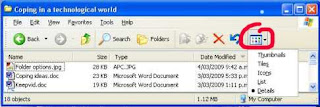
But one of the annoyances of Windows XP is that the folder view sometimes reverts to a default (usually thumbnails) after you close and then re-open it. You can tame this by clicking on the "Tools" menu item, and then choosing "Folder options". Scroll down until you see the item, "Remember each folder's view settings" and tick. If you want that setting to apply to all folders, choose the highlighted button at top.
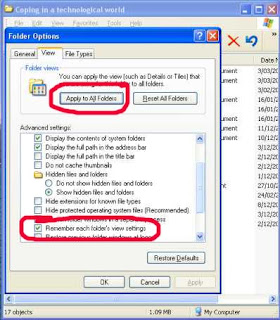

But one of the annoyances of Windows XP is that the folder view sometimes reverts to a default (usually thumbnails) after you close and then re-open it. You can tame this by clicking on the "Tools" menu item, and then choosing "Folder options". Scroll down until you see the item, "Remember each folder's view settings" and tick. If you want that setting to apply to all folders, choose the highlighted button at top.

Tuesday, March 3, 2009
Free music
We hear a lot about the rights and wrongs of downloading music over the internet, and you probably read about the protests last week against the proposed new copyright law in NZ to try and stamp out illegal downloading.
I suspect that any attempts are doomed to failure, because music is simply so ubiquitous on the internet, and there are least three easy ways to access as much as you want. And a high proportion of this is legally free.
The most popular (and also the most dubious legally), is using software such as BitTorrent. Trying to keep it simple, BitTorrent is a way that people around the world can transfer large files to each other. Some estimate it accounts for about 35% of all traffic on the entire Internet. How it works is that a user makes files on his computer available to others, who in turn pass it on to yet more people. The dubious legality comes because the software can't distinguish which music is covered by copyright laws and which is not.
The second most popular method to obtain music is by listening to an internet radio station. There are thousands of these, covering absolutely every genre of music you could possibly conjure up, and some you wouldn't want to. Many of them allow you to set your own programme, so if you want you can listen to nothing but Barry Manilow (hey, I like Barry Manilow!) or solely Iron Maiden. Listening is absolutely legal. What you can also do - and here I am not sure of the legal status - is use any recording software and record the songs as they pass through your computer's sound card. Audacity, which I have mentioned in previous posts, will do the job.
Thirdly, there are many web-based applications that will either help you hunt out the kind of music you like, or search for free mp3's. A good starting place is simplespark.com
There was once a wonderful mp3 search engine called Singingfish. Unfortunately, it was bought out by AOL and shut down. But a replacement seems to be mp3realm, which might turn you up some interesting results.
I suspect that any attempts are doomed to failure, because music is simply so ubiquitous on the internet, and there are least three easy ways to access as much as you want. And a high proportion of this is legally free.
The most popular (and also the most dubious legally), is using software such as BitTorrent. Trying to keep it simple, BitTorrent is a way that people around the world can transfer large files to each other. Some estimate it accounts for about 35% of all traffic on the entire Internet. How it works is that a user makes files on his computer available to others, who in turn pass it on to yet more people. The dubious legality comes because the software can't distinguish which music is covered by copyright laws and which is not.
The second most popular method to obtain music is by listening to an internet radio station. There are thousands of these, covering absolutely every genre of music you could possibly conjure up, and some you wouldn't want to. Many of them allow you to set your own programme, so if you want you can listen to nothing but Barry Manilow (hey, I like Barry Manilow!) or solely Iron Maiden. Listening is absolutely legal. What you can also do - and here I am not sure of the legal status - is use any recording software and record the songs as they pass through your computer's sound card. Audacity, which I have mentioned in previous posts, will do the job.
Thirdly, there are many web-based applications that will either help you hunt out the kind of music you like, or search for free mp3's. A good starting place is simplespark.com
There was once a wonderful mp3 search engine called Singingfish. Unfortunately, it was bought out by AOL and shut down. But a replacement seems to be mp3realm, which might turn you up some interesting results.
Technical hitch
Apologies if you had difficulty reading any posts in the last 24 hours. There was some sort of technical hitch totally beyond my control, but I hope everything is back to normal now.
Friday, February 27, 2009
How to Put Twitter Feeds Into Blogger
Twitter is the new thing that everyone online seems to be getting into. Its heaps of fun, free to sign up and you can communicate with a lot of people with very little effort which is always attractive with our busy lives. You can get your Twitter updates through your mobile phone and, as I discovered tonight you can install a live feed in your Blogger platform very easily.
Whenever I want to customize my blogs I always start with Amanda Fazani's Blogger Buster as her instructions are very clear and simple and you don't need a lot of tech knowledge to follow them. Amanda has written a Twitter Widget that self installs your Twitter updates into your blog - its really easy and customizable! (See the sidebar here for an example.)
If you want to add a link such as "Follow Me on Twitter" you can just open it by clicking on edit, and then just copy and paste the following at the bottom of the text code:
[a href=http://twitter.com/USERNAME" target="0">Follow Me on Twitter]
Whenever I want to customize my blogs I always start with Amanda Fazani's Blogger Buster as her instructions are very clear and simple and you don't need a lot of tech knowledge to follow them. Amanda has written a Twitter Widget that self installs your Twitter updates into your blog - its really easy and customizable! (See the sidebar here for an example.)
Create a Twitter accountOnce it has been added to your blog you can drag it where you want it from within the Layout Page Elements area. Remember to save.
Open this page on Blogger Buster
Scroll about halfway down the page to the heading "Add a Twitter Widget using this Widget Installer"
Enter your Twitter user name into the "Create Your Stylized Twitter Widget" box.
Click "Customize"
Click "Add to Blog"
If you want to add a link such as "Follow Me on Twitter" you can just open it by clicking on edit, and then just copy and paste the following at the bottom of the text code:
[a href=http://twitter.com/USERNAME" target="0">Follow Me on Twitter]
Replace USERNAME with your Twitter user name.If you want to remove the picture that comes with the widget then open the widget as above and delete the following from the code:
Change the [] brackets on each end to < > (respectively).
Then save.
style="background: url(http://bloggerbuster.com/images/twitter-icon.gif)Then click save. Happy Twittering!
top left no-repeat;
Power-up your mouse's scroll wheel
WizMouse is a tiny freeware utility that has a single, simple, function - if you hover your mouse over an inactive window, and use the mouse scroll wheel, it will scroll that window while keeping it inactive. This can be a boon for anyone copying text manually from an inactive window to an active one, or who needs to see data in one window (perhaps one partially obscured) while reading or working in another. It even scrolls applications that don't offer mousewheel support by converting the wheel to clicks on the scroll bars. In other words, if you spin the wheel down, WizMouse will virtually click the "down arrow" for you. WizMouse has a very simple interface. Most of the time, it sits in your system tray as an icon; if you click on it, you get a small dialog with a handful of basic options. I found the default settings to be perfect.
Improving the YouTube experience
YouTube Cinema is a new Firefox extension that will automatically display any YouTube video with all the other page elements removed. It even goes so far as to let you choose from one of six background colors.
In addition to dimming the lights, the extension also has a few tricks up its sleeve, like a toggle between the 4:3 player and the newer 16:9 version. You can also have it default to the high-quality stream if it's available.
One important thing to note: the extension does not work with content that cannot be embedded elsewhere. Attempting to play these videos will simply give you an error screen. This is because the extension does all its handy work by playing the video as an embed in its own special browser tab. To keep this from being a problem, you can simply turn off the feature that automatically opens up new YouTube videos in cinema mode.
Once installed, YouTube Cinema plays YouTube videos with the rest of the screen blacked out, and gives you options to control things like the player size, video quality, and background coloring.
In addition to dimming the lights, the extension also has a few tricks up its sleeve, like a toggle between the 4:3 player and the newer 16:9 version. You can also have it default to the high-quality stream if it's available.
One important thing to note: the extension does not work with content that cannot be embedded elsewhere. Attempting to play these videos will simply give you an error screen. This is because the extension does all its handy work by playing the video as an embed in its own special browser tab. To keep this from being a problem, you can simply turn off the feature that automatically opens up new YouTube videos in cinema mode.
Once installed, YouTube Cinema plays YouTube videos with the rest of the screen blacked out, and gives you options to control things like the player size, video quality, and background coloring.
Thursday, February 26, 2009
Opening ".docx" files
One of the hassles of Microsoft Word 2007 is that it creates documents in a new proprietary format which has the file extension "docx". Word 2003 can't open these documents, and neither can most other word processors (although I believe the latest release of OpenOffice.org can). A similar problem occurs with other products in the Office stable, eg Excel and PowerPoint. If you are using Word 2007, and sending documents to others who may not have the latest edition, I suggest doing a "Save as", in Word 2003 format. If you are faced with trying to open a .docx file and only have an earlier version, you can download a free compatibility pack from Microsoft which will add that ability to your system.
Wednesday, February 25, 2009
Playing videos
Apparently YouTube is trying to block software that allows you to download videos from their site. I can report that the Firefox extension DownloadHelper still works okay as of today. Who knows for how long? but you can guarantee that our tireless geeks will eventually circumvent anything YouTube can put in place.
Of course, when you have successfully downloaded a video, you still have to find something to play it on. Windows Media Player doesn't do it. But a little freebie called FLV Player is just the trick. It has a VERY basic interface, but it works well. Miro is another free player with more bells and whistles, which can handle just about video format you can throw at it (but I prefer FLV for its simplicity).
Of course, when you have successfully downloaded a video, you still have to find something to play it on. Windows Media Player doesn't do it. But a little freebie called FLV Player is just the trick. It has a VERY basic interface, but it works well. Miro is another free player with more bells and whistles, which can handle just about video format you can throw at it (but I prefer FLV for its simplicity).
Tuesday, February 24, 2009
Scam alert
Con artists have a thousand ways to fleece you of your money or your identity (which to them is as good as money). You probably have not fallen for the constant enticements of Nigerian nationals to load their bank accounts (although you would be amazed just how many Kiwis have been sucked in), but how much do you know of the other dirty tricks? Here are nine of them, not necessarily internet or email based.
Monday, February 23, 2009
The Essential Skill of Typing
Back when I was at school typing was one of those subjects you took if you were 'not academic.' Being somewhat academic I, like many of my peers, sneered at students who went off to typing while we took Russian with the other 'brainy kids'.
Fast-forward to my entrance to University; on discovering that every single 5,000 word essay I was expected to hand in had to be typed, I was starting to realise what an essential skill typing really is and began, strangely enough, questioning the relevance of my clumsy high-school Russian skills.
Several large assignments into my degree, I realised that my two-fingered typing had to be addressed; it was so slow and sitting in the computer labs watching those who could type flying through their essays, their hands a blur and not even looking at the keyboard! I was determined that I was going to learn to type.
The law school had helpfully installed Mavis Beacon onto all their student computers and through it I learned that my two-fingered speed was around 25-30 words per minute. I began trying to do half an hour every day and I committed myself to never again type incorrectly. To begin with it was painstakingly slow and unbelievably difficult, especially the first time I made myself type an entire assignment correctly. However, in just two weeks of using Mavis Beacon I went from my painful 11 words a minute to almost doubling my two-fingered speed and comfortably being able to type 50 words per minute, accurately and without looking at the screen!
Mavis Beacon made it really easy as it forced your eyes to the center of the screen, so you couldn't easily look at your fingers and the hands on the screen showed you exactly where each finger should sit. It broke up the lessons with speed trials and typing games and was very user friendly.
 About two years ago I was interested in a particular line of work that called for a minimum typing speed of 70 words per minute. I dusted off my own copy of Mavis Beacon, worked on it most days for about half an hour and got my speed up to just under 80 words per minute, again in just two weeks.
So if you find yourself in our computerised world having never learned to type properly and frustrated at your two-fingered speed, consider teaching yourself to type. It is not as hard as it initially appears.
Mavis Beacon can be found pretty much everywhere software is sold; I picked my copy up for $10NZ and you can download a free trial here (there are many other good programs too). Of course, if you google you can find hundreds of free, online typing tutorial programs with a wide array of styles - just pick one that appeals. Finally, if you simply just want to test your typing speed you could always try Te Awamutu online; type one sentence and it will tell you your speed and accuracy.
Fast-forward to my entrance to University; on discovering that every single 5,000 word essay I was expected to hand in had to be typed, I was starting to realise what an essential skill typing really is and began, strangely enough, questioning the relevance of my clumsy high-school Russian skills.
Several large assignments into my degree, I realised that my two-fingered typing had to be addressed; it was so slow and sitting in the computer labs watching those who could type flying through their essays, their hands a blur and not even looking at the keyboard! I was determined that I was going to learn to type.
The law school had helpfully installed Mavis Beacon onto all their student computers and through it I learned that my two-fingered speed was around 25-30 words per minute. I began trying to do half an hour every day and I committed myself to never again type incorrectly. To begin with it was painstakingly slow and unbelievably difficult, especially the first time I made myself type an entire assignment correctly. However, in just two weeks of using Mavis Beacon I went from my painful 11 words a minute to almost doubling my two-fingered speed and comfortably being able to type 50 words per minute, accurately and without looking at the screen!
Mavis Beacon made it really easy as it forced your eyes to the center of the screen, so you couldn't easily look at your fingers and the hands on the screen showed you exactly where each finger should sit. It broke up the lessons with speed trials and typing games and was very user friendly.
About two years ago I was interested in a particular line of work that called for a minimum typing speed of 70 words per minute. I dusted off my own copy of Mavis Beacon, worked on it most days for about half an hour and got my speed up to just under 80 words per minute, again in just two weeks.So if you find yourself in our computerised world having never learned to type properly and frustrated at your two-fingered speed, consider teaching yourself to type. It is not as hard as it initially appears.
Mavis Beacon can be found pretty much everywhere software is sold; I picked my copy up for $10NZ and you can download a free trial here (there are many other good programs too). Of course, if you google you can find hundreds of free, online typing tutorial programs with a wide array of styles - just pick one that appeals. Finally, if you simply just want to test your typing speed you could always try Te Awamutu online; type one sentence and it will tell you your speed and accuracy.
Bagpipes beats the boy racers
My son moved at the weekend. He and his mates were vacating a house in Fitzgerald Ave, which is one of the seats of boy racer territory in Christchurch. While I was helping, he told me of an incident some time ago, when a group boy racers pulled up about 2.30 in the morning, with car stereos blasting. So house occupants dragged their reasonably formidable stereo system to a front room window, and responded with a rousing rendition of bagpipe music. The boy racers ratcheted the level up a notch. So did the house. The boy racers revved it up another notch. So did the house. At which point the boy racers had to concede defeat (the house had a few more decibels in reserve). The cars moved on, and have never stopped there again.
Another whoops!
I had not actually tried Irfanview's panorama feature before recommending it in a post last week. I tried it today. Ummm ... not good. Apologies. A sad blot on an otherwise remarkable bit of software. I did retry Autostitch, and that seems to be the best bet of the free programs.
Friday, February 20, 2009
Email hoaxes
I normally have a pretty good radar for hoax email messages, including those startling 'facts' which turn out to be urban myths. Unfortunately, I got caught this week passing on a supposed speech by Australian prime minister Kevin Rudd, in which he exhorted all immigrants to get with the Aussie programme or ship out.
A lot of people forward these messages in good faith, but there are several good sites to check whether they are genuine or not.
Hoax-Slayer is dedicated to debunking email hoaxes, thwarting internet scammers, combating spam, and educating web users about email and internet security issues. It also includes anti-spam tips, computer and email security information, articles about true email forwards, and much more.
Another useful source for info on urban myths is www.snopes.com The myth that gets me particularly is the one about the frog that doesn't have enough sense to jump out of a pot of increasingly hot water. Or for church-goers, the common sermon illustration that says the word 'sincere' derives from a Latin phrase that means 'without wax'. 'Fraid the Oxford dictionary doesn't agree.
A lot of people forward these messages in good faith, but there are several good sites to check whether they are genuine or not.
Hoax-Slayer is dedicated to debunking email hoaxes, thwarting internet scammers, combating spam, and educating web users about email and internet security issues. It also includes anti-spam tips, computer and email security information, articles about true email forwards, and much more.
Another useful source for info on urban myths is www.snopes.com The myth that gets me particularly is the one about the frog that doesn't have enough sense to jump out of a pot of increasingly hot water. Or for church-goers, the common sermon illustration that says the word 'sincere' derives from a Latin phrase that means 'without wax'. 'Fraid the Oxford dictionary doesn't agree.
Thursday, February 19, 2009
The Show the Desktop Icon (and how to restore it when it vanishes)
If you are like me, you often have more than one application open at once (and sometimes so many their names are barely legible in your task-bar). An irritating aspect of working like this is that you sometimes need to open a folder that is easiest accessed via your desktop but of course you cannot see it because of all your open applications.
If you haven't discovered it already, the 'Show the Desktop' icon is your best friend. One click and all open applications are tabbed down to your task-bar for easy access; when you are finished with your desktop, a second click restores everything back to being open again, in the order and location you had it open in.
The 'Show the Desktop' icon is generally located in the cluster of icons on your task-bar, next to your start button, see picture. If you don't have a small cluster of icons next to your start button, right click your task-bar, select 'toolbars' and then 'quicklaunch' and it will become visible.
 To the right of your cluster of quick-launch icons there is a small double arrow (it is visible just below the word "Shortcut" in the picture above). Right clicking this will show you all the icons you can quick-launch (so called because a single click opens each instead of the usual two). You can drag and drop your three most used applications onto the task-bar and order them as you want by dragging them around. As you can see looking at mine my top three are Explorer [I am sorry, I just do not like Fire Fox], Outlook and Show the Desktop.
There is, however, a problem that can arise with one's 'Show the Desktop' icon; it can mysteriously vanish. Just when you cannot imagine how you ever coped without it it isn't there and you have to manually tab down every page again. So frustrating! There are varying theories as to why this happens but the most useful piece of information to know is how to restore it.
I have tried various options over the years when ours has vanished but it always would vanish again a few days later. A few months back I tried a very simple piece of code and it has never vanished since. This works for XP users, and is not scary I promise!
Open a notepad or other plain text document.
Copy and paste the following into it:
In the file name type: Show Desktop.scf
Ensure save as type is showing: 'plain text' or 'text documents'
Save it wherever you want it.
Then drag it from wherever it is onto the Quick-launch bar.
That's it.
(You can just memorise the keyboard command 'windows key + d' or 'windows key + m' but I think one click is more efficient than having to hit two keys - less to remember anyway!)
If you haven't discovered it already, the 'Show the Desktop' icon is your best friend. One click and all open applications are tabbed down to your task-bar for easy access; when you are finished with your desktop, a second click restores everything back to being open again, in the order and location you had it open in.
The 'Show the Desktop' icon is generally located in the cluster of icons on your task-bar, next to your start button, see picture. If you don't have a small cluster of icons next to your start button, right click your task-bar, select 'toolbars' and then 'quicklaunch' and it will become visible.
To the right of your cluster of quick-launch icons there is a small double arrow (it is visible just below the word "Shortcut" in the picture above). Right clicking this will show you all the icons you can quick-launch (so called because a single click opens each instead of the usual two). You can drag and drop your three most used applications onto the task-bar and order them as you want by dragging them around. As you can see looking at mine my top three are Explorer [I am sorry, I just do not like Fire Fox], Outlook and Show the Desktop.There is, however, a problem that can arise with one's 'Show the Desktop' icon; it can mysteriously vanish. Just when you cannot imagine how you ever coped without it it isn't there and you have to manually tab down every page again. So frustrating! There are varying theories as to why this happens but the most useful piece of information to know is how to restore it.
I have tried various options over the years when ours has vanished but it always would vanish again a few days later. A few months back I tried a very simple piece of code and it has never vanished since. This works for XP users, and is not scary I promise!
Open a notepad or other plain text document.
Copy and paste the following into it:
[Shell]Select: Save as
Command=2
IconFile=explorer.exe,3
[Taskbar]Command=ToggleDesktop
In the file name type: Show Desktop.scf
Ensure save as type is showing: 'plain text' or 'text documents'
Save it wherever you want it.
Then drag it from wherever it is onto the Quick-launch bar.
That's it.
(You can just memorise the keyboard command 'windows key + d' or 'windows key + m' but I think one click is more efficient than having to hit two keys - less to remember anyway!)
Wednesday, February 18, 2009
Panorama photos
I would love to have a camera that offers a panorama option, but they are way above my price range. However, a good option is to take a sequence of pics of a landscape (or any other subject) and stitch them together into a panorama. For this I use Serif Panorama Plus, which is simplicity itself. The software does only one thing, create panoramas, but it does it superbly well, even adjusting colours at the joining edges. The results are usually pretty seamless. I got my copy of this program free from a computer mag disk, but normally you have to pay for it. However, there are several good free programs out there:
The latest version of the free Irfanview has a panorama-creation tool, which can stitch pics horizontally or vertically. Some others:
Panorama stitching tools
Autostitch
Photopos Panorama Plus
An important tip for achieving good results is to keep your camera horizontal - if you point up or down, you will get some very curved straight lines in the panorama. Use a tripod if you can.
Incidentally, most inexpensive digital cameras have a lens roughly equivalent to a 38mm lens in film camera terms. This means they are a wide-angle lens, and therefore compress the horizontal picture. To get your pics back to a more realistic representation, you should ideally crop either the top, bottom or both, which is a semi-panorama anyway.
The latest version of the free Irfanview has a panorama-creation tool, which can stitch pics horizontally or vertically. Some others:
Panorama stitching tools
Autostitch
Photopos Panorama Plus
An important tip for achieving good results is to keep your camera horizontal - if you point up or down, you will get some very curved straight lines in the panorama. Use a tripod if you can.
Incidentally, most inexpensive digital cameras have a lens roughly equivalent to a 38mm lens in film camera terms. This means they are a wide-angle lens, and therefore compress the horizontal picture. To get your pics back to a more realistic representation, you should ideally crop either the top, bottom or both, which is a semi-panorama anyway.
Tuesday, February 17, 2009
Password-protecting Word documents
Not many people realise you can lock Microsoft Office documents (Word, Excel, etc) so they can only be opened with a password. Great to protect family recipes or whatever from prying eyes. The method is much the same in both Word 2003 and Word 2007, except the buttons are located in different places. Here's the procedure:
1) Choose "save as" from the File menu.
2) Click on the "Tools" button, which I bet you have never noticed before. It's top right in the 2003 version of Word, and bottom left in the 2007 version.
3) Choose "General" options, and a dialogue box will pop up in which you enter your password. You can also have a second password for modifications, so people can access to read but not to modify the document.
Warning: Don't forget that password, because the encription is so strong even computer experts probably won't crack it.
1) Choose "save as" from the File menu.
2) Click on the "Tools" button, which I bet you have never noticed before. It's top right in the 2003 version of Word, and bottom left in the 2007 version.
3) Choose "General" options, and a dialogue box will pop up in which you enter your password. You can also have a second password for modifications, so people can access to read but not to modify the document.
Warning: Don't forget that password, because the encription is so strong even computer experts probably won't crack it.
Monday, February 16, 2009
The downside of Windows 7
Just when I think maybe life might get a bit simpler, along comes someone to spoil my day.
Further to my post on Windows 7 last week, Galen Gruman now tells me that if I want to upgrade from the XP operating system, I will have to do a complete reinstall of everything.
Further to my post on Windows 7 last week, Galen Gruman now tells me that if I want to upgrade from the XP operating system, I will have to do a complete reinstall of everything.
Unlike Vista users, (XP users) can't do an "in-place upgrade," in which the new OS overwrites the old one, preserving their installed applications, preferences, and data. Instead, they'll have to do a clean install, which means they have to back up their data, install Win 7 (either deleting or XP or installing as a separate environment), reinstall their apps, restore their data, and re-create their preferences.
For Windows XP users who avoided Vista because of its many problems, that upgrade work may seem as adding insult to injury, making it harder for them to finally adopt a new version of Windows. Through its PR agency, Microsoft confirms to InfoWorld that there will be no "in-place upgrade" option for XP users, but it declines to explain why not. "More materials on your question are in the works," the spokesman says.
But there may be good reason not to support an in-place upgrade, suggests Michael Silver, a Gartner analyst who follows Microsoft technologies. That's because viruses, registry errors, and other performance-sapping flaws in the user's Windows environment would be carried over into Windows 7; something that would not happen with a clean install.
Friday, February 13, 2009
Windows 7
When Microsoft released its new operating system Vista, it met a storm of resistance, which generally boiled down to two big problems - it required a very fast computer and scads of memory to run all the features, which for a lot of people would have meant a serious upgrade of their computer; and there were a lot of incompatibilities with existing hardware, eg printers, modems, sound and video cards, etc. While most of the incompatibilities have since been sorted out, the memory problem is still a major one. Hence, a high proportion of XP users are clinging desperately to their operating system. So much so, that Microsoft was forced to extend the length of time it would support XP. Vista still has not attracted the user base that Microsoft was expecting, and the ongoing problems forced it to hasten development of a replacement operating system, dubbed Windows 7. Development of this is well advanced, and several million people downloaded a free trial (called a "beta"), which has generally attracted good reviews. As Pat Pilcher wrote in the NZ Herald:
It looks like a lot of people will leapfrog Vista, and hang on to XP until they can upgrade to Windows 7 when it is finally released (and I will almost certainly be one of them, unless I have already ditched Microsoft completely and switched to Linux, which I am more tempted to do by the day).
Having used Windows 7 Beta for the better part of two weeks, I'm pleased to report it takes Vista's strengths and manages to fix most of its annoyances. I'd even go as far as saying that Windows 7 is perhaps one of the most complete and bomb-proof betas I've ever used.
It looks like a lot of people will leapfrog Vista, and hang on to XP until they can upgrade to Windows 7 when it is finally released (and I will almost certainly be one of them, unless I have already ditched Microsoft completely and switched to Linux, which I am more tempted to do by the day).
Thursday, February 12, 2009
Cyborgs soon a reality?
So you thought the Cyborgs of Star Trek were fanciful imagination. We may be closer to the reality than you realise, if this article in the NZ Herald is to be believed:
And I thought I couldn't cope now!!
"Intelligent nanorobots will be deeply integrated in our bodies, our brains, and our environment, overcoming pollution and poverty, extending longevity, and creating full-immersion virtual reality (think The Matrix), "experience beaming" (Being John Malkovich), and vastly enhanced human intelligence. The result will be an intimate merger between the technology-creating species and the technological evolutionary process it spawned."
"That's just for starters. Soon after, claims Kurzweil, "Non-biological intelligence will have access to its own design and will be able to improve itself in an increasingly rapid redesign cycle. We'll get to a point where technical progress will be so fast that unenhanced human intelligence will be unable to follow it. That will mark the singularity."
Kurzweil's point is that we don't know what happens next and, perhaps more importantly, we're not really geared up to the challenges that any of these developments present - though the "singularity" may be only 35 years from now.
And I thought I couldn't cope now!!
Internet down?
Last night, our internet connection just suddenly stopped. My first recourse was to right click on the connection icon at the right-hand side of the task bar and first check status ("offline" - huh! I know that), and then repair. It couldn't repair. Then I had a flash-back and remembered a time several years ago when the same thing used to happen fairly regularly at my workplace. When the internet there went down, we would disconnect the power from the modem, wait 10 seconds, then plug the power back in. This resets all the settings. So I dived under my desk, and did the same. Voila! Internet back in action.
Tuesday, February 10, 2009
Starting in safe mode
While the XP and Vista operating systems don't crash nearly as much as their predecessors, they still freeze from time to time. More commonly, a particular program refuses to work the way it should. The first line of attack is to simply restart (reboot) the computer, and most often that solves the problem (which in that case probably was to do with fragmented memory, or a conflict between two pieces of software). If that doesn't work, the next option is to reboot in "safe mode". This is a bare-bones working mode that disables all extensions, including printer drivers, internet, etc, and is a good mode in which to do trouble-shooting. Oftentimes, simply starting in safe mode and then rebooting in normal mode without doing anything else solves the problem. To reboot in safe mode, hold down the F8 key at the top of your keyboard while starting the computer. You will get some beeps, and the screen will show only black with white writing. At some point, it will stop and offer you three choices to continue. One of these is the safe mode, and you use the arrow keys at the right of your keyboard to choose this, and then press "Enter" to continue. When the computer is in safe mode, the screen operates at a lower resolution, which means all your icons will be bigger, and when you restart in normal mode, you will have the fun job of resorting all the icons.
Some people have difficulty with Firefox freezing, which may be caused by conflict between extensions and add-ons. You can also start Firefox in safe mode, which disables the extensions, and you can then turn them on one by one, to find out which is the culprit. You will find the safe mode by going to Start/Programs/Mozilla Firefox.
Some people have difficulty with Firefox freezing, which may be caused by conflict between extensions and add-ons. You can also start Firefox in safe mode, which disables the extensions, and you can then turn them on one by one, to find out which is the culprit. You will find the safe mode by going to Start/Programs/Mozilla Firefox.
Monday, February 9, 2009
Anonymous surfing
A surprising amount of information about you can be gathered as you surf the Web - including the kind of computer and operating system you use, the sites you've visited recently, your location, and possibly your company. This comes about in several ways. For instance, when you are on the internet, your computer is allocated a unique numerical address called an IP address. Records of this are kept by your internet service provider, and can be accessed by people wanting the information. Some less scrupulous people sell lists of these. Another way is for the web page to plant a "cookie" in your computer, which it can then track. Most cookies are fairly benign - for instance, it tells a site whether you have visited before, and saves you having to provide a password every time you visit.
There are various ways to keep your surfing information private. One is to use what is called a proxy server, essentially an internet site that you log on to, which then disguises your computer's IP address, so it can't be traced. Another is to use programs like Tor, which is a free program that takes all of your Internet communications and sends them around a large network of "onion" routers that make it impossible for sites or people to invade your privacy. There's lots more info on this at the Tor site.
There are various ways to keep your surfing information private. One is to use what is called a proxy server, essentially an internet site that you log on to, which then disguises your computer's IP address, so it can't be traced. Another is to use programs like Tor, which is a free program that takes all of your Internet communications and sends them around a large network of "onion" routers that make it impossible for sites or people to invade your privacy. There's lots more info on this at the Tor site.
Thursday, February 5, 2009
Making hard decisions
The Danish philosopher, mathematician and scientist Piet Hein reckoned that if you were faced with a difficult decision, you should toss a coin, but not necessarily be guided by the way the coin falls. His premise was that in the tossing, you would suddenly realise what you really wanted.
Or you can use the Universal Decision Maker. As it takes longer than a coin toss, you have more time to reflect, and come to the right decision, perhaps.
Or you can use the Universal Decision Maker. As it takes longer than a coin toss, you have more time to reflect, and come to the right decision, perhaps.
Look ma, no software!
One of the inherent problems of the Windows operating systems (and here Mac users can justifiably feel smug) is what is called the Registry. All software installed on the computer is controlled through the Registry, which is rather flaky and subject to things going wrong. If you are having persistent software problems, there's a strong chance the Registry is involved. When you uninstall software, often artifacts are left behind in the Registry which can't easily be removed, etc, etc. It is a no-go area for anyone except experts, because if you make the wrong changes, your whole system can crash.
So here comes the revelation: it is possible to run your computer with NO SOFTWARE installed except the operating system and whatever else Microsoft has loaded on, and do everything you would normally use a computer for. There are at least three ways you can do this.
1) Many open-source projects have been developing what they call Portable Applications. You can load them onto a memory stick/flash drive, and they will work without being installed on the computer. There's quite a list available now - here's one sample which includes such functions as web browser, email program, word processor, media player, spreadsheets.
2) Use web-based applications. These provide all the functionality of installed software, but you load nothing onto your computer. Probably the best-known is Google Docs, a package including a word processor and spreadsheet. But there are thousands of others which can perform just about every function you could wish for. The website Simple Spark has a very comprehensive list, and there are others.
3) Use a Linux disk. Many computer magazines include a disk loaded with one of the many variants of the Linux operating system. You don't actually load Linux on to your computer - simply pop the disk in the DVD drive and away you go. At the end of the session, you eject the disk and nothing is left on the computer except any documents you have saved (and which you can access again the same way at any future time). Most Linux distributions contain a big number of applications, covering all the things you would probably want to do.
So here comes the revelation: it is possible to run your computer with NO SOFTWARE installed except the operating system and whatever else Microsoft has loaded on, and do everything you would normally use a computer for. There are at least three ways you can do this.
1) Many open-source projects have been developing what they call Portable Applications. You can load them onto a memory stick/flash drive, and they will work without being installed on the computer. There's quite a list available now - here's one sample which includes such functions as web browser, email program, word processor, media player, spreadsheets.
2) Use web-based applications. These provide all the functionality of installed software, but you load nothing onto your computer. Probably the best-known is Google Docs, a package including a word processor and spreadsheet. But there are thousands of others which can perform just about every function you could wish for. The website Simple Spark has a very comprehensive list, and there are others.
3) Use a Linux disk. Many computer magazines include a disk loaded with one of the many variants of the Linux operating system. You don't actually load Linux on to your computer - simply pop the disk in the DVD drive and away you go. At the end of the session, you eject the disk and nothing is left on the computer except any documents you have saved (and which you can access again the same way at any future time). Most Linux distributions contain a big number of applications, covering all the things you would probably want to do.
Wednesday, February 4, 2009
Windows log on password
A friend returned from holiday and complained she could not log on to her computer after allowing someone else to use it during her absence. All was solved when we realised that Windows passwords are case sensitive, and she had not noticed the caps lock key was down.
Tuesday, February 3, 2009
Why I dislike Microsoft
Q: How many Microsoft technicians does it take to change a lightbulb?
A: None. They simply redefine darkness as the industry standard.
That sums up perfectly why I don't like Microsoft. They don't adhere to industry standards, and they try to enforce their own on everybody else. Here are some examples:
I worked in the prepress department of a major printing company for five years. We used to shudder when a client brought in a Word or Publisher document for printing, the reason being that Microsoft formats ALL documents (Word, Publisher, Powerpoint, etc) using the default printer driver of the computer on which they are composed. Take the document to another computer, and the composition, pagination, etc, goes to pieces. You have to try and copy drivers from one computer to the other to reconstitute the pagination, and even then it doesn't always work. (And it's impossible if you are moving from PC to Mac.)
If you create a style sheet in Word, the moment you make a slight change to a font (eg, bold, italic) etc, Word automatically creates a new style sheet. By the time you have finished formatting a whole document, you have dozens of totally unnecessary style sheets, which you dare not delete. NO-ONE ELSE's word processing or page layout software does this, for the good reason that it's not necessary and it just makes life difficult.
If you make a PowerPoint presentation containing an audio file, and you time slide transitions to the audio, the timing goes all out if you play the presentation on another computer. I don't understand the full technicalities, but it's something to do with PowerPoint using the computer system's clock speed for timing, and of course, each computer is slightly different.
Internet Explorer does not conform to the World Wide Web consortium's standards for internet browsers. So unless web pages are composed to meet their standards, they do not show properly on screen, which creates problems for designers who have to also meet the requirements of other browsers, such as Firefox and Opera (which, to be fair, are not perfect in implementation either, but are a lot closer to the internationally accepted standards).
Sun Systems came out with a very useful programming language called Java, which helps web pages perform a lot of the amazing feats you take for granted. So Microsoft hijacked the code, implemented their own version, and are now trying to enforce it on the rest of the world and kill off Sun's Java. They probably won't succeed, but it's typical of the way they operate.
So while I am forced to use a lot of Microsoft software, you can see why I find alternatives wherever possible. It's not just bloody-mindedness - it's essential to keeping sanity in my work day.
A: None. They simply redefine darkness as the industry standard.
That sums up perfectly why I don't like Microsoft. They don't adhere to industry standards, and they try to enforce their own on everybody else. Here are some examples:
I worked in the prepress department of a major printing company for five years. We used to shudder when a client brought in a Word or Publisher document for printing, the reason being that Microsoft formats ALL documents (Word, Publisher, Powerpoint, etc) using the default printer driver of the computer on which they are composed. Take the document to another computer, and the composition, pagination, etc, goes to pieces. You have to try and copy drivers from one computer to the other to reconstitute the pagination, and even then it doesn't always work. (And it's impossible if you are moving from PC to Mac.)
If you create a style sheet in Word, the moment you make a slight change to a font (eg, bold, italic) etc, Word automatically creates a new style sheet. By the time you have finished formatting a whole document, you have dozens of totally unnecessary style sheets, which you dare not delete. NO-ONE ELSE's word processing or page layout software does this, for the good reason that it's not necessary and it just makes life difficult.
If you make a PowerPoint presentation containing an audio file, and you time slide transitions to the audio, the timing goes all out if you play the presentation on another computer. I don't understand the full technicalities, but it's something to do with PowerPoint using the computer system's clock speed for timing, and of course, each computer is slightly different.
Internet Explorer does not conform to the World Wide Web consortium's standards for internet browsers. So unless web pages are composed to meet their standards, they do not show properly on screen, which creates problems for designers who have to also meet the requirements of other browsers, such as Firefox and Opera (which, to be fair, are not perfect in implementation either, but are a lot closer to the internationally accepted standards).
Sun Systems came out with a very useful programming language called Java, which helps web pages perform a lot of the amazing feats you take for granted. So Microsoft hijacked the code, implemented their own version, and are now trying to enforce it on the rest of the world and kill off Sun's Java. They probably won't succeed, but it's typical of the way they operate.
So while I am forced to use a lot of Microsoft software, you can see why I find alternatives wherever possible. It's not just bloody-mindedness - it's essential to keeping sanity in my work day.
More of the best freeware
Everywhere I look at the moment, I see magazines and bloggers listing the best of this or that. I have previously listed some of the must-have's that reside on my computer, but to go with the flow, here is an additional list (again, all free).
Anti-virus - although it is not the perfect anti-virus tool, it's hard to go past AVG. If you don't have it, install it today.
Anti-spyware - the same goes for Spybot. It's essential.
Recover lost files - should the unthinkable happen, and you accidentally permanently erase an essential file, don't panic. Glary undelete will come running to the rescue, restoring files that have even vanished from the recycle bin/trash can.
Page layout - I know many Microsoft bundles include Publisher, but take my advice, DO NOT USE IT. It's a dog! Anyone who works in the real printing business will tell you it creates massive problems in their prepress departments. An alternative is Serif PagePlus, which behaves much more like the old PageMaker.
Web design - There are several good open-source tools, but the best are probably NVU and KompoZer.
Video editing - If you are fortunate enough to own a Macintosh, then iMovie is a good basic editor. The PC equivalent is MovieMaker, which comes built in with the system. If you need something a bit more sophisticated, Jahshaka is getting good reviews in the open-source world.
Calculator - the Windows calculator is pathetic. Moffsoft FreeCalc doesn't have any more maths functions, but because I keep losing my place when I'm totting up a column of figures, I love the way it gives me a sidebar read-out of the steps I have entered.
Font viewer - One of the frustrations of the PC system is that it's hard to see what fonts actually look like - mostly the names give you no clue. Fontviewer does exactly what it says, and nothing else. But it does it very simply and well.
Anti-virus - although it is not the perfect anti-virus tool, it's hard to go past AVG. If you don't have it, install it today.
Anti-spyware - the same goes for Spybot. It's essential.
Recover lost files - should the unthinkable happen, and you accidentally permanently erase an essential file, don't panic. Glary undelete will come running to the rescue, restoring files that have even vanished from the recycle bin/trash can.
Page layout - I know many Microsoft bundles include Publisher, but take my advice, DO NOT USE IT. It's a dog! Anyone who works in the real printing business will tell you it creates massive problems in their prepress departments. An alternative is Serif PagePlus, which behaves much more like the old PageMaker.
Web design - There are several good open-source tools, but the best are probably NVU and KompoZer.
Video editing - If you are fortunate enough to own a Macintosh, then iMovie is a good basic editor. The PC equivalent is MovieMaker, which comes built in with the system. If you need something a bit more sophisticated, Jahshaka is getting good reviews in the open-source world.
Calculator - the Windows calculator is pathetic. Moffsoft FreeCalc doesn't have any more maths functions, but because I keep losing my place when I'm totting up a column of figures, I love the way it gives me a sidebar read-out of the steps I have entered.
Font viewer - One of the frustrations of the PC system is that it's hard to see what fonts actually look like - mostly the names give you no clue. Fontviewer does exactly what it says, and nothing else. But it does it very simply and well.
Monday, February 2, 2009
Smash that hard drive!
If you're planning on getting rid of an old computer, the only way to make sure the data doesn't fall into the wrong hands is to remove the hard drive and smash it up with a hammer, a British consumer group has advised. Which? Computing magazine said the only way to make sure fraudsters could not steal personal details from an old computer's hard drive was to utterly destroy it, as simply deleting files or wiping the drive was not sufficient.
Which? said it had bought eight second-hand drives from internet auction site eBay and recovered 22,000 "deleted" files, including some information that could be confidential. Criminals, who it said trawled council waste sites and internet sites like eBay, would be able use specialist software to retrieve the information which could then be used to commit identity theft.
"Even if you delete your files, you'd be surprised how easy it is to recover your personal data. It sounds extreme, but the only way to be 100 per cent safe is to smash your hard drive into smithereens," said editor Sarah Kidner.
Which? said it had bought eight second-hand drives from internet auction site eBay and recovered 22,000 "deleted" files, including some information that could be confidential. Criminals, who it said trawled council waste sites and internet sites like eBay, would be able use specialist software to retrieve the information which could then be used to commit identity theft.
"Even if you delete your files, you'd be surprised how easy it is to recover your personal data. It sounds extreme, but the only way to be 100 per cent safe is to smash your hard drive into smithereens," said editor Sarah Kidner.
Subscribe to:
Posts (Atom)

 Posts
Posts


