Showing posts with label Microsoft Word. Show all posts
Showing posts with label Microsoft Word. Show all posts
Friday, January 15, 2010
View two Word documents at once
Here's a helpful tip that lets you view two Word documents side-by-side without using the Document Compare function. "In other words, the documents aren’t compared and marked up as with Doc Compare—they are laid out side-by-side so you can do a visual check of them. And you can synchronize the scrolling of the documents too so that you don’t have to change focus or jump between each one as you work through them."


Wednesday, October 7, 2009
Opening a Word document where you left off
One of the frustrations of Microsoft Word is that it opens at the top of the document, rather than where you left off reading or editing. If it's a long document, it can be a pain trying to find that spot again. Fortunately, there is a solution, using a little-known feature of Word: the Go Back command. No matter where you are in a document, when you press Ctrl+Alt+Z your cursor jumps back to the last place you edited; on the Mac, it's Command-Option-Z. In fact, each time you use the Go Back command, your insertion point jumps among four places: the last three edit spots and your current position. When you re-open a document, pressing Ctrl+Alt+Z will also take the cursor to the last editing point. So if you are reading a long document and have to close it, make a small edit (for instance, adding a spacebar space) and using the Go Back command will take you there when you return. One proviso: When you open the document, hit the Go Back command keys immediately - don't so much as touch your mouse - otherwise it may not work.
Tuesday, August 4, 2009
Is there life beyond Word?
Microsoft Word is ubiquitous, even with all its competitors (such as OpenOffice.org). It is almost universal because most people have to have it to be able to send and receive documents to other people. But what if that way of working became irrelevant? After all, I am not using Word to write this blog, and I don't use it for a lot of other tasks these days. Jeremy Reimer envisages a different way of working that completely by-passes Word (or any other word processor). He is coming to the conclusion that it is like the typewriter of old, near to being superseded.
Thursday, June 25, 2009
Closing Word documents
I can never understand why programmers continually fix things that aren't broken. Microsoft continually changes bits of the Office interface, so that things go missing or don't work the way they did before. A case in point: In previous versions of Word, if you had only one document open and clicked on the X at upper right to close the document, the program remained loaded. In Word 2007, if you do the same, the entire program closes. I have watched frustrated users do this time and again. The simplest answer is to close a document using the keyboard command Ctrl-W (a shortcut which works with many applications, by the way, including web browser tabs). But why should you have to?
Tuesday, June 23, 2009
Another way to move text in Word
We're all familiar with the copy and paste commands in Word and other word processors. But there is an even simply way to move lines of text or paragraphs around, using a keyboard shortcut. The shortcut is Shift-Alt + the up or down arrows.
Here is how it works: Highlight a paragraph, press Shift-Alt+up arrow or down arrow, and the paragraph will move up or down the page. If you are working in a table, the cell of the table will move. In a table, you don’t even have to select the row or item that you want to move… just make sure your cursor is somewhere in the row.
This tip also works in Excel. (Hat-tip to How-To Geek.)
Here is how it works: Highlight a paragraph, press Shift-Alt+up arrow or down arrow, and the paragraph will move up or down the page. If you are working in a table, the cell of the table will move. In a table, you don’t even have to select the row or item that you want to move… just make sure your cursor is somewhere in the row.
This tip also works in Excel. (Hat-tip to How-To Geek.)
Friday, June 19, 2009
Placing pics in Word
Word is not the easiest tool when it comes to designing pages. Some things that are simple operations in any page layout program are a nightmare to try and do in Word. Fortunately, one operation that has been improved in Word 2007 is the handling of images. If you want to place a photograph, for instance, in a Word document, from the Insert menu click on "Picture", and then choose from the dialogue box that opens. When you okay the choice, Word automatically inserts it wherever you had your text cursor in the document, and if the cursor is in the middle of a line, it will break the text at that point to accommodate the image. The result is something akin to a skyscraper in a treeless landscape. But there is much you can do to improve things. When the image is imported, you will see a dotted blue line around it, which means it is selected. And the menu bar will have changed to Format. One of the most important options there is Text Wrapping, and you have many possibilities to choose from. For simple work, I suggest "Square", which allows you to drag the image around anywhere on the page, and the text will wrap around it. If you click and drag on a corner of the image, you can resize it. I also suggest playing around with the Edit Wrap Points and More Layout Options, which give a lot more control over how the image the text interact with each other.
Embedded images: One word of caution - when Word imports an image, by default it embeds it in the document. This means that all the image information is stored within the document. It has the advantage that when you send the document to another person, you don't need to send the image as well. The disadantage is that if you try to extract and save the image as a separate item, there is a massive loss of quality. And the file size of the Word document increases by the size of the image - so it takes only a few images to quickly bloat the size of the Word document to massive amounts, certainly more than most email systems will comfortably handle. There are some alternatives, which Microsoft cleverly hides until you click on a tiny triangle next to the "Insert" button at the bottom right of the dialogue box when you choose a picture to insert. Here is some help on what the alternatives mean.
Embedded images: One word of caution - when Word imports an image, by default it embeds it in the document. This means that all the image information is stored within the document. It has the advantage that when you send the document to another person, you don't need to send the image as well. The disadantage is that if you try to extract and save the image as a separate item, there is a massive loss of quality. And the file size of the Word document increases by the size of the image - so it takes only a few images to quickly bloat the size of the Word document to massive amounts, certainly more than most email systems will comfortably handle. There are some alternatives, which Microsoft cleverly hides until you click on a tiny triangle next to the "Insert" button at the bottom right of the dialogue box when you choose a picture to insert. Here is some help on what the alternatives mean.
Friday, May 29, 2009
Previewing Word files
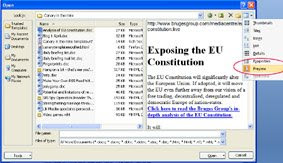
There's always something you can learn! Here's a tip I have just discovered that allows you to see what's inside a Word document without actually opening it. Use the Open command in Word (File menu/Open or Ctrl-O). In the dialogue box that pops up, single click on a document title, and then from the Views menu, top right, choose Preview. The content is displayed in a new pane on the RH side of the dialogue box.
If you want to preview files created by other programs, Vista lets you adda preview pane to its Explorer. XP users will need a special utility such as Universal Viewer. This lets you peek inside a variety of common file types (graphics, PDF, HTML, and many more) just by right-clicking and choosing the Universal Viewer command. Install the plugin for Microsoft Office (a separate free download), and you can view Word and Excel files as well. Navigation buttons make it easy to skim through all files in a folder.

If you want to preview files created by other programs, Vista lets you adda preview pane to its Explorer. XP users will need a special utility such as Universal Viewer. This lets you peek inside a variety of common file types (graphics, PDF, HTML, and many more) just by right-clicking and choosing the Universal Viewer command. Install the plugin for Microsoft Office (a separate free download), and you can view Word and Excel files as well. Navigation buttons make it easy to skim through all files in a folder.
Thursday, February 26, 2009
Opening ".docx" files
One of the hassles of Microsoft Word 2007 is that it creates documents in a new proprietary format which has the file extension "docx". Word 2003 can't open these documents, and neither can most other word processors (although I believe the latest release of OpenOffice.org can). A similar problem occurs with other products in the Office stable, eg Excel and PowerPoint. If you are using Word 2007, and sending documents to others who may not have the latest edition, I suggest doing a "Save as", in Word 2003 format. If you are faced with trying to open a .docx file and only have an earlier version, you can download a free compatibility pack from Microsoft which will add that ability to your system.
Subscribe to:
Posts (Atom)

 Posts
Posts


