Friday, June 5, 2009
Deleting email attachments
A friend who is a Mac owner would like to slim down her email inbox by deleting all the attachments from the emails, but keeping the main body of the message. (She has already saved important attachments to folders elsewhere on her hard drive.) As far as my investigations can tell, the Mac Mail program does not have this facility. However, the Thunderbird email program (which I use at home) does have that ability, and a Mac version of Thunderbird is available. When you install Thunderbird, it gives you the option to import your emails and address books from your other program, so you don't have to lose any important contacts. On a PC, Microsoft Outlook 2007 has the ability to delete attachments (not sure about earlier versions), but Outlook Express does not. Again, the PC version of Thunderbird does. For Mac owners who do not want to move away from Mail, I can think of two other work-arounds (both a bit clumsy). One is to forward the email to your own address, deleting the attachment at that point. The other is to save the email as a text-only file in an appropriate folder on the hard drive.


Salvaging the accidents
The "oh crumbs!" moment is a fact of life when you work with computers. (Ok, I'll admit it, the strength of the expletive is in direct proportion to the severity of the stuff-up.) How many times have I accidentally deleted text I have slaved over, or destroyed a work of art in Photoshop with a slip of the mouse?
When this happens, I try hard not to panic, stop everything, take a deep breath, and then hit "undo" keys, Ctrl-Z. (I wish life had a Ctrl-Z key to erase those dumb things I do or say.) Some programs, such as Word, have almost unlimited levels of undo. Just keep hitting Ctrl-Z, and you can go back a long way down the path you have come. If you undo too much, you can redo by going to the Edit menu and choosing that option. Some programs, like PhotoShop, by default have only one level of undo. Then, Ctrl-Z becomes a toggle between undoing and redoing. However, PhotoShop also has a History function, found under the Window menu, which allows you to go back to any particular action and alter it.
Some programs have a Revert function (usually found under the File menu). Choosing this takes the document back to the last-saved version. Depending on how frequently you save, this may take you back further than you wanted to go, but it can salvage many worst-case scenarios. As I have got myself into the habit of saving text documents at least every five minutes, Revert has been my saviour on many occasions.
Word does not have a Revert feature, but one more option is open to you, which also works for every other program without exception. Simply close the document, and when you are prompted, do not save the changes. That will take the document back to its last-saved version.
When this happens, I try hard not to panic, stop everything, take a deep breath, and then hit "undo" keys, Ctrl-Z. (I wish life had a Ctrl-Z key to erase those dumb things I do or say.) Some programs, such as Word, have almost unlimited levels of undo. Just keep hitting Ctrl-Z, and you can go back a long way down the path you have come. If you undo too much, you can redo by going to the Edit menu and choosing that option. Some programs, like PhotoShop, by default have only one level of undo. Then, Ctrl-Z becomes a toggle between undoing and redoing. However, PhotoShop also has a History function, found under the Window menu, which allows you to go back to any particular action and alter it.
Some programs have a Revert function (usually found under the File menu). Choosing this takes the document back to the last-saved version. Depending on how frequently you save, this may take you back further than you wanted to go, but it can salvage many worst-case scenarios. As I have got myself into the habit of saving text documents at least every five minutes, Revert has been my saviour on many occasions.
Word does not have a Revert feature, but one more option is open to you, which also works for every other program without exception. Simply close the document, and when you are prompted, do not save the changes. That will take the document back to its last-saved version.
Thursday, June 4, 2009
Restoring browser defaults
According to reports, a glitch in Internet Explorer 6 forced the new Microsoft search engine Bing onto users as the default search engine. Even when users manually altered their preferences, Bing came back. Micosoft says it has now fixed the problem, but similar problems have occurred before.
When one of the early versions of Windows 7 was released a month or so back, IE8 was automatically pushed as the default browser. This caused competitors Opera and Firefox to complain. If that has happened to you, and you want to reset Firefox or Opera as your default, there is a solution.
1. Close Internet Explorer if it's running, then start Firefox.
2. Click Tools, Options, then click the Advanced icon in the Options toolbar.
3. Click the General tab if it's not already selected, then make sure "Always check to see if Firefox is the default browser on startup" is enabled.
4. Click Check Now, then confirm that you want to make Firefox your default browser.
5. Click OK and you're done.
When one of the early versions of Windows 7 was released a month or so back, IE8 was automatically pushed as the default browser. This caused competitors Opera and Firefox to complain. If that has happened to you, and you want to reset Firefox or Opera as your default, there is a solution.
1. Close Internet Explorer if it's running, then start Firefox.
2. Click Tools, Options, then click the Advanced icon in the Options toolbar.
3. Click the General tab if it's not already selected, then make sure "Always check to see if Firefox is the default browser on startup" is enabled.
4. Click Check Now, then confirm that you want to make Firefox your default browser.
5. Click OK and you're done.
Wednesday, June 3, 2009
When an unwanted program lacks an uninstaller
A fairly regular annoyance in the Windows world crops up when you want to uninstall an unwanted program. Most programs either have an uninstall option, or you can delete them using the control panel "Add or remove programs". But from time to time, the uninstall routine becomes corrupted, or is even missing completely. (It's certainly happened to me on a number of occasions.) Lincoln Spector has some helpful tips on what to do in such cases.
In addition, a marvellous free utility called Revo Uninstaller, can assist in tidying up the nasty left-overs from messy uninstalls.
In addition, a marvellous free utility called Revo Uninstaller, can assist in tidying up the nasty left-overs from messy uninstalls.
Dreamweaver to PDF - help wanted
This might be a bit specialised for many, but I could use some help. I am creating some web documents in Dreamweaver and would like to convert them to pdf files. Alternatively, convert to some format that I can email to others so they can view the finished product. Any ideas greatly received.
Tuesday, June 2, 2009
Bing debuts
Microsoft's new search engine, Bing (formerly known as Kumo), has come online, though primarily still in Beta mode (ie, not fully developed). It has one or two nice features. For instance, when doing an image search you can specify a lot more exactly what you are looking for; eg, a cartoon or live image. But I don't like the fact you can't tell the web address or size of the image until you hover your mouse pointer over it. The web pages search has got quite a way to go to compete with Google's new features, and the whole engine still has a not-quite-finished feel about it. As for the name: maybe that says it all. (To be fair, perhaps we laughed at the name Google when it first launched.) Will it break Google's dominance? I suspect not, but in the topsy-turvy internet world, who can be certain about anything?
Saturday, May 30, 2009
How to Insert StumbleUpon into your Blogger Footer
If someone stumbles your blog it can bring a lot of traffic to your site so it is a good idea to make it easier for visitors to your site to stumble it.
But have you ever tried to add a StumbleUpon button to your blogger template only to find that the instructions are impossible to follow, you cannot work out where to put the code or your icon sits higher than your text? I have played around with the code provided by StumbleUpon and got it sitting how and where I want it, see here, and have now created this simple tutorial so you can too.
Log in to Blogger
Click on 'Layout'
Click on 'edit HTML'
Click on 'download full template' and save a backup of your blog to your hard-drive in case anything goes wrong
Check the 'expand widget templates box' (you are still in 'Layout', 'edit HTML')
Click anywhere in the actual code then press 'ctrl' and 'f' at the same time (which will bring up the find box)
Enter post-footer-line-1; into the find box and click next to find the line of code that should either be identical with or look a lot like:
<p class='post-footer-line post-footer-line-1'>
Make some space under this line by clicking at the end of it and hitting 'enter' a few times then past the following code into your template:
<span style='float: left; background: url(http://cdn.stumble-upon.com/images/16x16_su_round.gif) left no-repeat; padding-left: 20px;'><a expr:href='"http://www.stumbleupon.com/submit?url="+ data:post.url + "&title=" + data:post.title' target='_blank'>Stumble it! </a></span><br/>
Save your template. Easy peasy. You can change the background url to any button you want to use.
But have you ever tried to add a StumbleUpon button to your blogger template only to find that the instructions are impossible to follow, you cannot work out where to put the code or your icon sits higher than your text? I have played around with the code provided by StumbleUpon and got it sitting how and where I want it, see here, and have now created this simple tutorial so you can too.
Log in to Blogger
Click on 'Layout'
Click on 'edit HTML'
Click on 'download full template' and save a backup of your blog to your hard-drive in case anything goes wrong
Check the 'expand widget templates box' (you are still in 'Layout', 'edit HTML')
Click anywhere in the actual code then press 'ctrl' and 'f' at the same time (which will bring up the find box)
Enter post-footer-line-1; into the find box and click next to find the line of code that should either be identical with or look a lot like:
<p class='post-footer-line post-footer-line-1'>
Make some space under this line by clicking at the end of it and hitting 'enter' a few times then past the following code into your template:
<span style='float: left; background: url(http://cdn.stumble-upon.com/images/16x16_su_round.gif) left no-repeat; padding-left: 20px;'><a expr:href='"http://www.stumbleupon.com/submit?url="+ data:post.url + "&title=" + data:post.title' target='_blank'>Stumble it! </a></span><br/>
Save your template. Easy peasy. You can change the background url to any button you want to use.
Friday, May 29, 2009
Previewing Word files
There's always something you can learn! Here's a tip I have just discovered that allows you to see what's inside a Word document without actually opening it. Use the Open command in Word (File menu/Open or Ctrl-O). In the dialogue box that pops up, single click on a document title, and then from the Views menu, top right, choose Preview. The content is displayed in a new pane on the RH side of the dialogue box.
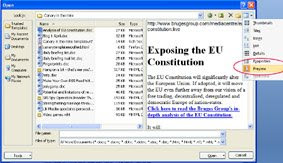
If you want to preview files created by other programs, Vista lets you adda preview pane to its Explorer. XP users will need a special utility such as Universal Viewer. This lets you peek inside a variety of common file types (graphics, PDF, HTML, and many more) just by right-clicking and choosing the Universal Viewer command. Install the plugin for Microsoft Office (a separate free download), and you can view Word and Excel files as well. Navigation buttons make it easy to skim through all files in a folder.

If you want to preview files created by other programs, Vista lets you adda preview pane to its Explorer. XP users will need a special utility such as Universal Viewer. This lets you peek inside a variety of common file types (graphics, PDF, HTML, and many more) just by right-clicking and choosing the Universal Viewer command. Install the plugin for Microsoft Office (a separate free download), and you can view Word and Excel files as well. Navigation buttons make it easy to skim through all files in a folder.
Upgrading to Etch-a-Sketch
Somedays computers just seem too hard. For those of you who are finding your PC too much trouble, try this solution: Upgrade to an Etch-A-Sketch. There are many sound reasons for this:
Frequently Asked Questions for Etch-A-Sketch Technical Support
Q. My Etch-A-Sketch has all of these funny little lines all over the screen.
A. Pick it up and shake it.
Q. How do I turn my Etch-A-Sketch off?
A. Pick it up and shake it.
Q. What's the shortcut for Undo?
A. Pick it up and shake it
Q. How do I create a New Document window?
A. Pick it up and shake it.
Q. How do I set the background and foreground to the same color?
A. Pick it up and shake it.
Q. What is the proper procedure for rebooting my Etch-A-Sketch?
A. Pick it up and shake it.
Q. How do I delete a document on my Etch-A-Sketch?
A. Pick it up and shake it.
Q. How do I save my Etch-A-Sketch document?
A. Don't shake it.
1. No OS (operating system) problems.
2. No technical glitches keeping work from being done.
3. No more wasted time reading and writing emails.
Frequently Asked Questions for Etch-A-Sketch Technical Support
Q. My Etch-A-Sketch has all of these funny little lines all over the screen.
A. Pick it up and shake it.
Q. How do I turn my Etch-A-Sketch off?
A. Pick it up and shake it.
Q. What's the shortcut for Undo?
A. Pick it up and shake it
Q. How do I create a New Document window?
A. Pick it up and shake it.
Q. How do I set the background and foreground to the same color?
A. Pick it up and shake it.
Q. What is the proper procedure for rebooting my Etch-A-Sketch?
A. Pick it up and shake it.
Q. How do I delete a document on my Etch-A-Sketch?
A. Pick it up and shake it.
Q. How do I save my Etch-A-Sketch document?
A. Don't shake it.
Wednesday, May 27, 2009
Heal your own computer
The Press computer correspondent Dave Thompson writes that there are many things you can do to heal your computer before you go speed dialling for a repairman. "You are capable of resolving many of the minor issues that crop in everyday use," he says. This is a great article that the non-technical can generally follow. There's only one instruction that might baffle the uninitiated: he suggests using MSCONFIG, but doesn't tell you how to access it. Go to the Start menu, choose "Run" and then type MSCONFIG into the dialogue box and you're away. Oh, and how do you check whether your hard drive is full? Double-click the "My Computer" icon on your desktop, and that will bring up a window listing the various drives on your machine, their size, and how much is used.
Tuesday, May 26, 2009
Have a Picnik with your pics
It must be photography week! While we're on the topic of photos, I have just discovered the photo editing website, Picnik. At this site, you can upload photos and give them the sort of treatment you would otherwise have to use a program like Photoshop Elements to achieve. You can do just about all the basics there, from colour correction to fancy effects, and it is very fast. The main omission from the arsenal of tools that I use a great deal is layers and masking, but for home use this is a great service - and it's free.
More clever uses for a camera
Here's a follow-up to last week's post about clever uses for a digital camera. Among more suggestions from PC World readers were photographing pre-existing damage to rental cars, photographing public maps in foreign cities, making a record of your luggage on flights, keeping a record of your passport, and recording stages of work when dismantling things for repair, so no pieces get left out when you try to put it back together (I really like that one).
Monday, May 25, 2009
Emailing photographs
One of the benefits of digital photography is being able to instantly email pics to family and friends. But you will quickly clog up their inbox if you send the file just as you download it from your camera. Fortunately, there are several easy ways to solve this, by reducing the size of the photo.
Using Irfanview, you can open the pic, then go to Image/Resize-Resample. In the dialogue box, halfway down you will find the option, "Set new size as percentage of the original". Half is probably acceptable, and when you save the pic, give it a new name to indicate it is a smaller version of the original. Incidentally, when you save a jpeg image, you can specify the amount of compression. It is a trade-off - the higher the compression the smaller the file size, but the lower the quality of the saved image.
There is also a useful tool buried in the Windows XP and Vista systems.
Select a photo by right-clicking on it, and from the pop-up menu choose "Send to, Mail Recipient." (In Vista you can also click the email icon on the toolbar.) A dialog box will ask if you want to make the pictures smaller before you send them. If you choose to do so, Windows will create smaller versions of the photos and send them to your default email program. Also, notice the "Show more options" link at the RH foot of the box, which allows you to choose the emailed size of the pic.
Windows shrinks the photos by reducing their resolution. The resulting image will look fine onscreen, but won't print very well. When you send photos this way, it might pay to mention this in the body of my message, and offer to send the full-size version of any photo the recipient wants to print.
Using Irfanview, you can open the pic, then go to Image/Resize-Resample. In the dialogue box, halfway down you will find the option, "Set new size as percentage of the original". Half is probably acceptable, and when you save the pic, give it a new name to indicate it is a smaller version of the original. Incidentally, when you save a jpeg image, you can specify the amount of compression. It is a trade-off - the higher the compression the smaller the file size, but the lower the quality of the saved image.
There is also a useful tool buried in the Windows XP and Vista systems.
Select a photo by right-clicking on it, and from the pop-up menu choose "Send to, Mail Recipient." (In Vista you can also click the email icon on the toolbar.) A dialog box will ask if you want to make the pictures smaller before you send them. If you choose to do so, Windows will create smaller versions of the photos and send them to your default email program. Also, notice the "Show more options" link at the RH foot of the box, which allows you to choose the emailed size of the pic.
Windows shrinks the photos by reducing their resolution. The resulting image will look fine onscreen, but won't print very well. When you send photos this way, it might pay to mention this in the body of my message, and offer to send the full-size version of any photo the recipient wants to print.
Friday, May 22, 2009
Taming the tabs
How did we ever manage before the web browsers invented tabs? But they sometimes need a bit of bringing into line. For instance, to open a link in a new tab, you can scroll-wheel click or right click on it. By default, the tab opens in the background, and the page you were on stays in front. That probably suits a lot of people, but I prefer to have the new link to come to the front immediately (it's just the way I work). To change the default, do one of the following:
Internet Explorer - go to Tools menu/Internet Options. At the foot of the popup window you will see a Tabs section. Click on Settings. Select "Always switch to new tabs when they are created."
Firefox - go to Tools menu/Options. Select the Tabs button at the top of the popup window, and select "When I open a link in a new tab, switch to it immediately".
In both browsers, typing Ctrl-T opens a new tab. Firefox opens a blank tab, but IE8 opens its "about:tabs" page, which you may not want. To change the default, go back to Internet Options, as above. In the Tab/Settings window, about halfway down you will see the option, "When a new tab is opened, open..." The pull down menu underneath gives you the option of opening the tab blank, or opening to your default home page.
To change your default home page: Go back to the Tools/Options menu. Choose the General tab at the top of the popup window, and you will see a box to enter your preferred home page. (You can have several, and each will open in its own tab when you launch the browser.)
Internet Explorer - go to Tools menu/Internet Options. At the foot of the popup window you will see a Tabs section. Click on Settings. Select "Always switch to new tabs when they are created."
Firefox - go to Tools menu/Options. Select the Tabs button at the top of the popup window, and select "When I open a link in a new tab, switch to it immediately".
In both browsers, typing Ctrl-T opens a new tab. Firefox opens a blank tab, but IE8 opens its "about:tabs" page, which you may not want. To change the default, go back to Internet Options, as above. In the Tab/Settings window, about halfway down you will see the option, "When a new tab is opened, open..." The pull down menu underneath gives you the option of opening the tab blank, or opening to your default home page.
To change your default home page: Go back to the Tools/Options menu. Choose the General tab at the top of the popup window, and you will see a box to enter your preferred home page. (You can have several, and each will open in its own tab when you launch the browser.)
Thursday, May 21, 2009
The dark side of Skype
Skype's free internet phone calls are a boon to millions. But it has a dark side which has largely gone undocumented: it hijacks websites.
Recently, I installed Skype on my computer at the request of my boss, in the belief it would improve communications between us. One of my duties is to administer our website, hence I frequently author pages for the site. But we have discovered that Skype sniffs around for phone numbers on a page, and when it finds them inserts a packet of code into the page to promote Skype. The end result on the page looks something like this:

It doesn't look like much, but the code is quite large, which can push up downloading times, for instance in email newsletters. At this stage, the only way I know to stop it hijacking the page is to exit Skype before authoring. There's an old (now very un-PC) expression which could apply in this case: Beware Greeks bearing gifts. (Refers to the Trojan wars, before you get upset.)
Recently, I installed Skype on my computer at the request of my boss, in the belief it would improve communications between us. One of my duties is to administer our website, hence I frequently author pages for the site. But we have discovered that Skype sniffs around for phone numbers on a page, and when it finds them inserts a packet of code into the page to promote Skype. The end result on the page looks something like this:

It doesn't look like much, but the code is quite large, which can push up downloading times, for instance in email newsletters. At this stage, the only way I know to stop it hijacking the page is to exit Skype before authoring. There's an old (now very un-PC) expression which could apply in this case: Beware Greeks bearing gifts. (Refers to the Trojan wars, before you get upset.)
How to Twitter (if you really must)
I am still resisting becoming a convert to Twitter. I am in Simon Henderey's camp when he says we risk becoming 'bird brained' with it. However, if you really must, Pat Pilcher has written the most helpful article I have so far come across on how to get started. But don't blame me for the consequences....
Search engine war hotting up
The new WolframAlpha search engine has now been launched. WolframAlpha's stock in trade will be answering questions in plain English, and making the most amazing computations I have seen from data of all kinds.
From the introductory video, this is shaping up to be a serious contender to knock Google off its perch - the potential capabilities are a quantum leap ahead of anything we have seen in a search engine up to now. But it's not there yet. For instance, it could not come up with an answer to my query, "what happened on 15 August 1945?" (Of course, you and I know that was when Japan surrendered.) And its NZ-related data is almost non-existent. But I suspect these shortfalls will be quickly remedied.
Meanwhile, according to PC World, Microsoft is within days of releasing a major overhaul of its search engine, codenamed Kumo.
From the introductory video, this is shaping up to be a serious contender to knock Google off its perch - the potential capabilities are a quantum leap ahead of anything we have seen in a search engine up to now. But it's not there yet. For instance, it could not come up with an answer to my query, "what happened on 15 August 1945?" (Of course, you and I know that was when Japan surrendered.) And its NZ-related data is almost non-existent. But I suspect these shortfalls will be quickly remedied.
Meanwhile, according to PC World, Microsoft is within days of releasing a major overhaul of its search engine, codenamed Kumo.
Tuesday, May 19, 2009
Clever uses for a camera
And you thought a camera was just for taking photos?! Well it is, but those pics can have a lot more uses than just storing in the family album (or more likely these days, on a disk). Dave Johnson shares half a dozen alternative uses, like: insurance inventory, a memory aid, shopping assistance, portable scanner, and so on.
While we're on the topic, here are a couple of other fancy things to do with your camera you may not have thought of. (How about testing whether your TV remote is working?)
While we're on the topic, here are a couple of other fancy things to do with your camera you may not have thought of. (How about testing whether your TV remote is working?)
Monday, May 18, 2009
Removing vocals from a song
So you have this favourite song you want to sing along to (at a karaoke night, at church, whatever), but you don't want the vocals, just the instrumental backing. Thankfully, it's fairly easy to do, using the free software Audacity. Here's a simple rundown on the technique.
Converting (and editing) PDF documents
A short while ago I blogged about converting PDF files to Word documents. I settled on Koolwire (a free internet service) as the best option. I have just become aware of another free internet-based tool, called (wait for it!) PDFtoWord. They promise to keep the formating of the PDF file intact, a rarity among converters. The site also offers a PDF to Excel converter, and the ability to edit PDF documents online. This appears to be a major advance, as most pdf editing software is pretty expensive.
Subscribe to:
Posts (Atom)

 Posts
Posts


