Downloading a photograph from a website such as Flickr is generally as simple as right-clicking on the image and choosing "save image as" (Firefox) or "save picture as" (Internet Explorer). BUT... when you attempt that on some Flickr pics, you find yourself saving not the image you expected, but something called "spaceball.gif". What's going on?
First, .gif is a graphics format in the same way that .jpg and .tif are graphics formats. One of its advantages is that a colour in the image can be made transparent, and many web designers use a transparent gif to create an invisible space in a web page. So some contributors to Flickr place a transparent gif over their pics, and when you try to right-click on the pic, you are picking up the gif and not the photo underneath.
The good news: there are several ways to bypass the gif and download the photo. Here is the simplest. There is a very fine margin (1-2 pixels) at the bottom of the photo which the gif does not cover. If you put the point of your cursor at the very edge of the photo and right click, you should be able to pick up the photo (it might take a couple of attempts to get right).
Friday, March 6, 2009


Wednesday, March 4, 2009
Tame those folders
If you have a folder full of photos, you may well like to see all their thumbnails. But if you have a folder full of Word documents, you may prefer to see details like when they were created. You can choose how you want to view the contents of a particular folder by clicking on the little icon top right of the folder menu bar.
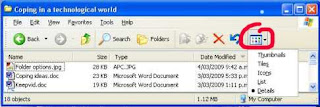
But one of the annoyances of Windows XP is that the folder view sometimes reverts to a default (usually thumbnails) after you close and then re-open it. You can tame this by clicking on the "Tools" menu item, and then choosing "Folder options". Scroll down until you see the item, "Remember each folder's view settings" and tick. If you want that setting to apply to all folders, choose the highlighted button at top.
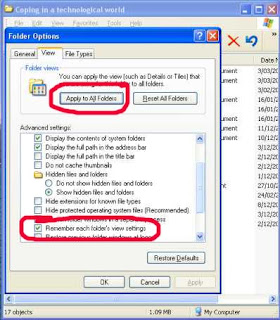

But one of the annoyances of Windows XP is that the folder view sometimes reverts to a default (usually thumbnails) after you close and then re-open it. You can tame this by clicking on the "Tools" menu item, and then choosing "Folder options". Scroll down until you see the item, "Remember each folder's view settings" and tick. If you want that setting to apply to all folders, choose the highlighted button at top.

Tuesday, March 3, 2009
Free music
We hear a lot about the rights and wrongs of downloading music over the internet, and you probably read about the protests last week against the proposed new copyright law in NZ to try and stamp out illegal downloading.
I suspect that any attempts are doomed to failure, because music is simply so ubiquitous on the internet, and there are least three easy ways to access as much as you want. And a high proportion of this is legally free.
The most popular (and also the most dubious legally), is using software such as BitTorrent. Trying to keep it simple, BitTorrent is a way that people around the world can transfer large files to each other. Some estimate it accounts for about 35% of all traffic on the entire Internet. How it works is that a user makes files on his computer available to others, who in turn pass it on to yet more people. The dubious legality comes because the software can't distinguish which music is covered by copyright laws and which is not.
The second most popular method to obtain music is by listening to an internet radio station. There are thousands of these, covering absolutely every genre of music you could possibly conjure up, and some you wouldn't want to. Many of them allow you to set your own programme, so if you want you can listen to nothing but Barry Manilow (hey, I like Barry Manilow!) or solely Iron Maiden. Listening is absolutely legal. What you can also do - and here I am not sure of the legal status - is use any recording software and record the songs as they pass through your computer's sound card. Audacity, which I have mentioned in previous posts, will do the job.
Thirdly, there are many web-based applications that will either help you hunt out the kind of music you like, or search for free mp3's. A good starting place is simplespark.com
There was once a wonderful mp3 search engine called Singingfish. Unfortunately, it was bought out by AOL and shut down. But a replacement seems to be mp3realm, which might turn you up some interesting results.
I suspect that any attempts are doomed to failure, because music is simply so ubiquitous on the internet, and there are least three easy ways to access as much as you want. And a high proportion of this is legally free.
The most popular (and also the most dubious legally), is using software such as BitTorrent. Trying to keep it simple, BitTorrent is a way that people around the world can transfer large files to each other. Some estimate it accounts for about 35% of all traffic on the entire Internet. How it works is that a user makes files on his computer available to others, who in turn pass it on to yet more people. The dubious legality comes because the software can't distinguish which music is covered by copyright laws and which is not.
The second most popular method to obtain music is by listening to an internet radio station. There are thousands of these, covering absolutely every genre of music you could possibly conjure up, and some you wouldn't want to. Many of them allow you to set your own programme, so if you want you can listen to nothing but Barry Manilow (hey, I like Barry Manilow!) or solely Iron Maiden. Listening is absolutely legal. What you can also do - and here I am not sure of the legal status - is use any recording software and record the songs as they pass through your computer's sound card. Audacity, which I have mentioned in previous posts, will do the job.
Thirdly, there are many web-based applications that will either help you hunt out the kind of music you like, or search for free mp3's. A good starting place is simplespark.com
There was once a wonderful mp3 search engine called Singingfish. Unfortunately, it was bought out by AOL and shut down. But a replacement seems to be mp3realm, which might turn you up some interesting results.
Technical hitch
Apologies if you had difficulty reading any posts in the last 24 hours. There was some sort of technical hitch totally beyond my control, but I hope everything is back to normal now.
Friday, February 27, 2009
How to Put Twitter Feeds Into Blogger
Twitter is the new thing that everyone online seems to be getting into. Its heaps of fun, free to sign up and you can communicate with a lot of people with very little effort which is always attractive with our busy lives. You can get your Twitter updates through your mobile phone and, as I discovered tonight you can install a live feed in your Blogger platform very easily.
Whenever I want to customize my blogs I always start with Amanda Fazani's Blogger Buster as her instructions are very clear and simple and you don't need a lot of tech knowledge to follow them. Amanda has written a Twitter Widget that self installs your Twitter updates into your blog - its really easy and customizable! (See the sidebar here for an example.)
If you want to add a link such as "Follow Me on Twitter" you can just open it by clicking on edit, and then just copy and paste the following at the bottom of the text code:
[a href=http://twitter.com/USERNAME" target="0">Follow Me on Twitter]
Whenever I want to customize my blogs I always start with Amanda Fazani's Blogger Buster as her instructions are very clear and simple and you don't need a lot of tech knowledge to follow them. Amanda has written a Twitter Widget that self installs your Twitter updates into your blog - its really easy and customizable! (See the sidebar here for an example.)
Create a Twitter accountOnce it has been added to your blog you can drag it where you want it from within the Layout Page Elements area. Remember to save.
Open this page on Blogger Buster
Scroll about halfway down the page to the heading "Add a Twitter Widget using this Widget Installer"
Enter your Twitter user name into the "Create Your Stylized Twitter Widget" box.
Click "Customize"
Click "Add to Blog"
If you want to add a link such as "Follow Me on Twitter" you can just open it by clicking on edit, and then just copy and paste the following at the bottom of the text code:
[a href=http://twitter.com/USERNAME" target="0">Follow Me on Twitter]
Replace USERNAME with your Twitter user name.If you want to remove the picture that comes with the widget then open the widget as above and delete the following from the code:
Change the [] brackets on each end to < > (respectively).
Then save.
style="background: url(http://bloggerbuster.com/images/twitter-icon.gif)Then click save. Happy Twittering!
top left no-repeat;
Power-up your mouse's scroll wheel
WizMouse is a tiny freeware utility that has a single, simple, function - if you hover your mouse over an inactive window, and use the mouse scroll wheel, it will scroll that window while keeping it inactive. This can be a boon for anyone copying text manually from an inactive window to an active one, or who needs to see data in one window (perhaps one partially obscured) while reading or working in another. It even scrolls applications that don't offer mousewheel support by converting the wheel to clicks on the scroll bars. In other words, if you spin the wheel down, WizMouse will virtually click the "down arrow" for you. WizMouse has a very simple interface. Most of the time, it sits in your system tray as an icon; if you click on it, you get a small dialog with a handful of basic options. I found the default settings to be perfect.
Improving the YouTube experience
YouTube Cinema is a new Firefox extension that will automatically display any YouTube video with all the other page elements removed. It even goes so far as to let you choose from one of six background colors.
In addition to dimming the lights, the extension also has a few tricks up its sleeve, like a toggle between the 4:3 player and the newer 16:9 version. You can also have it default to the high-quality stream if it's available.
One important thing to note: the extension does not work with content that cannot be embedded elsewhere. Attempting to play these videos will simply give you an error screen. This is because the extension does all its handy work by playing the video as an embed in its own special browser tab. To keep this from being a problem, you can simply turn off the feature that automatically opens up new YouTube videos in cinema mode.
Once installed, YouTube Cinema plays YouTube videos with the rest of the screen blacked out, and gives you options to control things like the player size, video quality, and background coloring.
In addition to dimming the lights, the extension also has a few tricks up its sleeve, like a toggle between the 4:3 player and the newer 16:9 version. You can also have it default to the high-quality stream if it's available.
One important thing to note: the extension does not work with content that cannot be embedded elsewhere. Attempting to play these videos will simply give you an error screen. This is because the extension does all its handy work by playing the video as an embed in its own special browser tab. To keep this from being a problem, you can simply turn off the feature that automatically opens up new YouTube videos in cinema mode.
Once installed, YouTube Cinema plays YouTube videos with the rest of the screen blacked out, and gives you options to control things like the player size, video quality, and background coloring.
Thursday, February 26, 2009
Opening ".docx" files
One of the hassles of Microsoft Word 2007 is that it creates documents in a new proprietary format which has the file extension "docx". Word 2003 can't open these documents, and neither can most other word processors (although I believe the latest release of OpenOffice.org can). A similar problem occurs with other products in the Office stable, eg Excel and PowerPoint. If you are using Word 2007, and sending documents to others who may not have the latest edition, I suggest doing a "Save as", in Word 2003 format. If you are faced with trying to open a .docx file and only have an earlier version, you can download a free compatibility pack from Microsoft which will add that ability to your system.
Wednesday, February 25, 2009
Playing videos
Apparently YouTube is trying to block software that allows you to download videos from their site. I can report that the Firefox extension DownloadHelper still works okay as of today. Who knows for how long? but you can guarantee that our tireless geeks will eventually circumvent anything YouTube can put in place.
Of course, when you have successfully downloaded a video, you still have to find something to play it on. Windows Media Player doesn't do it. But a little freebie called FLV Player is just the trick. It has a VERY basic interface, but it works well. Miro is another free player with more bells and whistles, which can handle just about video format you can throw at it (but I prefer FLV for its simplicity).
Of course, when you have successfully downloaded a video, you still have to find something to play it on. Windows Media Player doesn't do it. But a little freebie called FLV Player is just the trick. It has a VERY basic interface, but it works well. Miro is another free player with more bells and whistles, which can handle just about video format you can throw at it (but I prefer FLV for its simplicity).
Tuesday, February 24, 2009
Scam alert
Con artists have a thousand ways to fleece you of your money or your identity (which to them is as good as money). You probably have not fallen for the constant enticements of Nigerian nationals to load their bank accounts (although you would be amazed just how many Kiwis have been sucked in), but how much do you know of the other dirty tricks? Here are nine of them, not necessarily internet or email based.
Monday, February 23, 2009
The Essential Skill of Typing
Back when I was at school typing was one of those subjects you took if you were 'not academic.' Being somewhat academic I, like many of my peers, sneered at students who went off to typing while we took Russian with the other 'brainy kids'.
Fast-forward to my entrance to University; on discovering that every single 5,000 word essay I was expected to hand in had to be typed, I was starting to realise what an essential skill typing really is and began, strangely enough, questioning the relevance of my clumsy high-school Russian skills.
Several large assignments into my degree, I realised that my two-fingered typing had to be addressed; it was so slow and sitting in the computer labs watching those who could type flying through their essays, their hands a blur and not even looking at the keyboard! I was determined that I was going to learn to type.
The law school had helpfully installed Mavis Beacon onto all their student computers and through it I learned that my two-fingered speed was around 25-30 words per minute. I began trying to do half an hour every day and I committed myself to never again type incorrectly. To begin with it was painstakingly slow and unbelievably difficult, especially the first time I made myself type an entire assignment correctly. However, in just two weeks of using Mavis Beacon I went from my painful 11 words a minute to almost doubling my two-fingered speed and comfortably being able to type 50 words per minute, accurately and without looking at the screen!
Mavis Beacon made it really easy as it forced your eyes to the center of the screen, so you couldn't easily look at your fingers and the hands on the screen showed you exactly where each finger should sit. It broke up the lessons with speed trials and typing games and was very user friendly.
 About two years ago I was interested in a particular line of work that called for a minimum typing speed of 70 words per minute. I dusted off my own copy of Mavis Beacon, worked on it most days for about half an hour and got my speed up to just under 80 words per minute, again in just two weeks.
So if you find yourself in our computerised world having never learned to type properly and frustrated at your two-fingered speed, consider teaching yourself to type. It is not as hard as it initially appears.
Mavis Beacon can be found pretty much everywhere software is sold; I picked my copy up for $10NZ and you can download a free trial here (there are many other good programs too). Of course, if you google you can find hundreds of free, online typing tutorial programs with a wide array of styles - just pick one that appeals. Finally, if you simply just want to test your typing speed you could always try Te Awamutu online; type one sentence and it will tell you your speed and accuracy.
Fast-forward to my entrance to University; on discovering that every single 5,000 word essay I was expected to hand in had to be typed, I was starting to realise what an essential skill typing really is and began, strangely enough, questioning the relevance of my clumsy high-school Russian skills.
Several large assignments into my degree, I realised that my two-fingered typing had to be addressed; it was so slow and sitting in the computer labs watching those who could type flying through their essays, their hands a blur and not even looking at the keyboard! I was determined that I was going to learn to type.
The law school had helpfully installed Mavis Beacon onto all their student computers and through it I learned that my two-fingered speed was around 25-30 words per minute. I began trying to do half an hour every day and I committed myself to never again type incorrectly. To begin with it was painstakingly slow and unbelievably difficult, especially the first time I made myself type an entire assignment correctly. However, in just two weeks of using Mavis Beacon I went from my painful 11 words a minute to almost doubling my two-fingered speed and comfortably being able to type 50 words per minute, accurately and without looking at the screen!
Mavis Beacon made it really easy as it forced your eyes to the center of the screen, so you couldn't easily look at your fingers and the hands on the screen showed you exactly where each finger should sit. It broke up the lessons with speed trials and typing games and was very user friendly.
About two years ago I was interested in a particular line of work that called for a minimum typing speed of 70 words per minute. I dusted off my own copy of Mavis Beacon, worked on it most days for about half an hour and got my speed up to just under 80 words per minute, again in just two weeks.So if you find yourself in our computerised world having never learned to type properly and frustrated at your two-fingered speed, consider teaching yourself to type. It is not as hard as it initially appears.
Mavis Beacon can be found pretty much everywhere software is sold; I picked my copy up for $10NZ and you can download a free trial here (there are many other good programs too). Of course, if you google you can find hundreds of free, online typing tutorial programs with a wide array of styles - just pick one that appeals. Finally, if you simply just want to test your typing speed you could always try Te Awamutu online; type one sentence and it will tell you your speed and accuracy.
Bagpipes beats the boy racers
My son moved at the weekend. He and his mates were vacating a house in Fitzgerald Ave, which is one of the seats of boy racer territory in Christchurch. While I was helping, he told me of an incident some time ago, when a group boy racers pulled up about 2.30 in the morning, with car stereos blasting. So house occupants dragged their reasonably formidable stereo system to a front room window, and responded with a rousing rendition of bagpipe music. The boy racers ratcheted the level up a notch. So did the house. The boy racers revved it up another notch. So did the house. At which point the boy racers had to concede defeat (the house had a few more decibels in reserve). The cars moved on, and have never stopped there again.
Another whoops!
I had not actually tried Irfanview's panorama feature before recommending it in a post last week. I tried it today. Ummm ... not good. Apologies. A sad blot on an otherwise remarkable bit of software. I did retry Autostitch, and that seems to be the best bet of the free programs.
Friday, February 20, 2009
Email hoaxes
I normally have a pretty good radar for hoax email messages, including those startling 'facts' which turn out to be urban myths. Unfortunately, I got caught this week passing on a supposed speech by Australian prime minister Kevin Rudd, in which he exhorted all immigrants to get with the Aussie programme or ship out.
A lot of people forward these messages in good faith, but there are several good sites to check whether they are genuine or not.
Hoax-Slayer is dedicated to debunking email hoaxes, thwarting internet scammers, combating spam, and educating web users about email and internet security issues. It also includes anti-spam tips, computer and email security information, articles about true email forwards, and much more.
Another useful source for info on urban myths is www.snopes.com The myth that gets me particularly is the one about the frog that doesn't have enough sense to jump out of a pot of increasingly hot water. Or for church-goers, the common sermon illustration that says the word 'sincere' derives from a Latin phrase that means 'without wax'. 'Fraid the Oxford dictionary doesn't agree.
A lot of people forward these messages in good faith, but there are several good sites to check whether they are genuine or not.
Hoax-Slayer is dedicated to debunking email hoaxes, thwarting internet scammers, combating spam, and educating web users about email and internet security issues. It also includes anti-spam tips, computer and email security information, articles about true email forwards, and much more.
Another useful source for info on urban myths is www.snopes.com The myth that gets me particularly is the one about the frog that doesn't have enough sense to jump out of a pot of increasingly hot water. Or for church-goers, the common sermon illustration that says the word 'sincere' derives from a Latin phrase that means 'without wax'. 'Fraid the Oxford dictionary doesn't agree.
Thursday, February 19, 2009
The Show the Desktop Icon (and how to restore it when it vanishes)
If you are like me, you often have more than one application open at once (and sometimes so many their names are barely legible in your task-bar). An irritating aspect of working like this is that you sometimes need to open a folder that is easiest accessed via your desktop but of course you cannot see it because of all your open applications.
If you haven't discovered it already, the 'Show the Desktop' icon is your best friend. One click and all open applications are tabbed down to your task-bar for easy access; when you are finished with your desktop, a second click restores everything back to being open again, in the order and location you had it open in.
The 'Show the Desktop' icon is generally located in the cluster of icons on your task-bar, next to your start button, see picture. If you don't have a small cluster of icons next to your start button, right click your task-bar, select 'toolbars' and then 'quicklaunch' and it will become visible.
 To the right of your cluster of quick-launch icons there is a small double arrow (it is visible just below the word "Shortcut" in the picture above). Right clicking this will show you all the icons you can quick-launch (so called because a single click opens each instead of the usual two). You can drag and drop your three most used applications onto the task-bar and order them as you want by dragging them around. As you can see looking at mine my top three are Explorer [I am sorry, I just do not like Fire Fox], Outlook and Show the Desktop.
There is, however, a problem that can arise with one's 'Show the Desktop' icon; it can mysteriously vanish. Just when you cannot imagine how you ever coped without it it isn't there and you have to manually tab down every page again. So frustrating! There are varying theories as to why this happens but the most useful piece of information to know is how to restore it.
I have tried various options over the years when ours has vanished but it always would vanish again a few days later. A few months back I tried a very simple piece of code and it has never vanished since. This works for XP users, and is not scary I promise!
Open a notepad or other plain text document.
Copy and paste the following into it:
In the file name type: Show Desktop.scf
Ensure save as type is showing: 'plain text' or 'text documents'
Save it wherever you want it.
Then drag it from wherever it is onto the Quick-launch bar.
That's it.
(You can just memorise the keyboard command 'windows key + d' or 'windows key + m' but I think one click is more efficient than having to hit two keys - less to remember anyway!)
If you haven't discovered it already, the 'Show the Desktop' icon is your best friend. One click and all open applications are tabbed down to your task-bar for easy access; when you are finished with your desktop, a second click restores everything back to being open again, in the order and location you had it open in.
The 'Show the Desktop' icon is generally located in the cluster of icons on your task-bar, next to your start button, see picture. If you don't have a small cluster of icons next to your start button, right click your task-bar, select 'toolbars' and then 'quicklaunch' and it will become visible.
To the right of your cluster of quick-launch icons there is a small double arrow (it is visible just below the word "Shortcut" in the picture above). Right clicking this will show you all the icons you can quick-launch (so called because a single click opens each instead of the usual two). You can drag and drop your three most used applications onto the task-bar and order them as you want by dragging them around. As you can see looking at mine my top three are Explorer [I am sorry, I just do not like Fire Fox], Outlook and Show the Desktop.There is, however, a problem that can arise with one's 'Show the Desktop' icon; it can mysteriously vanish. Just when you cannot imagine how you ever coped without it it isn't there and you have to manually tab down every page again. So frustrating! There are varying theories as to why this happens but the most useful piece of information to know is how to restore it.
I have tried various options over the years when ours has vanished but it always would vanish again a few days later. A few months back I tried a very simple piece of code and it has never vanished since. This works for XP users, and is not scary I promise!
Open a notepad or other plain text document.
Copy and paste the following into it:
[Shell]Select: Save as
Command=2
IconFile=explorer.exe,3
[Taskbar]Command=ToggleDesktop
In the file name type: Show Desktop.scf
Ensure save as type is showing: 'plain text' or 'text documents'
Save it wherever you want it.
Then drag it from wherever it is onto the Quick-launch bar.
That's it.
(You can just memorise the keyboard command 'windows key + d' or 'windows key + m' but I think one click is more efficient than having to hit two keys - less to remember anyway!)
Wednesday, February 18, 2009
Panorama photos
I would love to have a camera that offers a panorama option, but they are way above my price range. However, a good option is to take a sequence of pics of a landscape (or any other subject) and stitch them together into a panorama. For this I use Serif Panorama Plus, which is simplicity itself. The software does only one thing, create panoramas, but it does it superbly well, even adjusting colours at the joining edges. The results are usually pretty seamless. I got my copy of this program free from a computer mag disk, but normally you have to pay for it. However, there are several good free programs out there:
The latest version of the free Irfanview has a panorama-creation tool, which can stitch pics horizontally or vertically. Some others:
Panorama stitching tools
Autostitch
Photopos Panorama Plus
An important tip for achieving good results is to keep your camera horizontal - if you point up or down, you will get some very curved straight lines in the panorama. Use a tripod if you can.
Incidentally, most inexpensive digital cameras have a lens roughly equivalent to a 38mm lens in film camera terms. This means they are a wide-angle lens, and therefore compress the horizontal picture. To get your pics back to a more realistic representation, you should ideally crop either the top, bottom or both, which is a semi-panorama anyway.
The latest version of the free Irfanview has a panorama-creation tool, which can stitch pics horizontally or vertically. Some others:
Panorama stitching tools
Autostitch
Photopos Panorama Plus
An important tip for achieving good results is to keep your camera horizontal - if you point up or down, you will get some very curved straight lines in the panorama. Use a tripod if you can.
Incidentally, most inexpensive digital cameras have a lens roughly equivalent to a 38mm lens in film camera terms. This means they are a wide-angle lens, and therefore compress the horizontal picture. To get your pics back to a more realistic representation, you should ideally crop either the top, bottom or both, which is a semi-panorama anyway.
Tuesday, February 17, 2009
Password-protecting Word documents
Not many people realise you can lock Microsoft Office documents (Word, Excel, etc) so they can only be opened with a password. Great to protect family recipes or whatever from prying eyes. The method is much the same in both Word 2003 and Word 2007, except the buttons are located in different places. Here's the procedure:
1) Choose "save as" from the File menu.
2) Click on the "Tools" button, which I bet you have never noticed before. It's top right in the 2003 version of Word, and bottom left in the 2007 version.
3) Choose "General" options, and a dialogue box will pop up in which you enter your password. You can also have a second password for modifications, so people can access to read but not to modify the document.
Warning: Don't forget that password, because the encription is so strong even computer experts probably won't crack it.
1) Choose "save as" from the File menu.
2) Click on the "Tools" button, which I bet you have never noticed before. It's top right in the 2003 version of Word, and bottom left in the 2007 version.
3) Choose "General" options, and a dialogue box will pop up in which you enter your password. You can also have a second password for modifications, so people can access to read but not to modify the document.
Warning: Don't forget that password, because the encription is so strong even computer experts probably won't crack it.
Monday, February 16, 2009
The downside of Windows 7
Just when I think maybe life might get a bit simpler, along comes someone to spoil my day.
Further to my post on Windows 7 last week, Galen Gruman now tells me that if I want to upgrade from the XP operating system, I will have to do a complete reinstall of everything.
Further to my post on Windows 7 last week, Galen Gruman now tells me that if I want to upgrade from the XP operating system, I will have to do a complete reinstall of everything.
Unlike Vista users, (XP users) can't do an "in-place upgrade," in which the new OS overwrites the old one, preserving their installed applications, preferences, and data. Instead, they'll have to do a clean install, which means they have to back up their data, install Win 7 (either deleting or XP or installing as a separate environment), reinstall their apps, restore their data, and re-create their preferences.
For Windows XP users who avoided Vista because of its many problems, that upgrade work may seem as adding insult to injury, making it harder for them to finally adopt a new version of Windows. Through its PR agency, Microsoft confirms to InfoWorld that there will be no "in-place upgrade" option for XP users, but it declines to explain why not. "More materials on your question are in the works," the spokesman says.
But there may be good reason not to support an in-place upgrade, suggests Michael Silver, a Gartner analyst who follows Microsoft technologies. That's because viruses, registry errors, and other performance-sapping flaws in the user's Windows environment would be carried over into Windows 7; something that would not happen with a clean install.
Friday, February 13, 2009
Windows 7
When Microsoft released its new operating system Vista, it met a storm of resistance, which generally boiled down to two big problems - it required a very fast computer and scads of memory to run all the features, which for a lot of people would have meant a serious upgrade of their computer; and there were a lot of incompatibilities with existing hardware, eg printers, modems, sound and video cards, etc. While most of the incompatibilities have since been sorted out, the memory problem is still a major one. Hence, a high proportion of XP users are clinging desperately to their operating system. So much so, that Microsoft was forced to extend the length of time it would support XP. Vista still has not attracted the user base that Microsoft was expecting, and the ongoing problems forced it to hasten development of a replacement operating system, dubbed Windows 7. Development of this is well advanced, and several million people downloaded a free trial (called a "beta"), which has generally attracted good reviews. As Pat Pilcher wrote in the NZ Herald:
It looks like a lot of people will leapfrog Vista, and hang on to XP until they can upgrade to Windows 7 when it is finally released (and I will almost certainly be one of them, unless I have already ditched Microsoft completely and switched to Linux, which I am more tempted to do by the day).
Having used Windows 7 Beta for the better part of two weeks, I'm pleased to report it takes Vista's strengths and manages to fix most of its annoyances. I'd even go as far as saying that Windows 7 is perhaps one of the most complete and bomb-proof betas I've ever used.
It looks like a lot of people will leapfrog Vista, and hang on to XP until they can upgrade to Windows 7 when it is finally released (and I will almost certainly be one of them, unless I have already ditched Microsoft completely and switched to Linux, which I am more tempted to do by the day).
Thursday, February 12, 2009
Cyborgs soon a reality?
So you thought the Cyborgs of Star Trek were fanciful imagination. We may be closer to the reality than you realise, if this article in the NZ Herald is to be believed:
And I thought I couldn't cope now!!
"Intelligent nanorobots will be deeply integrated in our bodies, our brains, and our environment, overcoming pollution and poverty, extending longevity, and creating full-immersion virtual reality (think The Matrix), "experience beaming" (Being John Malkovich), and vastly enhanced human intelligence. The result will be an intimate merger between the technology-creating species and the technological evolutionary process it spawned."
"That's just for starters. Soon after, claims Kurzweil, "Non-biological intelligence will have access to its own design and will be able to improve itself in an increasingly rapid redesign cycle. We'll get to a point where technical progress will be so fast that unenhanced human intelligence will be unable to follow it. That will mark the singularity."
Kurzweil's point is that we don't know what happens next and, perhaps more importantly, we're not really geared up to the challenges that any of these developments present - though the "singularity" may be only 35 years from now.
And I thought I couldn't cope now!!
Subscribe to:
Posts (Atom)

 Posts
Posts


