Here's a Friday collection of sighted/cited pieces of interest:
Users running Microsoft Office can stump nearly three-fourths of all known attacks targeting the suite by applying just one three-year-old patch, according to recently published data. Almost three-out-of four attacks -- 71% of all those spotted in the first half of 2009 -- exploited a vulnerability in Word that was patched in June 2006, Microsoft said in its bi-annual security intelligence report, released Monday. The flaw was fixed in the MS06-027 security update issued. (~ PC World)
Here is very brief tutorial showing you how to set Firefox to open your bookmarks in a new tab, rather than taking over the existing one. (~ Simple Help)
"With hundreds of daily updates from friends on Facebook and Twitter, do people actually feel closer to each other? It turns out the average American is more socially isolated today than 20 years ago, as measured by the number of self-reported confidants in a person’s life. Yet contrary to popular opinion, usage of cellphones and the Internet is not to blame, according to a new study." Well yes, except that the study also shows that people who use social networks such as Facebook or Linkedin are 30 percent less likely to know their neighbors. (~ New York Times)
If you turn to your MP3 collection when you're stressed out, you're not alone. The American Psychological Association found that a majority of people polled for the last two years running claim music as their number one stress reliever. (~ Lifehacker)
Friday, November 6, 2009


Renewing the news
On Wednesday, I linked to an article by Clay Shirky about the crisis in the news industry. This piece from Naomi Wolf also looks at what's happening, and suggests where news may come out in the near future.
There is no way to disguise the reality: newspaper readers, in the West at least, are getting older; younger readers prefer to get their information online, where readers spend far less time actually reading news than print readers do; and, most agonizingly of all for the industry, people who were willing to pay for newspapers are unwilling to pay for the same content on a screen.
But does this mean the death of news, or its evolution? I think we are witnessing something new being born.
Wednesday, November 4, 2009
A time of epochal shift
We are living in a time of epochal shift. It's hard to believe that the internet as an essential everyday part of life for almost everybody has effectively only been around for little more than 10 years. I began working life as a cadet journalist on a small-town newspaper (The Marlborough Express, in Blenheim). Journalist courses of any kind did not exist in NZ in those days. Since then I have seen whole industries associated with printing come and go - including hot type, print bureaux and prepress film stripping. In fact, the newspaper industry as a whole as we know it is in serious straits, and could conceivably vanish over the next 20 years. Clay Shirky has written a very thoughtful piece on the underlying reasons, and what might (not) replace it. This could be essential reading in helping to understand the process of technological shift that leads to societal shift.
Creating PDF forms
I've just learned a (relatively) simple way to create a PDF form that can be emailed for others to fill out electronically and return by email. I've been wanting to be able to do this for ages, but was stumped because I thought it required expensive software. (While you can create fillable forms in Word and Excel, the process is clumsy and daunting. It also allows for little design capability, you have to choose "safe" fonts the recipient is guaranteed to have on their computer, and of course the recipient also needs Word and/or Excel installed on their machine.) You can certainly do it with Adobe Acrobat, which is very expensive, but the great discovery that it is easy to do with the public domain program Scribus, a page layout program that comes close to emulating market leaders such as Adobe InDesign and QuarkXpress. What is surprising is that to my knowledge, neither InDesign nor QuarkXpress can do this. Another case where open source software is actually better than a commercial program. By using Scribus, you are not limited in design, so you can let your creativity rip. Click here to see a simple video tutorial on using Scribus to create a fillable PDF form.
Tuesday, November 3, 2009
Creating smaller PDF files
Among the many advantages of PDF files are that you can open them on any computer and they look just the way they were created - you don't need the original software which created the document, nor the fonts - and generally the file size of the PDF is smaller than the original. But not always. Sometimes, they come out bigger, which can be a frustration. This usually occurs because the document contains multiple images. Here are several tips to get the PDF file size down:
1. Images are often imported into the original larger than needed, and then scaled down. Unfortunately, all the original image information is still retained. So use an image editing program to resize the graphic before importing. Also consider reducing the resolution of the graphic. Any resolution greater than 225 dpi is unnecessarily high, and if the document is only going to be seen on a computer (ie, it won't be printed), then a resolution as low as 72 dpi is probably adequate.
2. Images are often also cropped when they are imported into the document. Crop before importing and you will save a lot.
3. When you export or save the file as a PDF, check the compression. For many purposes, medium or even low compression values will be adequate, making a huge difference in file size.
4. Another way to reduce file sizes is to do a "Save As" of the original document before making the PDF. This purges unneeded information which otherwise keeps getting added to the document but is not deleted. (For instance, all those changes you make while editing the document are actually held in the file, unseen but clogging up the document.)
5. If you're making a PDF for the Web and/or if you're not concerned about printing colors, use the RGB color space. RGB has one less data channel than CMYK, so your files will be that much smaller.
6. Embedded fonts also take up space, so keep the number of fonts to a minimum.
All that being said, you may be saddled with a PDF made by someone else (as happened to me this week), and you want to reduce the file size. There are numerous programs that can edit PDF files, the best-known being Adobe Acrobat. But that's very expensive. PDFill PDF Editor comes out a lot cheaper, but it's still commercial software. Fortunately, from the same stable comes a tool that did the job for me nicely. PDFill Writer is a free print driver that has a lot of options when saving the file. Once it was installed, I opened the over-sized PDF file, hit the Print button, and chose PDFill Writer as the print driver. It gave me a lot of options for recompressing the graphics, and voila! a 25% saving in size. Another free tool at the site is PDFill Tools, which allows you to do interesting things like split PDF documents, and merge several PDF files.
1. Images are often imported into the original larger than needed, and then scaled down. Unfortunately, all the original image information is still retained. So use an image editing program to resize the graphic before importing. Also consider reducing the resolution of the graphic. Any resolution greater than 225 dpi is unnecessarily high, and if the document is only going to be seen on a computer (ie, it won't be printed), then a resolution as low as 72 dpi is probably adequate.
2. Images are often also cropped when they are imported into the document. Crop before importing and you will save a lot.
3. When you export or save the file as a PDF, check the compression. For many purposes, medium or even low compression values will be adequate, making a huge difference in file size.
4. Another way to reduce file sizes is to do a "Save As" of the original document before making the PDF. This purges unneeded information which otherwise keeps getting added to the document but is not deleted. (For instance, all those changes you make while editing the document are actually held in the file, unseen but clogging up the document.)
5. If you're making a PDF for the Web and/or if you're not concerned about printing colors, use the RGB color space. RGB has one less data channel than CMYK, so your files will be that much smaller.
6. Embedded fonts also take up space, so keep the number of fonts to a minimum.
All that being said, you may be saddled with a PDF made by someone else (as happened to me this week), and you want to reduce the file size. There are numerous programs that can edit PDF files, the best-known being Adobe Acrobat. But that's very expensive. PDFill PDF Editor comes out a lot cheaper, but it's still commercial software. Fortunately, from the same stable comes a tool that did the job for me nicely. PDFill Writer is a free print driver that has a lot of options when saving the file. Once it was installed, I opened the over-sized PDF file, hit the Print button, and chose PDFill Writer as the print driver. It gave me a lot of options for recompressing the graphics, and voila! a 25% saving in size. Another free tool at the site is PDFill Tools, which allows you to do interesting things like split PDF documents, and merge several PDF files.
Monday, November 2, 2009
Saving websites
I frequently save websites I come across for reference purposes. Fortunately, there are several ways to do this, depending on your needs. If you need only the text from a site, in both Firefox and Internet Explorer, you can choose File/Save (Page) As, and the option "Web page, html only". Both browsers also have the option to save the whole page, including graphics, as a web archive. In Firefox, choose File/Save Page As/Web archive MHTML, and in IE choose File/Save As/Web archive, single file (*.mht). Additionally, you can save the whole web page, and this downloads all the graphics and other elements such as Cascading Style Sheets to a separate folder. Choose Save As/Web page complete in both browsers.
Yet a further option is to download an entire site. You could be setting yourself up for a VERY big download, depending on the site, but if you really want to go into the depths of a site it will yield a lot of useful data. To do it, you will need a separate piece of software, for instance HTTrack, a free program that will save all the pages within a domain, including images, while maintaining the link structure. It does not save the pages from external links like those in advertising. Guess if I were an industrial spy, a tool like this would be a must-have in my armoury...
Yet a further option is to download an entire site. You could be setting yourself up for a VERY big download, depending on the site, but if you really want to go into the depths of a site it will yield a lot of useful data. To do it, you will need a separate piece of software, for instance HTTrack, a free program that will save all the pages within a domain, including images, while maintaining the link structure. It does not save the pages from external links like those in advertising. Guess if I were an industrial spy, a tool like this would be a must-have in my armoury...
Call centre frustration
You're probably getting to be a rare person if you've never had to deal with a supposed "customer service" (note the irony of the quotes) representative in a call centre located a million miles and a cultural galaxy away from you. Some of the most frustrating hours of my life have been spent trying to find someone who actually spoke a modicum of English and who understood my problem. So I identified with David Armstrong in his account of trying to get an online computer supplier to sort out his order. This is an instructive tale of woe. But I can't understand why a computer expert (Armstrong was formerly the computer editor at The Press in Christchurch) would bother to buy online, when he could have got as good a deal by shopping around local suppliers, with on-hand customer support. My experience of shopping around locally has been excellent (admittedly it helps that I speak a bit of Chinese, but it's not the deciding factor).
Friday, October 30, 2009
Pinning applications to the Task Bar
The new Windows 7 operating system has apparently changed the way you access programs (applications). I'm not familiar with Vista, but in XP, you either go to the Start menu, and then choose All Programs, or you can access them via the Quick Launch feature of the Task Bar, which is a lot quicker. However, when you install a new program, it does not always install an icon on the Task Bar. Never fear - you can easily add it manually. Simply drag an icon from your desktop down to just left of the >> (chevron) symbol.

If you drag the dotted vertical line just to the right of the chevron, you can reduce or increase how many of the Quick Launch icons display. Clicking on the chevron pops up a display of the remainder.
As I use this feature extensively, I rapidly found the list becoming unwieldy, so I created folders into which I could group icons.
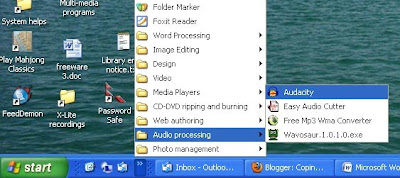
Unfortunately, finding where to create those folders is a bit laborious. Go to: Documents & Settings/Owner/Application Data/Microsoft/Internet Explorer/Quick Launch. However, once you have created one, in future you only have to double-click on the folder in Quick Launch and it brings the folder to the desktop, whereupon you can exit up one level and create more.
Of course, if you'd rather your PC looked more like a Mac, there are several free programs that can turn you Task Bar into a Pac look-alike. For instance, choose from ObjectDock, or XWindows Dock.

If you drag the dotted vertical line just to the right of the chevron, you can reduce or increase how many of the Quick Launch icons display. Clicking on the chevron pops up a display of the remainder.
As I use this feature extensively, I rapidly found the list becoming unwieldy, so I created folders into which I could group icons.

Unfortunately, finding where to create those folders is a bit laborious. Go to: Documents & Settings/Owner/Application Data/Microsoft/Internet Explorer/Quick Launch. However, once you have created one, in future you only have to double-click on the folder in Quick Launch and it brings the folder to the desktop, whereupon you can exit up one level and create more.
Of course, if you'd rather your PC looked more like a Mac, there are several free programs that can turn you Task Bar into a Pac look-alike. For instance, choose from ObjectDock, or XWindows Dock.
Thursday, October 29, 2009
Upgrading from XP to Windows 7
The transition from XP to Windows 7 is not going to be smooth - certainly as smooth as from Vista to W7 - if the plethora of online articles is to be believed. I run XP, but don't plan to upgrade until next year at the earliest, probably after the inevitable Service Pack 1 for W7 comes out, and in conjunction with a hardware upgrade, which I'll be due for anyway by then. Hopefully, by then some of the kinks will have been ironed out. Most articles seem to suggest that a clean install is going to work best - that means you effectively wipe your hard drive and start again from scratch. Of course, it also means it's essential to back up all your data. (And let's hope you have the original disks or installation files for all the programs you use!)
If you want to do it sooner, here are a few articles to help you:
First up, an article with lots of screenshots.
Here are five things PC World thinks you should be aware of.
Computerworld has a series of helpful questions and answers.
Assuming the upgrade goes well, PC World explains how the new W7 interface works differently from XP.
If you want to do it sooner, here are a few articles to help you:
First up, an article with lots of screenshots.
Here are five things PC World thinks you should be aware of.
Computerworld has a series of helpful questions and answers.
Assuming the upgrade goes well, PC World explains how the new W7 interface works differently from XP.
Wednesday, October 28, 2009
Those annoying hard returns when you paste text from a pdf or email
There's one major reason why I cling to Microsoft Word as my primary word processor. It's the ability to fairly easily deal with the mess that you get when you copy and paste text from either a pdf document or an email.
I am sure you will have already discovered that the text frequently comes across with either a hard return (ie, a paragraph return) or a soft return at the end of every line. It's like someone has pressed the enter key or else shift-enter after each line. And, of course, you want the text to flow on as it should. Here's the method I have developed to sort this out:
1) Enter your cursor at the top of the text, and press Ctrl-H, which brings up the Find and Replace dialogue box.
2) In the top field, enter ^p^p. (The symbol ^ is called a carat, by the way.) This will find all instances where there is a double paragraph return, which usually marks where the real paragraph breaks occur.
3) In the bottom field, enter some characters that don't occur in the text, like ##.
4) Click "Find all". You have now created markers for the real paragraphs.
5) In the top field of Find and Replace, enter a single carat and p, eg ^p.
6) In the bottom field, delete the ## and enter a spacebar space.
7) Click "Find all". You have now stripped out all the paragraph returns.
8) To restore the real paragraph breaks, enter ## in the top field, and ^p^p in the bottom field. Click "Find All".
9) Finally, to tidy up, in the top field enter a double spacebar space, and in the bottom field a single spacebar space. This will strip out all the unwanted double spaces.
Voila! The text is now how it should be.
If the document has come across with soft returns rather than hard (paragraph) returns, the same technique can be used. Just insert the search characters ^l instead of ^p. This may seem rather convoluted the first time you try it, but it becomes second nature pretty quickly.
Sadly, only Word seems to have this ability to search using wild characters for paragraph and soft returns - believe me, I have tried all the others, to no avail. Incidentally, the search characters for tab breaks is/are ^t.
I am sure you will have already discovered that the text frequently comes across with either a hard return (ie, a paragraph return) or a soft return at the end of every line. It's like someone has pressed the enter key or else shift-enter after each line. And, of course, you want the text to flow on as it should. Here's the method I have developed to sort this out:
1) Enter your cursor at the top of the text, and press Ctrl-H, which brings up the Find and Replace dialogue box.
2) In the top field, enter ^p^p. (The symbol ^ is called a carat, by the way.) This will find all instances where there is a double paragraph return, which usually marks where the real paragraph breaks occur.
3) In the bottom field, enter some characters that don't occur in the text, like ##.
4) Click "Find all". You have now created markers for the real paragraphs.
5) In the top field of Find and Replace, enter a single carat and p, eg ^p.
6) In the bottom field, delete the ## and enter a spacebar space.
7) Click "Find all". You have now stripped out all the paragraph returns.
8) To restore the real paragraph breaks, enter ## in the top field, and ^p^p in the bottom field. Click "Find All".
9) Finally, to tidy up, in the top field enter a double spacebar space, and in the bottom field a single spacebar space. This will strip out all the unwanted double spaces.
Voila! The text is now how it should be.
If the document has come across with soft returns rather than hard (paragraph) returns, the same technique can be used. Just insert the search characters ^l instead of ^p. This may seem rather convoluted the first time you try it, but it becomes second nature pretty quickly.
Sadly, only Word seems to have this ability to search using wild characters for paragraph and soft returns - believe me, I have tried all the others, to no avail. Incidentally, the search characters for tab breaks is/are ^t.
Tuesday, October 27, 2009
USB security, Google, Bing, and technology that makes up dumb
Go away for a couple of days, as I did over the weekend, and when you return your email inbox is filled with several hundred essential emails, at least half of which are not essential at all. In my case, many are newsletters I subscribe to; perhaps I should be more ruthless in unsubscribing.
So it was perhaps good news that Mozilla has launched a software project designed to let people better manage the ever more voluminous stream of messages coming from sources such as Twitter and Facebook into their e-mail. Whether it will help me, as I don't use either Twitter or the social messaging aspects of Facebook, is another matter.
Here are some other interesting items worth checking out...
In a masterpiece of timing, both Google and Microsoft Bing announced new developments with their search engines. (Google seems to be releasing a new development almost every month at the moment. It's hard to keep up. Is it worth keeping up?)
The great thing about today's nearly universal connectivity is how easy it is to share information, pictures and other material with your business associates, friends and family. The bad thing about it is how easy it is for strangers to get access to your data. This is especially true when we carry so much on our USB flash drives, DVDs, laptops and other portable media. A freebie, SafeHouse Explorer, can secure your data on all media, protecting it from unwanted prying eyes.
Like it or not, come Sunday using a handheld mobile phone while driving will be an offence in New Zealand. The lads at the Stuff technology site have some tips on what's allowed, what's not, and how to cope.
Speaking of cellphones, Steve Tobak at BNet asks whether new technologies such as cellphones are making us dumb? (A hint: he believes they are.)
If that's the case, hold on to your hats, because PC World lists five new technologies it believes will change everything. Now can we have a list of the five most significant unintended consequences...
So it was perhaps good news that Mozilla has launched a software project designed to let people better manage the ever more voluminous stream of messages coming from sources such as Twitter and Facebook into their e-mail. Whether it will help me, as I don't use either Twitter or the social messaging aspects of Facebook, is another matter.
Here are some other interesting items worth checking out...
In a masterpiece of timing, both Google and Microsoft Bing announced new developments with their search engines. (Google seems to be releasing a new development almost every month at the moment. It's hard to keep up. Is it worth keeping up?)
The great thing about today's nearly universal connectivity is how easy it is to share information, pictures and other material with your business associates, friends and family. The bad thing about it is how easy it is for strangers to get access to your data. This is especially true when we carry so much on our USB flash drives, DVDs, laptops and other portable media. A freebie, SafeHouse Explorer, can secure your data on all media, protecting it from unwanted prying eyes.
Like it or not, come Sunday using a handheld mobile phone while driving will be an offence in New Zealand. The lads at the Stuff technology site have some tips on what's allowed, what's not, and how to cope.
Speaking of cellphones, Steve Tobak at BNet asks whether new technologies such as cellphones are making us dumb? (A hint: he believes they are.)
If that's the case, hold on to your hats, because PC World lists five new technologies it believes will change everything. Now can we have a list of the five most significant unintended consequences...
Wednesday, October 21, 2009
Something to keep you going
I'm going to be out of town over the next few days, so here is a miscellany of items culled from various IT blogs to keep you going. See you next Tuesday.
Sneak peeks at 8 emerging technologies: From transparent aluminum to billion-year memory chips to household pest-eating robo-furniture, these are some of latest technology trends that promise to affect our lives.
Windows 7 is being released fully this week. But the big elephant in the room is: Will operating systems even matter in the future? Larry Dignan at ZD News ponders the alternatives.
Mitigate the 7 Deadly Sins associated with Windows 7. Lust, gluttony, greed, anger, envy, pride, and sloth - with Microsoft's new OS, you'll find every deadly sin. Here's how to minimize the toll each sin takes.
In Word 2007, you have probably noticed that the default formating for a new document is Calibri, line spacing is expanded, and space is added automatically after a paragraph. The How-to Geek shows you how to change the default document format into a style of your own.
Modern gadget flops - they promised so much yet delivered so little.
Sneak peeks at 8 emerging technologies: From transparent aluminum to billion-year memory chips to household pest-eating robo-furniture, these are some of latest technology trends that promise to affect our lives.
Windows 7 is being released fully this week. But the big elephant in the room is: Will operating systems even matter in the future? Larry Dignan at ZD News ponders the alternatives.
Mitigate the 7 Deadly Sins associated with Windows 7. Lust, gluttony, greed, anger, envy, pride, and sloth - with Microsoft's new OS, you'll find every deadly sin. Here's how to minimize the toll each sin takes.
In Word 2007, you have probably noticed that the default formating for a new document is Calibri, line spacing is expanded, and space is added automatically after a paragraph. The How-to Geek shows you how to change the default document format into a style of your own.
Modern gadget flops - they promised so much yet delivered so little.
Tuesday, October 20, 2009
More on security
Mozilla has now unblocked a Microsoft add-on thought to pose a danger due to a software vulnerability, but a second add-on remains blocked, the organization said on Sunday. (See post yesterday, and today's item at PC World.)
Tens of millions of U.S. computers are loaded with scam security software that their owners may have paid for but which only makes the machines more vulnerable, according to a new Symantec report on cybercrime and reported in The Washington Post. Cyberthieves are increasingly planting fake security alerts that pop up when computer users access a legitimate website. The "alert" warns them of a virus and offers security software, sometimes for free and sometimes for a fee.
Meanwhile, if you are confused about what security you need for your computer, Gizmo has come up with an online Wizard designed to help you select the best free security software for your PC, based on the version of Windows that you use, your technical computer skills and your general level of security risk.
Tens of millions of U.S. computers are loaded with scam security software that their owners may have paid for but which only makes the machines more vulnerable, according to a new Symantec report on cybercrime and reported in The Washington Post. Cyberthieves are increasingly planting fake security alerts that pop up when computer users access a legitimate website. The "alert" warns them of a virus and offers security software, sometimes for free and sometimes for a fee.
Meanwhile, if you are confused about what security you need for your computer, Gizmo has come up with an online Wizard designed to help you select the best free security software for your PC, based on the version of Windows that you use, your technical computer skills and your general level of security risk.
Monday, October 19, 2009
Firefox blocks unwanted Microsoft intrusion
This week is definitely a case of 'you win some, you lose some' for Microsoft. On the win side, Windows 7 (see following post). On the lose side, a real nasty. If you use Firefox browser, in the last couple of days you have probably noticed a pop-up window saying that Firefox is blocking some software installed by Microsoft. The thing is, Microsoft installed the code secretly back in February, and it is making not only Firefox but its own browser, Internet Explorer, vulnerable to attacks. The blogosphere is livid, and this PC World article explains why.
What will Windows 7 deliver?
This week ushers in the new golden age for Microsoft, or no doubt that's what the company would like to have us believe. Behind us will be all the bad news that accompanied the Vista operating system, and we can now sail into the sunset with Windows 7, which is perfect in every way. But if you are wondering what Windows 7 is all about, and will it really make a difference, one of the best articles explaining the difference between it and Vista is this one by Rob Pegorora of The Washington Post.
Friday, October 16, 2009
100+ places for free books online
Wet weekend coming up? Instead of numbing your mind in front of the goggle box, curl up with a good book. Great image, except it's a bit hard to visualise curling up with a computer while reading an online book. That apart, there are thousands if not millions of books now available on the internet, and Stephen Keroff has done us all a favour by compiling an amazingly comprehensive list of sites where you can find them. So far he's unearthed more than 100. Everything from romances to the deepest philosphy, with pretty well all the major classics in-between.
And here's confession time: I am an incurable romantic, and run a spare-time hobby site sharing some of my own favourites, including some of my own writing. Because I am a particular fan of Regency romances and short stories, I have probably picked up a few pieces that Stephen has missed. Come visit!
And here's confession time: I am an incurable romantic, and run a spare-time hobby site sharing some of my own favourites, including some of my own writing. Because I am a particular fan of Regency romances and short stories, I have probably picked up a few pieces that Stephen has missed. Come visit!
Probably the best free security list in the world
Gizmo editor Antti Koponen has just finished a major update to his super popular list of the best security products. As Gizmo says, "If there is a more comprehensive list than this on the web, I'm yet to see it."
Caveat: It pays to check on the web for reviews before installing some of these products, as they sometimes do unexpected things to your system or conflict with other security products you are using. And before you install any security feature, set a System Restore Point first, so if things do go pear-shaped, you can set the system back how it was before.
Caveat: It pays to check on the web for reviews before installing some of these products, as they sometimes do unexpected things to your system or conflict with other security products you are using. And before you install any security feature, set a System Restore Point first, so if things do go pear-shaped, you can set the system back how it was before.
Thursday, October 15, 2009
Understanding Freeview
There are times I feel like a bear with very little brain, and Freeview TV is one of those things I struggle to understand. I get confused because it can come to your house in several different ways, and in the early days there were question-marks over which decoder was best; and then there are issues of what is high-definition and what is not, and how you can record it, etc etc. As you can see, I have not attempted to install it yet, although I do plan to sometime. So I found this article at Geekzone helpful, which is the beginning of a series following three people's experiences with three different MyFreeview|HD devices. I will follow it with interest.
Wednesday, October 14, 2009
Keyboard shortcuts
Talking of keyboard shortcuts (see blog below), the NZ Herald has a very good article on simple shortcuts to carry out many of your common tasks. I use the keyboard as much as possible, as it really does speed up work compared with swapping to the mouse.
Creating macros
This is a blog of frustration. Once upon a time, the Mac operating system used to have a very simple facility to record macros, so that you could automate common tasks. You clicked a Record button, carried out the required operation, and clicked the Stop button. Then you assigned a keyboard key. That was it. It worked brilliantly. Sadly, it was dropped around about System 7. The PC has never had a similar facility, and I have spent some frustrating hours trying to find a utility that does the same. There are a number of freeware utilities, but either they require a degree in computing to implement, or they simply don't work. What do I want to do? For example, the PC has no keyboard command to create a new folder (on the Macintosh, Cmd-N does the job). I believe that Windows 7 has implemented this, but why has it taken Microsoft several thousand years to catch up with such a simple operation? So seeing it's going to be a year or more before I purchase Windows 7, it appears I have to languish. If anyone knows of a SIMPLE macro utility that actually works, I would love to hear.
Monday, October 12, 2009
1 billion views a day
I think it's fair to say that YouTube has changed the way we view the world, and in particular has changed the whole entertainment industry. It has rewritten the rules. The staggering fact is that 1 billion hits a day are now made on the site, which is staggering, especially when you consider that the site was officially launched only four years ago. It was taken over a year later by Google. Co-founder Chad Hurley blogs on the milestone. The only thing missing from their perspective, I suppose, is that YouTube still does not make money. But when you're that successful, does it matter?
Friday, October 9, 2009
Easter eggs (and it's nearly Christmas!)
Easter Eggs is a quirky name that techies give to messages or features hidden inside software applications or games. Most of them are amusing, and some are even useful (though being useful is probably the last thing the authors intended). The How-to Geek has a list of some of the better-known ones. There's even a website devoted entirely to the genre, and the range is quite mind-boggling. This could become addictive.
Google offers advice on secure passwords
Who better to give advice, I suppose. Michael Santerre, Google's Consumer Operations Associate detailed Google's password advice in a recent blog post. Read more at PC World.
Thursday, October 8, 2009
Where do tired buttons go to rest?
This webpage really brightened my day.
Do you ever give a thought for all those buttons on the Internet? You know, the things you click. They say things like "Submit" or "Send" or "Reset", and you click them and they take you to another page. Don't you think they might get tired? The Internet is open 24 hours a day! Most web sites never give their buttons a break. Here at EnglishClub.com we don't make our buttons work all day and night. We give them a few hours off and let them come to this special page to have a rest and a hard-earned sleep. On this page you can watch different types of buttons sleeping. But please be very, very quiet and, above all, don't click any buttons that you find here!
Launch programs with MouseExtender
Launching programs in Windows can be a bit clumsy. Mostly, I add program icons to the Taskbar at the foot of the screen and click on those. But that can be quite slow. Just as slow is using the Start button, and you can only in so many items to the Start menu before you run out of real estate. So I am delighted to have discovered a neat way of launching programs called MouseExtender. Once you have installed it, a click of your mouse's middle button opens the MouseExtender window wherever your cursor happens to be. Then you just click the program icon or folder you want. Adding programs to the launcher is very simple: Right-click in the MouseExtender window and choose Add Running Program. You can also choose other files or folders that you commonly use. ME also provides three system buttons - Control Panel, Restart, and Shutdown - which is very handy. If you need your middle mouse button to do other things - like opening new tabs in your web browser - you can "exclude" MouseExtender from specific programs, which means the middle button goes back to its regular function when those programs are active.
Wednesday, October 7, 2009
Opening a Word document where you left off
One of the frustrations of Microsoft Word is that it opens at the top of the document, rather than where you left off reading or editing. If it's a long document, it can be a pain trying to find that spot again. Fortunately, there is a solution, using a little-known feature of Word: the Go Back command. No matter where you are in a document, when you press Ctrl+Alt+Z your cursor jumps back to the last place you edited; on the Mac, it's Command-Option-Z. In fact, each time you use the Go Back command, your insertion point jumps among four places: the last three edit spots and your current position. When you re-open a document, pressing Ctrl+Alt+Z will also take the cursor to the last editing point. So if you are reading a long document and have to close it, make a small edit (for instance, adding a spacebar space) and using the Go Back command will take you there when you return. One proviso: When you open the document, hit the Go Back command keys immediately - don't so much as touch your mouse - otherwise it may not work.
Maximise your browser window
Sometimes, your browser window becomes so cluttered with toolbars, there's barely any room left for the actual web page. You can temporarily turn off all the toolbars (those at the bottom as well as the top of the screen) by pressing the F11 key on your keypad. This works in both Firefox and Internet Explorer. On the Macintosh, press Ctrl-B. Bingo - it's like going to wide-screen TV! You can restore the bars by pressing the same key again.
Tuesday, October 6, 2009
Free internet phone and video calls
Skype really started something six years ago, when it introduced the world to free phone calls over the internet. Today a huge number of people use either it or many imitators to call friends and family, video conference and the like. It's still not for everybody. Forget it if you don't have broadband or live outside the cities. And New Zealand's slow broadband can make the video part almost a nonsense. Other disadvantages with Skype seem to be problems with compatibility between the PC and Mac systems, and Skype's tendency to insert its own code into html documents. And with all systems, if you want to use video, you need a webcam, although these are pretty cheap.
Skype's not the only player in town, and Stuff has an article today outlining some of the alternatives. There are some surprising omissions from the article, though. For instance:
Probably the best-known alternative is Windows Live Messenger (formerly known as Windows Instant Messenger or MSN). I know this works fairly well because our Chinese daughter uses it to chat with her parents every week. Google is also introducing a new chat system, Google Talk, although I don't think it has been launched in NZ yet.
TokBox is a web-based video chat application that lets you set-up video chat channels with unregistered users in seconds. The application has a simple user interface with controls for volume, muting and camera off. When you want to invite some to a video chat all you have to do is send them an email link or direct them to your user page. You can also add their Facebook application or embed your video chat channel on your website or MySpace page. There were early problems with Tokbox, but a quick check online seems to indicate these have largely been ironed out. Its main advantages appear to be that you don't have to download special software, and that you can talk to several people simultaneously.
Skype's not the only player in town, and Stuff has an article today outlining some of the alternatives. There are some surprising omissions from the article, though. For instance:
Probably the best-known alternative is Windows Live Messenger (formerly known as Windows Instant Messenger or MSN). I know this works fairly well because our Chinese daughter uses it to chat with her parents every week. Google is also introducing a new chat system, Google Talk, although I don't think it has been launched in NZ yet.
TokBox is a web-based video chat application that lets you set-up video chat channels with unregistered users in seconds. The application has a simple user interface with controls for volume, muting and camera off. When you want to invite some to a video chat all you have to do is send them an email link or direct them to your user page. You can also add their Facebook application or embed your video chat channel on your website or MySpace page. There were early problems with Tokbox, but a quick check online seems to indicate these have largely been ironed out. Its main advantages appear to be that you don't have to download special software, and that you can talk to several people simultaneously.
Is the internet melting our brains?
Dennis Baron doesn't believe so. The author of "A Better Pencil" explains why he considers such hysterical hand-wringing is as old as communication itself.
Monday, October 5, 2009
Do uninstallers uninstall?
I try out a lot of software, much of which I later uninstall. But the uninstall routines on the PC often leave artifacts behind (bits which the installation has burrowed into your system like tics, and which can cause all sorts of problems later on). This is one area in which the Mackintosh excels, because when you install a program it does not modify the system, so the number of system and software conflicts are greatly reduced. So how can you extract those last bits you don't want? PC World's Lincoln Spector provides one answer.
Migrating Outlook Express's inbox
The days are starting to look numbered for Outlook Express, Microsoft's slimmed-down email client. (Why do they call email programs 'clients'?) It was not added into the Vista suite of programs, and neither is it be in Windows 7. You either buy the full Outlook program, or use one of the many free email clients, like Thunderbird, which is what I use at home. But I still use Express at work, because I like its simple interface, even if it doesn't have all the bells and whistles of its big brother (most of which I find a distraction). So if you are planning to switch, how do you migrate the contents of your Outlook Express inbox? If you switch to Thunderbird, the latter walks you through a simple process. If you switch to Outlook, it's a bit more complicated, but PC World has a good description here.
New Google features
Google has added some new features to its Search Options feature, a list of search-refinement features on the left-hand side of search results page that you can choose to turn on or off. They include the ability to filter for blogs, books, or news; and to see only sites you’ve already visited, or only sites you’ve never visited. For me, the most helpful new features are two that allow you to restrict results to a specific timeframe - for instance the last hour, or any range you specify. This latter one is enormously helpful. It lets you, for instance, find articles about John Key published prior to last year's elections. These new features follow on from others Google added just a few months ago.
Friday, October 2, 2009
DVD not working? Give it a wipe
Ross, like most buyers of DVDs and CDs, had assumed that a new disc would be clean, but that's not my experience. I've found so many wearing all sorts of laser-confusing lint and micro-grit that I now clean every disc I buy before the first playing. Rented movies are far worse. They're so often pock-marked with scratches and fingerprints it's a wonder they play at all, especially in the new-generation Blu-ray players, which are proving to be rather fastidious.
Here are some important tips for cleaning disks, courtesy of The Age, via Stuff.
Thursday, October 1, 2009
Gmail notifier
Email programs like Outlook and Outlook Express have an alert that sounds when new mail arrives. I find that particularly helpful, as I have the program set to automatic download, but I don't have to keep checking while I am working on other things. So how can you get a similar feature if you have a Gmail account? One answer is Gmail Notifier, of which there are two versions. There's a Firefox add-on, which adds an icon to the browser toolbar, and a general version which adds an icon to the toolbar at the foot of the Windows screen and alerts you to incoming mail.
Wednesday, September 30, 2009
New Microsoft security tool
Microsoft today released a new security tool called Security Essentials. It's free, it's XP, Vista and Windows 7 compatible, and it's getting very good reviews. Like this one from PC World.
How to choose the fastest line at the supermarket
Murphy's Supermarket Law states that whichever checkout line you choose, it will be the slowest. However, the folk at Lifehacker have come up with a rule of thumb they reckon will give you a faster through time:
A rule of thumb I learned years ago for McDonalds and other fast food joints is don't choose any line where an adult has children.
When choosing which line will be the fastest, it might surprise you to learn that the "express" lane may not always be the best choice. Meyer took a scientific look at supermarket checkout times and came to the conclusion that the number of people in line adds more to the wait time than the number of items each person has in their cart.
[W]hen you add one person to the line, you're adding 48 extra seconds to the line length (that's "tender time" added to "other time") without even considering the items in her cart. Meanwhile, an extra item only costs you an extra 2.8 seconds. Therefore, you'd rather add 17 more items to the line than one extra person!
A rule of thumb I learned years ago for McDonalds and other fast food joints is don't choose any line where an adult has children.
Tuesday, September 29, 2009
Keeping passwords safe
I remember the first time my mother and father started locking the doors of our house, back in 1963. (I think it was just coincidental it was also the year of President Kennedy's assassination.) Up to that time, the house had always stood unlocked, and as a young kid I couldn't understand why we now had to start locking it. I had a brief return to those days of innocence when I spent two years in what is now Vanuatu, on Volunteer Service Abroad. Crime was almost non-existent there in those days and I didn't even bother shutting the door, let alone lock it. My flat was across the road from the prison, which was surrounded by a low hedge, and the front door stood open all day long. Prisoners were used for public works around the town, and each day you would see them taking their constable out for his daily walk. He would proceed to lay down in the shade and go to sleep while they, armed with machetes, would happily slash the grass around him and do their bit for the community. Most of these men were in prison for wife-beating (a national sport at the time) or drunkenness, but seeing they didn't get drink in prison were perfectly safe. How I long for such crime-free times again.
Sadly, locks, passwords, and multiple layers of security are utterly vital these days, even more so in the digital world. I seem to have hundreds of logins and passwords for the many websites I visit in the course of work, and keeping track of these is a job. Some people use the same password for everything, but it poses the danger that if it is stolen or cracked, the intruders have access to every detail of your life. Keeping passwords secure is even more problematic. The worst thing you could do would be to write them on bits of paper (although I have been guilty of that on occasion). Better is to copy them into a Word document, and then password protect the document. Even better is to keep them inside password-storing software, and I have just started to use a simple open-source applicaton called Password Safe. Password Safe allows you to safely and easily create a secured and encrypted user name/password list - all you have to do is create and remember a single "Master Password" of your choice in order to unlock and access your entire user name/password list.
Sadly, locks, passwords, and multiple layers of security are utterly vital these days, even more so in the digital world. I seem to have hundreds of logins and passwords for the many websites I visit in the course of work, and keeping track of these is a job. Some people use the same password for everything, but it poses the danger that if it is stolen or cracked, the intruders have access to every detail of your life. Keeping passwords secure is even more problematic. The worst thing you could do would be to write them on bits of paper (although I have been guilty of that on occasion). Better is to copy them into a Word document, and then password protect the document. Even better is to keep them inside password-storing software, and I have just started to use a simple open-source applicaton called Password Safe. Password Safe allows you to safely and easily create a secured and encrypted user name/password list - all you have to do is create and remember a single "Master Password" of your choice in order to unlock and access your entire user name/password list.
Panorama photos
I have blogged a couple of times about software to stitch together several photos into a panorama. In the process, I overlooked the obvious. Microsoft has a neat free program called Image Composite Editor that also does the job well. Admittedly, it's one of several rather unsung projects from Microsoft Research that the company doesn't talk about much, so I'm using that as my excuse.
Monday, September 28, 2009
Speed up Firefox
Firefox is my favourite browser, particularly because of the amazing range of really useful add-ons available. But I have become increasingly frustrated lately with the treacle slowness at which it loads, which seems to have got worse over time. Apparently this is a common problem, caused by fragmentation of the profile databases that Firefox uses. If you are a new user of Firefox, it loads fine, but as your usage expands, so the program slows. Thus I was delighted to come across a free utility that really does speed up Firefox. I installed it today, and immediately noticed a major improvement. Thanks to Gizmo for the heads up - you can read his article here, along with a pointer to the download.
Friday, September 25, 2009
Free (and very simple to set up) websites
Back in April I blogged about ways to set up a free website. I have just come across two new services, called Roxer and WebSketch, which blow the rest out of the water. Each is beyond simple to set up - you just drag things around the page. The WebSketch site has a helpful demo video walking you through the process. And you can do many things which are almost impossible in the other free services, for instance layering objects on the page. The gallery of website examples compiled using either Roxer or Websketch contains some very impressive examples. And your web address is much the same as you would get with other services: eg, http://myaddress.roxer.com I suspect this will not be particularly suitable for complex websites (and in the case of WebSketch, you are limited to 15 pages per site), but for home, hobby, club or small business use (and many of the gallery sites are small businesses), these look to be absolutely ideal. Now, how do I convert my club site from Wetpaint to Roxer?
Alternative web browsers
Firefox and Internet Explorer aren't the only way to explore the web. Here are 9 alternative, lesser-known browsers whose unique features make them worth consideration. (Found at TechRadar.)
Thursday, September 24, 2009
Online word processors
Seeing I'm talking a lot about word processors today (see post below), let's look at online word processors. An online word processor gives you the ability to create, edit, save, and access your documents from anywhere. You can start your document in Christchurch, and finish it in Auckland. The best ones also allow you to share documents, track changes, revert to earlier versions, and collaborate with other writers, some of them in real time. Best of all, any reasonably up-to-date computer can access them, usually without installing anything. Some require ActiveX, Flash, or Java — all of which are already present on most computers – but depending on your system or the quality of your broadband, they may sometimes work at slow speed.
A quick search came up with a list of at least 10 free services, of which Google Docs is probably the best known. There are probably almost as many again that work in more specialised ways. But here's my quick list:
Google Docs
Zoho
Buzzword (owned by Adobe)
iNetWord
ThinkFree
EtherPad
ajaxWrite
Box.net Web Documents
docly
Peepel
Many of the above are part of an office suite, containing also spreadsheets and maybe presentation software. The big upsides are the free service and the ability to collaborate with people in different locations without having to shuttle files around. One of the downsides, though, is the big unknowns regarding security, and whether you want critical data stored on the internet rather than on your hard drive.
A quick search came up with a list of at least 10 free services, of which Google Docs is probably the best known. There are probably almost as many again that work in more specialised ways. But here's my quick list:
Google Docs
Zoho
Buzzword (owned by Adobe)
iNetWord
ThinkFree
EtherPad
ajaxWrite
Box.net Web Documents
docly
Peepel
Many of the above are part of an office suite, containing also spreadsheets and maybe presentation software. The big upsides are the free service and the ability to collaborate with people in different locations without having to shuttle files around. One of the downsides, though, is the big unknowns regarding security, and whether you want critical data stored on the internet rather than on your hard drive.
Word processor war hots up with new (free) arrivals
I have just come across and have been trialling some new word processors, which I want to discuss. But first, have you noticed that of the several dozen word processors and/or office suites now available, the only one you have to pay for is Microsoft's? How long can they withstand the accelerating assault? Okay, Microsoft Office has many features not found in these others, but be honest - how many of those features do you actually use? And there is a big cost attached, not just in price, but in real estate. Office 2007 weighs in at over 400mb, and that's without the recent Service Pack upgrade (which is a 300mb install file). I suspect that Microsoft developed the .docx format to try and lock people into their system, but as many of the new alternatives can happily open .docx files, that's not a bar to using others. Apart from inertia, or the probably misplaced concern that you will lose compatibility if you move away from your Word comfort zone, I can see almost no reason not to change. So here are some of the recent arrivals:
Kingsoft Office is top of my list. It's what OpenOffice.org should have been. At 101mb installed, it's less than a third in size of the Big Two, and it launches much faster. It has all the bells and whistles you need, with a nice interface - very like what Microsoft Word would have looked like if they had not introduced the hateful Ribbon. It comes with spreadsheet module and presentation module as well. And it opens .docx files. I understand it was developed in China, but you would never know.
Jarte was developed from the same engine that drives WordPad (the built-in word processor that comes with Windows and which hardly anyone uses, generally for good reason). Jarte (how do you pronounce it?) is like WordPad on steroids. It has a completely different kind of interface which takes a few minutes to adjust to, but the opening screen gives you some good pointers. Two big pluses - it occupies only 5.5mb of disk space, and launches almost instantaneously. And it opens .docx files. There are limitations. This is a word processor, not a pseudo layout program as Word tries unsuccessfuly to be. So there are no floating text boxes, drawing tools and the like. But nonetheless it has a surprising amount of features.
Softmaker Office is another office suite, but just with word processor (Textmaker) and spreadsheet (Planmaker). In terms of interface, it looks a bit like a slightly more basic OpenOffice.org, but again it has most functions you would require. The amazing thing is that it comes in at a miniscule 2.4mb size, and again launches quickly. It also opens .docx files. If you have an older computer that is struggling to keep up with the increasing system demands of recent software, this would be a good option.
I haven't mentioned AbiWord, an open source project that has been around for years. It's fairly basic, and the interface is looking rather tired now, but it's still fairly popular in the Linux community. In light of the above new entries, I don't think it cuts it the way it once did.
Kingsoft Office is top of my list. It's what OpenOffice.org should have been. At 101mb installed, it's less than a third in size of the Big Two, and it launches much faster. It has all the bells and whistles you need, with a nice interface - very like what Microsoft Word would have looked like if they had not introduced the hateful Ribbon. It comes with spreadsheet module and presentation module as well. And it opens .docx files. I understand it was developed in China, but you would never know.
Jarte was developed from the same engine that drives WordPad (the built-in word processor that comes with Windows and which hardly anyone uses, generally for good reason). Jarte (how do you pronounce it?) is like WordPad on steroids. It has a completely different kind of interface which takes a few minutes to adjust to, but the opening screen gives you some good pointers. Two big pluses - it occupies only 5.5mb of disk space, and launches almost instantaneously. And it opens .docx files. There are limitations. This is a word processor, not a pseudo layout program as Word tries unsuccessfuly to be. So there are no floating text boxes, drawing tools and the like. But nonetheless it has a surprising amount of features.
Softmaker Office is another office suite, but just with word processor (Textmaker) and spreadsheet (Planmaker). In terms of interface, it looks a bit like a slightly more basic OpenOffice.org, but again it has most functions you would require. The amazing thing is that it comes in at a miniscule 2.4mb size, and again launches quickly. It also opens .docx files. If you have an older computer that is struggling to keep up with the increasing system demands of recent software, this would be a good option.
I haven't mentioned AbiWord, an open source project that has been around for years. It's fairly basic, and the interface is looking rather tired now, but it's still fairly popular in the Linux community. In light of the above new entries, I don't think it cuts it the way it once did.
Tuesday, September 22, 2009
Reference guides
A couple of helpful ideas from PC World...
1. If you're looking for a quick-reference quide to Word, Photoshop, PowerPoint, etc, check out TechPosters. Some of the stuff at the front page is seriously geeky, produced by people with way too much spare time, but by browsing the Categories section on the righthand side, you'll find guides for plenty of mainstream stufff. Look in MS Office, for instance, for posters on Word, PowerPoint, and the like. Check Browsers for posters on Firefox and Internet Explorer. And so on. Within each category you'll see a large preview of each poster, followed by a link for downloading a PDF you can then print. What's great is that the site has guides for older versions of programs as well, like Publisher 97. (If you can't find something by perusing the Categories, try using the Search field.)
2. And here you'll find an article listing 8 easy extras for Internet Explorer 8.
1. If you're looking for a quick-reference quide to Word, Photoshop, PowerPoint, etc, check out TechPosters. Some of the stuff at the front page is seriously geeky, produced by people with way too much spare time, but by browsing the Categories section on the righthand side, you'll find guides for plenty of mainstream stufff. Look in MS Office, for instance, for posters on Word, PowerPoint, and the like. Check Browsers for posters on Firefox and Internet Explorer. And so on. Within each category you'll see a large preview of each poster, followed by a link for downloading a PDF you can then print. What's great is that the site has guides for older versions of programs as well, like Publisher 97. (If you can't find something by perusing the Categories, try using the Search field.)
2. And here you'll find an article listing 8 easy extras for Internet Explorer 8.
Monday, September 21, 2009
Web-safe fonts
Practically every personal computer has a set of fonts installed. These fonts are usually the default fonts for the operating system that the computer is using or come with software added by the user. Therefore, different computers can have very different sets of fonts installed. If you are designing a webpage, or sharing documents between computers (and particularly if the document will move between PC and Mac), you need to keep this in mind. If you decide to use a font on your web page that a visitor doesn't have, that font will appear differently (and often unattractively) on the visitor's machine. This is where web safe fonts come in. Web safe fonts are a set of highly common fonts that come installed on most computers. Here is the list to help you on your way:
Serif: Book Antiqua, Bookman Old Style, Courier, Garamond, Georgia, Palatino, Palatino Linotype, Times New Roman, Times.
Sans Serif, Arial, Arial Black, Geneva, Impact, Lucida Sans Unicode, MS Sans Serif, MS Serif, Symbol, Tahoma, Trebuchet, Verdana, Webdings, Wingdings.
Incidentally, many type faces have equivalents under different names, simply published by a different type foundry. You can often tell which are equivalents because the names have some common connection. Arial and Helvetica are equivalents (although I can't find a connection between the two words in this case). But Swiss and Geneva are also equivalents to Helvetica, which is easy to pick if you were ever a stamp collector, as Helvetia is the word for Switzerland that appears on their stamps. Similarly, Times and New York are equivalents (Times was designed originally for the New York Times newspaper).
Serif: Book Antiqua, Bookman Old Style, Courier, Garamond, Georgia, Palatino, Palatino Linotype, Times New Roman, Times.
Sans Serif, Arial, Arial Black, Geneva, Impact, Lucida Sans Unicode, MS Sans Serif, MS Serif, Symbol, Tahoma, Trebuchet, Verdana, Webdings, Wingdings.
Incidentally, many type faces have equivalents under different names, simply published by a different type foundry. You can often tell which are equivalents because the names have some common connection. Arial and Helvetica are equivalents (although I can't find a connection between the two words in this case). But Swiss and Geneva are also equivalents to Helvetica, which is easy to pick if you were ever a stamp collector, as Helvetia is the word for Switzerland that appears on their stamps. Similarly, Times and New York are equivalents (Times was designed originally for the New York Times newspaper).
Friday, September 18, 2009
Stop Windows from rebooting after automatic updates
One of the annoyances of Windows is a tendency for the computer to reboot after it has installed an automatic update. If it does this while you are away from the computer - maybe you've gone for a coffee, or off to bed - you can lose work in any unsaved documents, or windows you had open have been closed. Very frustrating. Fortunately, the solution is relatively simple, although it differs depending on whether you are running XP or Vista.
Vista: Click Start, type Windows Update, and then hit Enter.
Click the Change Settings option.
Change the setting to "Download updates but let me choose whether to install them."
Click OK.
XP: Click Start, click Run, type sysdm.cpl, and then press Enter.
Click the Automatic Updates tab, and then check "Download updates for me, but let me choose when to install them."
Vista: Click Start, type Windows Update, and then hit Enter.
Click the Change Settings option.
Change the setting to "Download updates but let me choose whether to install them."
Click OK.
XP: Click Start, click Run, type sysdm.cpl, and then press Enter.
Click the Automatic Updates tab, and then check "Download updates for me, but let me choose when to install them."
Opening documents whose programs you don't have
I know Microsoft Publisher is extensively used, often by the office secretary or a club volunteer who is detailed off to produce a staff newsletter or somesuch. But I don't have a copy on either my work or home computer, partly because it no longer comes bundled with Office and partly because while it promises much it delivers very badly, and misbehaves something dreadful every time it goes visiting. My post here explains why. Unfortunately, from time to time documents created in Publisher land on my desk, and then what do I do? One answer is to use the free service Zamzar to convert the document to a format I can open. In fact, Zamzar can take an amazing number of document types - including spreadsheets, music, video, images and PowerPoint type presentations - and change them to formats you can handle. One really helpful one is WordPerfect, which once upon a time used to be king of the word processing world but has been almost completely supplanted by Word. Nonetheless, WordPerfect documents still hit my desk on occasion, and no other program I have will open them. Up to discovering Zamzar, I had to email the sender and ask him/her to resend in an open format such as RTF (Rich Text Format, which any word processor can read).
Thursday, September 17, 2009
Word tips: finding a document path, and hidden text
1) One of the bugbears of Word up to 2003 was difficulty in knowing where documents listed under "Recent items" were located. I frequently store different versions of a document in different locations. Perhaps I should give them separate titles, but there is a method to my madness. However, when I clicked on the File menu, the recent titles would come up but with no indication of their path. The only way to tell was to do a "Save As...", when the dialogue box would show the folder location. Thankfully, that has been corrected in Office 2007. Click on the Office button (very top LH side) and a list of Recent Items pops up. Hover your mouse over an item for a second or two, and it will display the location of the file.
2) Here's a tip on how to hide text or photos in a Word document.
* Select the text or graphic that needs to be hidden.
* Under the ‘Font’ section on the Home tab, click on the small arrow at the right-end corner to open the ‘Font’ dialog box.
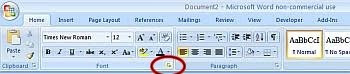
* Under the ‘Effects’ section (bottom RH corner), check the box next to ‘Hidden’ and click ‘OK’.
* To make the text visible again, select the whole document by pressing [Ctrl] + [A].
* Then go back to the same options and uncheck the option ‘Hidden’. Your text is back again.
While your data is hidden, all the text closes up, so there are no gaps to give away that something is invisible.
2) Here's a tip on how to hide text or photos in a Word document.
* Select the text or graphic that needs to be hidden.
* Under the ‘Font’ section on the Home tab, click on the small arrow at the right-end corner to open the ‘Font’ dialog box.

* Under the ‘Effects’ section (bottom RH corner), check the box next to ‘Hidden’ and click ‘OK’.
* To make the text visible again, select the whole document by pressing [Ctrl] + [A].
* Then go back to the same options and uncheck the option ‘Hidden’. Your text is back again.
While your data is hidden, all the text closes up, so there are no gaps to give away that something is invisible.
Casualties of technology
With every new technological innovation, an old activity becomes outdated. From heading to the arcade to wearing a calculator watch, here are 40 things either gone or in danger of disappearing.
Wednesday, September 16, 2009
Google Fast Flip
Google is trialling a new kind of news feed. Fast Flip is based on Google News, and Google says it came up with it to address the fact that browsing through news sites is usually a slow process – not like the effortless instant gratification of flipping through a magazine or newspaper. Google has partnered with several dozen news sources–including the BBC, BusinessWeek, the Christian Science Monitor, the Daily Beast, Esquire, the New York Times, Newsweek, Salon, Slate, and TechCrunch – to create previews of their stories that live on Fast Flip but which display the first several paragraphs of the article in a form that looks like the originating site. You rifle through these previews by clicking left and right arrows, and the pages zip on and off-screen in high-speed, fluid animation–hence the “Fast Flip” name. Fast Flip is in Beta stage at the moment - and like many Google innovations, only time will tell whether it sticks around.
Read twice, send once
Murphy's Law: what can be misunderstood will be misunderstood. That's why you should be doubly careful with everything you write, especially in email. Things like personal responses to sender's questions, debating a point, or even just trying to be funny. Email guru, Heinz T., has a sound bit of advice on how to reduce miscommunications.
Tuesday, September 15, 2009
Overwhelmed by data
One in three organisations cannot recover files from backup tapes and a similar number would not be able to easily retrieve email from 18 months ago, according to research from data storage specialists Hitachi. This article in the NZ Herald probes how many companies are being overwhelmed with electronic data.
Boundaries between real and virtual are blurring
The boundaries between real and virtual, public and private will disintegrate further as augmented reality spreads. That's the prediction of one researcher discussing "augmented reality". Things that might have been considered science fiction even a decade ago are rapidly becoming very possible, or are already here. But what are the implications? This article in the NZ Herald discusses some of them. One trend not mentioned, though, is the tendency for technology to move rapidly along a continuum from the possible, to reality, to the norm, to the obligatory. And each one of these developments make it harder for the individual (that's you and I) to be an autonomous person. The scary thing is that we happily give away so much for the sake of the technological baubles. In a book based on the TV sci-fi programme Red Dwarf, the characters get hooked on a virtual reality system called Better Than Life. Read the book and ponder. Or if you can't get hold of the book, Wikipedia has a summary.
Monday, September 14, 2009
Quote of the Day
Programming today is a race between software engineers striving to build bigger and better idiot-proof programs, and the Universe trying to produce bigger and better idiots. So far, the Universe is winning. ~ Rich Cook
Disposable email addresses
There are times you don't want to divulge your real email address, especially when you are trying an online service for the first time. Maybe you want to take that "free" psychology test online, or test out a new download for your iPhone. There are services that will let you create "disposable" email addresses, where you can disable the address as soon as you want to stop receiving spam messages. About.com introduces you to eight of the best choices here...
Friday, September 11, 2009
Avoiding forgotten email attachments
How many times do I forget to attach a file to an email? Probably at least once a week. Always embarrassing, and usually when I am trying to project a professional impression. PC World has some helpful tips to avoid the problem, at least with Microsoft Outlook. It suggests several free tools that scan your outbound messages for keywords like "file," "attached," and "attachment." If they detect such a word but there's nothing attached, you get an alert - allowing you to attach the intended file and avoid future embarrassment.
Outlook 2007 users can grab the Missing Attachment PowerToy, or the more robust Forgotten Attachment Detector (which supports custom keywords and can even warn you about blank subject lines). If you're using an earlier version of Outlook, try Attached4Sure which supports all versions dating back to 2002.
I don't know of any similar tool for Outlook Express, but Google Mail users get the same service with its Forgotten Attachment Detector, with is a setting within the program.
Outlook 2007 users can grab the Missing Attachment PowerToy, or the more robust Forgotten Attachment Detector (which supports custom keywords and can even warn you about blank subject lines). If you're using an earlier version of Outlook, try Attached4Sure which supports all versions dating back to 2002.
I don't know of any similar tool for Outlook Express, but Google Mail users get the same service with its Forgotten Attachment Detector, with is a setting within the program.
Thursday, September 10, 2009
Panorama photos
Back in February I posted about the difficulty of finding a good free program to create panorama photos. I use Serif Panorama Plus, which does the job of stitching several pics together very nicely, but it is a paid program. However, I have just come across an updated version of http://www.image-editor.net/Pos-Panorama-Pro-Panoramic-Image-Software.asp?RefName=PosPanoramaPro1.00, which used to be commercial but has now been turned into a free program. Having given it a quick trial, I can thoroughly recommend it. In fact it has a very good feature missing in Serif Panorama - the ability to create vertical panoramas. It also allows greater control over the way in which the pics are combined, and the resolution of the end product. I think I will be switching permanently.
Incidentally, did you realise that the average digital camera has a wide-angle lens? In the old days of film cameras, the average lens had a focal length of 50mm, so the resulting photograph was pretty close to how the eye sees things. But most digital cameras are more like 35mm. This means that you are getting a horizontally compressed photograph which is not true to life. To bring things back to better perspective, I suggest trimming either the top, bottom or both of the photo, which will give a semi-panorama anyway.
Incidentally, did you realise that the average digital camera has a wide-angle lens? In the old days of film cameras, the average lens had a focal length of 50mm, so the resulting photograph was pretty close to how the eye sees things. But most digital cameras are more like 35mm. This means that you are getting a horizontally compressed photograph which is not true to life. To bring things back to better perspective, I suggest trimming either the top, bottom or both of the photo, which will give a semi-panorama anyway.
Wednesday, September 9, 2009
Fold a world record-setting paper airplane
Many years ago I was a journalist with what was then known as the BCNZ, the state corporation that controlled virtually all radio and TV stations, apart from Radio Hauraki and a couple of other new upstarts that were easing apart the bureaucratic log-jam. The Christchurch newsroom was on the top floor of the Manchester Unity building on the corner of Manchester and Worcester Streets, and on lazy, hot Sunday afternoons we had way too much time on our hands - so we made paper airplanes. One of my co-workers had developed a model that would just about hover, and we spent many fun hours pushing these out the windows to see how far they would go. With a decent warm updraft, on at least one occasion we saw the airplane top nearby Christchurch Cathedral. I am therefore delighted to see that a very similar version to Derek's design has appeared online, and there's even a video to show you how to fold it. (Note: the video at Lifehacker does not play properly, so use this link.) Now, if they can develop a radio-controlled model.......
The weirdest USB gadgets

From a dental microscope to electric ties, there's an astounding array of weird and wonderful gizmos you can plug into your computer, reports the Stuff website. There are so many bizarre USB (Universal Serial Bus) gadgets available that people didn't even blink when news of a USB chainsaw recently hit the tech websites.
Tuesday, September 8, 2009
Speed up your browser
There are many things that can slow down your internet browser. If you use Firefox, one of them is the way the browser keeps a track of what you are doing. Firefox automatically takes a snapshot of your browsing session every ten seconds. It does this so that if Firefox crashes, you'll be able to get back to where you were quickly and easily. But when you view Flash content (eg, YouTube videos), this default snapshot feature can make your video pause and buffer, spoiling your viewing experience. To fix this is not difficult, fortunately. All you have to do is adjust how frequently Firefox creates session restore save points. Doing this might mean that if the browser crashes, a recently opened tab may get left behind, but if you watch a lot of Flash video, this tweak may be a good compromise.
1. Type ‘about:config’ in to the browser address bar and press the return key. This will bring up a bewildering array of Firefox’s more detailed settings.
2. In the the filter box at the top of the page, type in the following command (minus quotes): "browser.sessionstore.interval" (or just scroll down till you find it).
3. Once you find the command, edit the value of 10000 (10 seconds in milliseconds) to something more suitable such as 180000, which is 3 minutes.
1. Type ‘about:config’ in to the browser address bar and press the return key. This will bring up a bewildering array of Firefox’s more detailed settings.
2. In the the filter box at the top of the page, type in the following command (minus quotes): "browser.sessionstore.interval" (or just scroll down till you find it).
3. Once you find the command, edit the value of 10000 (10 seconds in milliseconds) to something more suitable such as 180000, which is 3 minutes.
Monday, September 7, 2009
Are you already running Google Chrome OS?
There’s been a lot of discussion around the Web following Google’s announcement that it plans to introduce its own operating system, Google Chrome OS. It has thrown down a gauntlet to the three other main systems – Windows, Mac and Linux. Where Google plans to be completely different is that apart from a small system kernel (Linux-based), almost nothing will reside on your computer. Everything will be done in what has become known as “the cloud” – in other words, online. If the vision comes fully to pass, your computer will have no other software. All your documents will be stored online. No more buying Word, Excel, PhotoShop or anything else, or upgrading them at ridiculous prices every year or so. All those applications will be internet-based.
In fact, if you use Google Chrome and the web applications Google has already released, then you're effectively already running Google Chrome OS. Just maximize Google Chrome's window and imagine that each tab is an instance of an application. Gmail is your mail client, Google Calendar is the calendaring application, Google Docs is the office suite and the file explorer. Google Chrome's new tab page is the desktop, the dashboard that lists frequently used applications and lets you add widgets.
Besides those, there are hundreds if not thousands of other online applications, from image editing programs to media players (and not just YouTube).
By the time Chrome is released towards the end of next year, you will be so used to working in this way, you’ll barely notice the transition – or so they hope. The only two questions maybe left to ask: Do you trust the cloud to store all your critical data; and do you have adequate broadband at a reasonable price to cope with the traffic?
In fact, if you use Google Chrome and the web applications Google has already released, then you're effectively already running Google Chrome OS. Just maximize Google Chrome's window and imagine that each tab is an instance of an application. Gmail is your mail client, Google Calendar is the calendaring application, Google Docs is the office suite and the file explorer. Google Chrome's new tab page is the desktop, the dashboard that lists frequently used applications and lets you add widgets.
Besides those, there are hundreds if not thousands of other online applications, from image editing programs to media players (and not just YouTube).
By the time Chrome is released towards the end of next year, you will be so used to working in this way, you’ll barely notice the transition – or so they hope. The only two questions maybe left to ask: Do you trust the cloud to store all your critical data; and do you have adequate broadband at a reasonable price to cope with the traffic?
10 tips for Google image search
Google System Blog says Google Image Search could be used in many ways beyond the obvious. For instance:
If you want to know if a person is a man or a woman and the name doesn't help, do a search for the name.
It provides a better search for Flickr. Google uses information from other sites that link to Flickr photos, so you may find Google search better.
Find a new wallpaper for your desktop by restricting your search to large images. You can automate this using an application.
Find random personal pictures, using standard file names from digital cameras.
Type the name of a painter and you can take an art class.
Install a Greasemonkey script so you can view the original version of the image directly by clicking on the thumbnail. (Greasemonkey is a Firefox add-on that provides thousands of scripts to perform a vast range of functions not normally part of the browser experience.)
If you want to know if a person is a man or a woman and the name doesn't help, do a search for the name.
It provides a better search for Flickr. Google uses information from other sites that link to Flickr photos, so you may find Google search better.
Find a new wallpaper for your desktop by restricting your search to large images. You can automate this using an application.
Find random personal pictures, using standard file names from digital cameras.
Type the name of a painter and you can take an art class.
Install a Greasemonkey script so you can view the original version of the image directly by clicking on the thumbnail. (Greasemonkey is a Firefox add-on that provides thousands of scripts to perform a vast range of functions not normally part of the browser experience.)
Friday, September 4, 2009
Quote of the Day
"Man is the lowest-cost, 150-pound, nonlinear, all-purpose computer system which can be mass-produced by unskilled labor." ~ NASA in 1965
Finding recent documents
Because I easily forget where I have stored a document or file, I frequently use the My Recent Documents feature of Windows. You find this under the start menu, at the top of the RH column (although if you are using the Classic mode of XP, it is just called Documents, and found on the LH side). The last 15 documents you have worked on or opened - which includes photos, Excel spreadsheets, pdf files, etc - are listed, saving you the need to go hunting all round the computer. Personally, I find the maximum 15 rather limiting, specially when I am working with photographs. Reading the online help forums, there does appear to be a way to expand this in XP, but it involves altering the computer's Registry, and when I tried it I lost all items completely, so obviously I didn't implement the plan properly. There is a Vista sidebar gadget available which can increase the number of items My Recent Documents will list. Not having Vista, I can't try it, but you will find it here if you want to give it a go. Apparently the new Windows 7 operating system will give you even more control over this helpful feature.
Tuesday, September 1, 2009
Typing special characters
From time to time, I want to type special characters into my documents. It might be the pound symbol for British currency, or the Euro symbol. Most word processors have the ability to insert special characters - for instance, in Word 2007 if you go to the Insert tab, you will find the Symbol option on the far right. Select the font and then the character you want, and click Insert. That's a rather long-winded way of doing things, but okay if you have only an occasional need. If there are regular characters you use, you might find it helpful to write down the Unicode numbers and use those instead.
To find the number, click on the character and you will see a shortcut key listed at the bottom of the dialogue box. For instance, the code for the French e-acute is Alt+0233. To type this, first check the Number Lock on the numeric pad of your keyboard is on. Then press and hold down the Alt key while keying in 0233. When you release the Alt key, the character will display.
Some characters have a number followed by Alt+X. In this case, you type the number and then press the Alt and X keys simultaneously. Voila! Up pops the correct character. In Word, you can also assign special key combinations to do the same job - just be careful you don't choose a key combination that would block out a normal function in your programs (so avoid any combination using the Ctrl key, for instance).
The Unicode symbols cover a very wide variety of languages, including Arabic and other non-Roman scripts. I happen to be trying to learn Chinese. While it is possible to download a Chinese character set, I mostly use the Pinyin system of Roman letters invented by the Chinese to represent the sounds of the language. Chinese has four tones, which are noted by marks above the vowels. While I could use the method I have outlined above to write these, I have also discovered a great little program which does the job automatically. It is called PinyinInput, and a manual is also available here.
To find the number, click on the character and you will see a shortcut key listed at the bottom of the dialogue box. For instance, the code for the French e-acute is Alt+0233. To type this, first check the Number Lock on the numeric pad of your keyboard is on. Then press and hold down the Alt key while keying in 0233. When you release the Alt key, the character will display.
Some characters have a number followed by Alt+X. In this case, you type the number and then press the Alt and X keys simultaneously. Voila! Up pops the correct character. In Word, you can also assign special key combinations to do the same job - just be careful you don't choose a key combination that would block out a normal function in your programs (so avoid any combination using the Ctrl key, for instance).
The Unicode symbols cover a very wide variety of languages, including Arabic and other non-Roman scripts. I happen to be trying to learn Chinese. While it is possible to download a Chinese character set, I mostly use the Pinyin system of Roman letters invented by the Chinese to represent the sounds of the language. Chinese has four tones, which are noted by marks above the vowels. While I could use the method I have outlined above to write these, I have also discovered a great little program which does the job automatically. It is called PinyinInput, and a manual is also available here.
Digital painting
Most free paint programs have very limited options when it comes to creative work, such as painting and manipulation of images. An exception, which I have just come across, is TwistedBrush Digital Painting and Photo Editing. While the main version is a paid-for program, with thousands of brush styles and effects, a free version has 55 filters, 19 paper textures, 14 artsets (with up to 60 brushes per set), and 17 mediums. You can turn a photograph into a hand-made image, or start from scratch. The gallery at the website shows some amazing examples of what you can do with this program. Definitely worth a dabble.
Monday, August 31, 2009
Can you trust free anti-virus software?
The short (although qualified) answer is 'yes' in this very helpful PC World article. The mag puts a range of popular applications through their paces, and notes their good points and their limitations.
Another PC World article looks at yet another security threat, botnets. Thousands of computers in New Zealand have been taken over by these nasties; is yours one of them? Here is a way to tell, and what to do about it.
Another PC World article looks at yet another security threat, botnets. Thousands of computers in New Zealand have been taken over by these nasties; is yours one of them? Here is a way to tell, and what to do about it.
Disaster recovery
I once spilled a cup of well-sweetened coffee over a control panel at the radio station I worked (back in the days when 3ZB was 3ZB). It's fair to say I was not the technicians' flavour of the month for quite some time. But what do you do if something similar happens to your cellphone or computer? PC World provides a series of nine articles on how to help your gear recover from emergency scenarios.
Quote for the day
"The perfect computer has been developed. You just feed in your problems and they never come out again." ~ Al Goodman
Friday, August 28, 2009
Backing up email data
If you do one manual back-ups of your data files, one of the most difficult and yet most critical tasks is backing up your email system : address books, correspondence, attachments, etc, etc. But where do you find the files? Unfortunately, they can be located in a number of different places, depending on which version of Windows your use.
If you use Firefox and Thunderbird, some really helpful tips are in this article by Gizmo, at TechAlert. (I would really recommend printing this out.)
If you use Outlook, this article will explain the procedures for 2000, 2003 and 2007 versions, as well as for Outlook Express. I do like the nice people who write all this helpful stuff!
If you use Firefox and Thunderbird, some really helpful tips are in this article by Gizmo, at TechAlert. (I would really recommend printing this out.)
If you use Outlook, this article will explain the procedures for 2000, 2003 and 2007 versions, as well as for Outlook Express. I do like the nice people who write all this helpful stuff!
When your PC won't boot
It's the stuff to send chills down your spine. Your push the Go button and nothing happens. You check the power cables and other connections and still no go. So you rush to this very helpful article by Phil Spector for some advice. (Of course, you have printed it out beforehand, and saved a hard copy.)
Thursday, August 27, 2009
Quote of the day
A computer once beat me at chess, but it was no match for me at
kick-boxing. ~ Elmo Philips
kick-boxing. ~ Elmo Philips
Wednesday, August 26, 2009
Converting audio formats
Let's imagine you want to take a track from a music CD and put it onto an mp3 player or email it a friend (leaving aside discussions about copyright for a moment). Dragging a file from the CD to your computer via Windows Explorer or some other file management utility doesn't work, because what you see in Explorer is a pointer to the music track, not the track itself. To extract the track, you need to "rip" the CD. A very good free tool to do this is CDex, which is quite intuitive, except for where you find the files on your computer after CDex has done its job. You will find them in the folder My Documents\My music\MP3\ and maybe further in at No artist\No title.
The resulting files are in the .wav format, which is an uncompressed format, and an average 3min song will probably be in the region of 35mb in size. To transfer them to an mp3 player, you have to convert the track to the mp3 format, which you can do with a free utility such as Free Mp3 Converter. This is a pretty intuitive piece of software, and you can happily run with the default settings, which will give you a file approximately one-tenth the size of the original. You can compress this even further, if you care to play around with the compression settings, which you will find under Output Configuration\Format Parameter. If you choose, for instance, a sampling frequency of 44 100 Hz and a bitrate of 96kHz you will at least halve the file size again, although with a small sacrifice in quality. Further reductions can get you down to email-size files, although the quality may be a bit dire. On tracks that are voice alone, however, this is not so noticeable.
The resulting files are in the .wav format, which is an uncompressed format, and an average 3min song will probably be in the region of 35mb in size. To transfer them to an mp3 player, you have to convert the track to the mp3 format, which you can do with a free utility such as Free Mp3 Converter. This is a pretty intuitive piece of software, and you can happily run with the default settings, which will give you a file approximately one-tenth the size of the original. You can compress this even further, if you care to play around with the compression settings, which you will find under Output Configuration\Format Parameter. If you choose, for instance, a sampling frequency of 44 100 Hz and a bitrate of 96kHz you will at least halve the file size again, although with a small sacrifice in quality. Further reductions can get you down to email-size files, although the quality may be a bit dire. On tracks that are voice alone, however, this is not so noticeable.
Tuesday, August 25, 2009
Retrieving software keys...and more
If you have to reinstall your operating system, you will also need to reinstall all the software you rely on - and that means you need all the software keys. Which normally also means you need the original disks. If you don't have the disks, or you have lost the packaging, you could be in trouble. Fortunately, riding to the rescue is a very helpful free utility called Belarc Advisor. When you run Belarc, it scans your complete system and gives you back (via a web page) an amazing amount of information about your computer. Info includes motherboard type, CPU speed, drive space, Microsoft hotfixes, operating system revision, and Web browser vulnerabilities, as well as third-party software installs. Included in that is a list of keys for all your programs. This is obviously best done before your computer develops problems - so go on, download it now and run a check. You'll be so pleased you did. And then when the technician whom you are paying megabucks to fix your computer, or the man in Malaysia on the software helpdesk, asks the sort of questions that normally make you go hot and cold all over, you'll have the answers.
Monday, August 24, 2009
Spell checking using your browser
More and more of our work is moving from the desktop to online. Online word processors are gaining traction; if you use gmail you type all your correspondence online; this blog is written completely online. So what do we do about spell checking, now that we don't have Word to hold our hand? Thankfully, Firefox comes with a built-in spell checker which is automatically turned on by default. The checker underlines any suspect words in red, and when you right click on that word, you get suggestions for correct spelling, and the option of adding that word to the program's dictionary, just as you would in Word. You can also download other language dictionaries (there are currently more than 70 available). Internet Explorer doesn't have the checker built-in, but a good add-on called IESpell is available for download.
Co-ordinating bookmarks
If you use more than one browser, more than one computer, or more than one operating system, the free Xmarks browser add-on is probably the best thing since sliced bread. (By the way, what was the best thing before sliced bread?) Although it does a lot of nifty things, at its most basic level Xmarks (formerly known as Foxmarks) synchronizes your bookmarks among all your browsers, no matter what computer they're on or what operating system the machines use. For example, I use Firefox and Internet Explorer on my main Windows computer. As you might imagine, trying to keep all of the bookmarks (or Favorites in IE land) synchronized is a tough task - but that's what Xmarks does. You can find versions for Firefox and Internet Explorer on Windows, for Firefox on Linux, and for Firefox and Safari on the Mac. Simply run Xmarks along with your browser, and it synchronizes not just your bookmarks but also your passwords, so you can log in to your favorite sites from any browser you use. Other features include the ability to get detailed information about any site you visit.
Friday, August 21, 2009
The Swiss army knife of image editors
PhotoScape has to be the Swiss army knife of the photo processing world. This free program is becoming a favourite, and I can understand why. It packs in a surprising number of features, at least one of which is not even in PhotoShop (leastways, not the version of PhotoShop that I have). It gives you:
1. A fairly standard viewer (probably its weakest feature).
2. An Editor, where you can apply a multitude of adjustments and effects to your photos. There is everything from one click auto-levels and contrast to advanced color curves, complete with the ability to load and save presets. There are many color and tone adjustments and a number of filter effects from the practical (noise reduction) to fun (cartoon). You can also spruce up your photos with a variety of fun and funky frames. You can add text, shapes, etc. The editor also offers a flexible crop tool with a circular crop option.
3. Batch Editor, you can apply almost all the functions available in the editor to multiple files at once.
4. A multi-photo layout tool with over 100 choices of grid layouts to chose from. Simply drag and drop your photos into the boxes to create a quick collage.
6. AniGif: create a frame-based animation from multiple photos.
7. Splitter: cut your photo into multiple images based on a grid.
8. Screen Capture: take an image of your full desktop, a window, or a region of your screen.
9. Color Picker: sample colors from anywhere on your screen.
10. Raw Converter: simple converter for saving camera RAW files as JPEGs.
11. Rename: batch edit file names with custom text, date, time, serial numbers.
PhotoScape is free for non-commercial use and runs on Windows 98/Me/NT/2000/XP/Vista. The online help contains several videos to demonstrate the program features.
1. A fairly standard viewer (probably its weakest feature).
2. An Editor, where you can apply a multitude of adjustments and effects to your photos. There is everything from one click auto-levels and contrast to advanced color curves, complete with the ability to load and save presets. There are many color and tone adjustments and a number of filter effects from the practical (noise reduction) to fun (cartoon). You can also spruce up your photos with a variety of fun and funky frames. You can add text, shapes, etc. The editor also offers a flexible crop tool with a circular crop option.
3. Batch Editor, you can apply almost all the functions available in the editor to multiple files at once.
4. A multi-photo layout tool with over 100 choices of grid layouts to chose from. Simply drag and drop your photos into the boxes to create a quick collage.
6. AniGif: create a frame-based animation from multiple photos.
7. Splitter: cut your photo into multiple images based on a grid.
8. Screen Capture: take an image of your full desktop, a window, or a region of your screen.
9. Color Picker: sample colors from anywhere on your screen.
10. Raw Converter: simple converter for saving camera RAW files as JPEGs.
11. Rename: batch edit file names with custom text, date, time, serial numbers.
PhotoScape is free for non-commercial use and runs on Windows 98/Me/NT/2000/XP/Vista. The online help contains several videos to demonstrate the program features.
Top 100 virus websites
The NZ Herald today has a list of the top 100 websites around the world that are guaranteed to infect your computer. You don't have to even download anything from them. Simply visiting will dump a load of nasties onto your system, assuming you have no protection. I suspect that none on the list are likely to be visited by you, but one or two have names that I can see could easily trap people into having a look.
More scroll wheel uses
I've posted before how the scroll wheel on your mouse can be used to open browser links in a new tab, to scroll up and down Word, Excell or PowerPoint pages, or in conjunction with the Control key can zoom in and out of Word, PDF files, etc. Here's another function, perhaps slightly less useful - if you place your cursor on the Ribbon bar in Word or other Microsoft 2007 software, using the wheel will scroll across the various tabs (Home, Insert, View, etc).
Recovering deleted photos
Uh oh! You've deleted some photos from your digital camera and now realise you want them back. Thankfully, all is not lost. Most likely, when your camera is hooked up to your computer by a USB or Firewire cable, it will show up as another drive when you go to My Computer. If it does, you can use a software undelete program to read the files on the camera's memory card, and retrieve the pics. For free software to do the job, I would suggest Glary Undelete, or Recuva.
Monday, August 17, 2009
Sometimes the week gangs up...
I had intended to put up a post today, but ran out of time. And I'm going to be out of town for the next three days. See you Friday, hopefully.
Friday, August 14, 2009
iGoogle
I try to have a life outside computers (see post below), which means that I frequently come across things which have been around a long time but just did not cross my path. iGoogle is one of those. iGoogle (formerly Google Personalized Homepage) lets you create a personalized homepage that contains a Google search box at the top, and your choice of any number of gadgets below. It's a big step away from the normally very spartan Google homepage. Gadgets come in lots of different forms and provide access to activities and information from all across the web. For instance, you can view your latest Gmail messages, read headlines from Google News and other news sources, display YouTube videos, store bookmarks for quick access to favourite sites from any computer. In other words, a portal just like Yahoo. Well, not quite like Yahoo - there are way more funky gadgets. Recently iGoogle released a "chat" box at the side of the home page that allows Gmail users to chat from their homepage without going to gmail.com, and a whole lot more "social gadgets" are about to be released, although the roll-out is in the US first and may take a while to get to this side of the world.
Hey ho for a life on the ocean wave
I came the realisation recently that too many of my leisure activities involve computers. So instead of coming away relaxed, they can add to my stress. And while I have a major home landscaping project on the go and coach springboard diving (occasionally competing), sometimes they seem more like work than leisure = more stress. So I have decided to try and build a small sailing dinghy. I love sailing, but only get the opportunity about once a year if I'm lucky, and have always wanted a boat of my own (probably stems from jealousy that when I was a kid my cousin had one but I didn't). I found a book titled Ultrasimple Boat Building in the Christchurch library, and this does a wonderful job of demystifying the whole affair. So tomorrow I'm off to the DIY to hunt materials, and then in to it. Probably appropriate considering the wet forecast for the weekend. I'll keep you posted from time to time.
Thursday, August 13, 2009
Including Service Packs in an XP back-up disk
If you're running Windows XP with Service Pack 2 or even Service Pack 3, what happens if you have to perform a system recovery using your original XP CD? It's not easy. The old CD doesn't have all the patches and updates you've downloaded over the years. It could take hours or even days to redownload and reinstall all that extra stuff, during which time your PC is more vulnerable to viruses and outside attacks. (A lot of those patches tackle security issues.)You do have options, though. For example, you can download the Microsoft Service Packs as standalone installers. Another solution is slipstreaming.
Slipstreaming is the process of combining your existing Windows XP CD and the latest Service Pack into a new CD. When you're done, you'll be able to install the whole OS. It is easier to accomplish than you might think, provided you've got your original CD and the standalone Service Pack. For how-to details, check out Lincoln Spector's "Slipstreaming Service Pack 2 on an Old Windows XP CD". Can you do likewise with Vista? Digital Inspiration has instructions on slipstreaming Vista with SP1 (you'll need a DVD for that), and it will probably also work with SP2.
Slipstreaming is the process of combining your existing Windows XP CD and the latest Service Pack into a new CD. When you're done, you'll be able to install the whole OS. It is easier to accomplish than you might think, provided you've got your original CD and the standalone Service Pack. For how-to details, check out Lincoln Spector's "Slipstreaming Service Pack 2 on an Old Windows XP CD". Can you do likewise with Vista? Digital Inspiration has instructions on slipstreaming Vista with SP1 (you'll need a DVD for that), and it will probably also work with SP2.
Wednesday, August 12, 2009
New Google search engine
Search engine developments are coming thick and fast at the moment. Recently, Microsoft launched Bing, and has also announced it is joining with Yahoo. Now only months after a major revamp of its engine, Google has posted a preview of yet another new version. Previews of the new engine are only available at a separate address at the moment. It looks the same as the current one but ranks results differently, which could affect businesses who rely on Google results to drive traffic. In a blog posting late Monday, Google says the new engine, code-named "Caffeine," will be faster, more accurate and more comprehensive.
Help make Microsoft Office better
Two Microsoft employees have created an online suggestion box where users can submit feature or fix requests for the Office suite of programs. MakeOfficeBetter.com, an unsanctioned site, was created by Steve Zaske, a planner on the Office development team, and Luke Foust, a Microsoft developer in the test group. "If you've got a new feature idea or an idea on how to improve Microsoft Office, please share it here," said Zaske and Foust in a debut message on the site. "[And] vote on other ideas you agree with. Through the magic of crowd-sourcing, the best ideas should rise to the top." Zaske and Foust acknowledged MakeOfficeBetter was not an official company effort, but said they would "do our best to get the ideas posted here in front of the right people within the Office development team."
My first suggestion would be to get back to basics and chop out all the features that scarcely anyone uses, so Word becomes less of a memory hog. My next would be a desperate plea to incorporate paragraph style sheets in PowerPoint - talk about antiquated!
My first suggestion would be to get back to basics and chop out all the features that scarcely anyone uses, so Word becomes less of a memory hog. My next would be a desperate plea to incorporate paragraph style sheets in PowerPoint - talk about antiquated!
Tuesday, August 11, 2009
Improving your Windows experience
I have still not switched to the Vista operating system, and am not likely to do so. So while I quite like XP (while drooling for a Mac), it has its limitations. For instance, I will believe Windows is as good as a Mac when you can have wild characters (such as ? and &) in file titles, and when you can colour a folder or the text of a file name without going to a 3rd party extension. However, there are millions of little applications which can improve the Windows experience - your biggest problem is sorting out the wheat from the chaff. To help you out, I have just come across an excellent list of 43 Windows enhancements, and I certainly intend to try out a couple of these.
Monday, August 10, 2009
Murphy's Law extended
Murphy ("If anything can go wrong...") is extending his list of laws by the mile. Here's a new set just for computers and associated technology.
Enlarging photos
Here's a tool I've been waiting a long time for. If you work with images you will have doubtless seen situations where you would have liked to use a larger size image than what you had but could not do so because the image quality would degrade too much on enlargement (e.g. pixellization/artifacts/loss of detail). SmillaEnlarger is a free, open source program that enlarges/magnifies images while keeping up the quality. This standalone software uses a number of filters that are designed to remove some of the typical artifacts generated by the enlarging process and “fill in” image information to achieve a much higher quality image than image enlargement algorithms typically employed in most applications. Photoshop and Irfanview - along with just about every imaging program - enlarges images, of course, and of those two I prefer Irfanview's results by a small margin. But one of the drawbacks with both is they are not interactive, and you can't adjust the results, which is a big plus with SmillaEnlarger.
Friday, August 7, 2009
New online picture viewer
Microsoft has launched a new picture tool called Seadragon. Available at http://seadragon.com/, you can point Seadragon to any image on the Web, and get a zoomable viewer. It works very simply: give Seadragon the URL (web address) to an image file, and it’ll be fetched. It’ll then process the file and give you a nice page containing your image along with tools to zoom in on it to get fine detail. (You may need to allow a bit of time for the image to come to full resolution on screen, particularly if you have a slow internet connection.) You can also pan the image, pop out to a full-page view, look at the original image, etc.
Thursday, August 6, 2009
Higher quality on YouTube
YouTube has apparently been quietly upgrading the quality of its video clips, while improving the compression methods to get the size of files down. Which is good news on at least two counts, particularly as it doesn't take long to chew up your download package if you watch too many of them. If you want to watch better quality than what initially comes up when you push the play button, though, there are several options.
Firstly, there is an "HQ" button at the bottom right of the play bar, which will play the video in higher quality.
Secondly, you can add a little bit of code to the address bar at the top of your browser which will also improve things, particularly for older videos, which have been heavily reduced in quality from what was uploaded to YouTube by the video maker. Try adding one of the following codes: &fmt=5, &fmt=18, &fmt=22, or &fmt=35. These represent increasingly higher degrees of quality (the last one is HD or high-definition). Not every video will show an improvement, but many will.
Incidentally, rather than watch the same popular video over again on YouTube, download it to your computer with a utility such as DownloadHelper (a Firefox add-on), and then you can view as many times as you want without costing yourself bandwidth. Windows Media Player might not play some of them, but there are good free alternatives in FLV Player and GOM Media Player.
Firstly, there is an "HQ" button at the bottom right of the play bar, which will play the video in higher quality.
Secondly, you can add a little bit of code to the address bar at the top of your browser which will also improve things, particularly for older videos, which have been heavily reduced in quality from what was uploaded to YouTube by the video maker. Try adding one of the following codes: &fmt=5, &fmt=18, &fmt=22, or &fmt=35. These represent increasingly higher degrees of quality (the last one is HD or high-definition). Not every video will show an improvement, but many will.
Incidentally, rather than watch the same popular video over again on YouTube, download it to your computer with a utility such as DownloadHelper (a Firefox add-on), and then you can view as many times as you want without costing yourself bandwidth. Windows Media Player might not play some of them, but there are good free alternatives in FLV Player and GOM Media Player.
Wednesday, August 5, 2009
Finding files and folders
I keep my computer fairly well organised, but it's amazing how often I forget where I have put a particular file or folder. Mostly I go to the Copernic Desktop Search tool, which can search inside documents for text strings - an invaluable aid. But Copernic does have its limitations, in particular it doesn't use wildcard characters in searches, which makes life difficult if you can't remember the exact wording or title you are looking for. Which is where the Everything utility can step up. Everything is a free search tool that specialises in finding files in a hurry. After spending a while first time up indexing all your drives, it can show every file and folder on your system. Just type in the file you’re looking for in the search box and results are displayed as you type them. You can use wildcard characters and can easily sort results by Name, Size, Date Modified etc. When you click on a file in the results window it will open with its associated application and folders will open up in Windows Explorer. It also supports boolean operators in searches.
Solving Rubik's Cube
The Rubik's Cube seems to have come back into fashion. I only ever solved it once, many moons ago, and that took a lot of close attention to a little book I bought (and have probably since lost). These days you can find instruction videos online to help, including this one.
Tuesday, August 4, 2009
Backing up is hard to do?
Backing up is like Mark Twain's famous quip about the weather: everybody talks about it, but nobody does anything about it. We all pay lip service to the idea, but a meltdown on our computer frequently finds us out. If you are like me, I suspect it's because there is a significant price to pay, either in dollars for something like a separate back-up hard drive or tapes, time (if you are backing up to disks), or the complexity of the best way to do it. I used to just back up my essential data to CDs, and then DVDs, but because I do a lot of graphics intensive work and video, the size of the essential data has now rendered that impractical. Which is why I bought an extra hard drive. But there are still lots of things I am very hazy about. For instance, when you start reading the literature, you come across terms like "imaging a disk", or "cloning a disk", which leave you none the wiser. And how much should you back up anyway? So I am thankful to have come across a triad of helpful articles at PC World which might also answer some of your questions:
What's the best way to back up what I need to back up?
Should I Image the Hard Drive or Clone it?
More on Image Backups
What's the best way to back up what I need to back up?
Should I Image the Hard Drive or Clone it?
More on Image Backups
Is there life beyond Word?
Microsoft Word is ubiquitous, even with all its competitors (such as OpenOffice.org). It is almost universal because most people have to have it to be able to send and receive documents to other people. But what if that way of working became irrelevant? After all, I am not using Word to write this blog, and I don't use it for a lot of other tasks these days. Jeremy Reimer envisages a different way of working that completely by-passes Word (or any other word processor). He is coming to the conclusion that it is like the typewriter of old, near to being superseded.
Subscribe to:
Posts (Atom)

 Posts
Posts


